An ISF shader cannot run by itself. It needs a place to live: an application that loads it, renders it in real time, and lets you control it during a set. These are technically called host applications. They are the stage where the magic happens.
Choosing the right host is not a minor detail. It defines your workflow, how much control you have over shader parameters, how you integrate audio, and how much creative range you can unlock in performance. This chapter gives you a clear overview of the five main ISF-compatible platforms so you can choose with confidence.
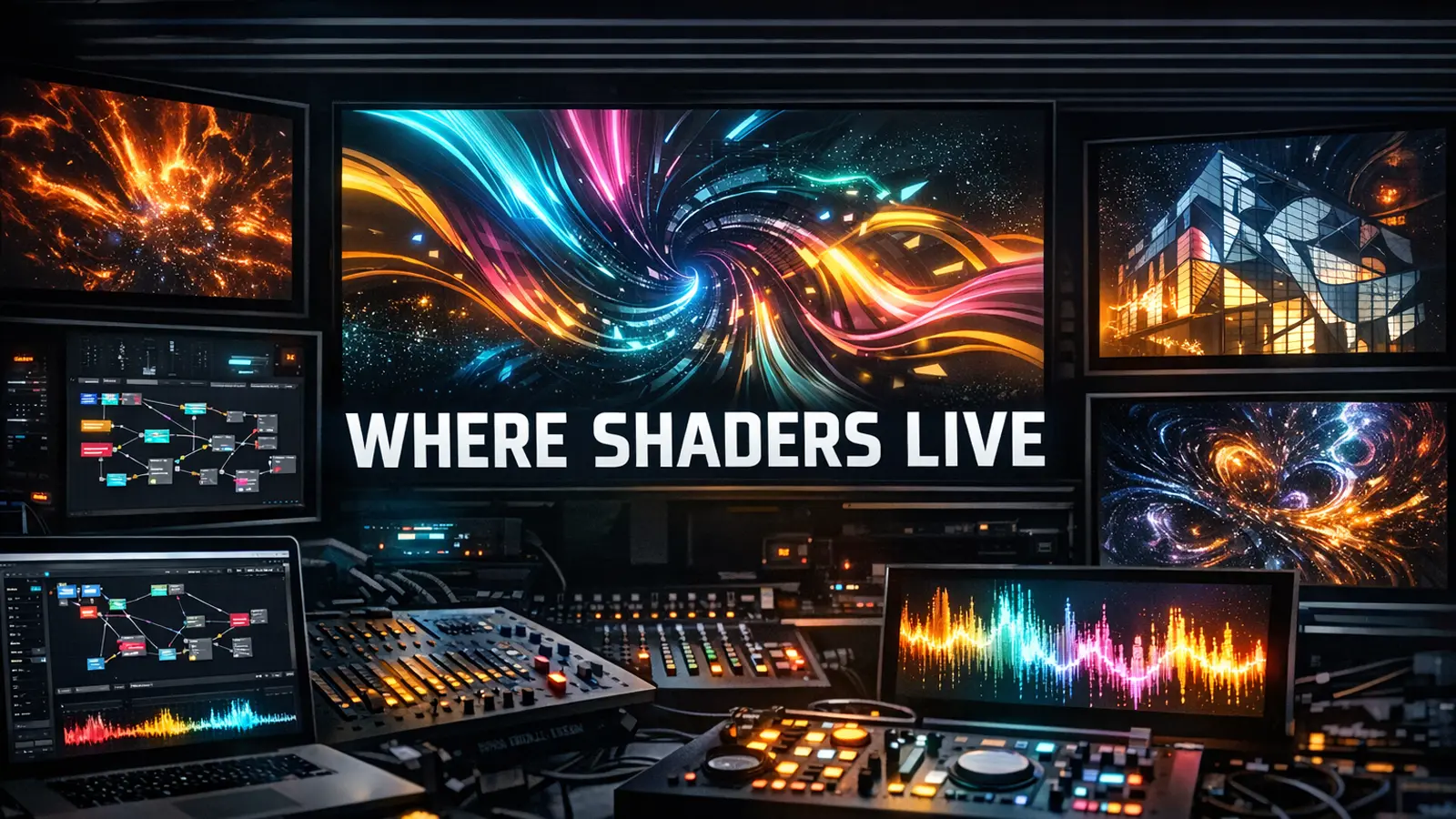
An ISF shader is like a musical score. It can be extraordinary, but it still needs an instrument to be heard. Host applications are that instrument.
What Exactly Is a Host Application?
When we talk about ISF-compatible software, we mean applications that can parse the ISF format, execute the GLSL code inside it, and expose the controls defined by the shader: sliders, color pickers, buttons, and audio parameters. All of this happens in real time, frame by frame, while you perform.
Not all hosts behave the same way. Some are built for demanding VJ workflows in clubs and festivals. Others focus on projection mapping for installations. Some prioritize deep music integration, while others aim for simplicity for users with little technical background. Each one has its own character, community, and strengths.
What they share is the same language: the ISF standard. That means a shader that works in one host should also run in the others, usually with minimal differences. This is the major ecosystem advantage that Vidvox introduced when creating the format.
Resolume Arena and Avenue
If you have any experience in VJ culture, Resolume is probably the first name you heard. It has been a reference tool for live visual artists for more than two decades, and its ISF integration is deep and mature.
In Resolume, ISF shaders load like video clips or effects. You can drag them to a layer, map parameters to MIDI controls, sync them to set BPM, and blend them with other visual sources. There is a learning curve, but the community is huge and the documentation is solid.
Who Is Resolume For?
For VJs and visual artists performing in clubs, festivals, and live events. It is especially recommended if you already use visual mixing software or if you work in environments where industry-standard tools matter. Arena also includes advanced mapping features on top of Avenue, making it strong for installations and architectural projection.
More info on the official Resolume website.
MadMapper
MadMapper sits in a different territory than Resolume. Its specialty is projection mapping: buildings, irregular surfaces, 3D objects, and complex installations with multiple projectors. In that workflow, ISF shaders are extremely valuable.
MadMapper's ISF support lets you generate content directly on mapped surfaces without pre-rendering video. You can build patterns that recalculate in real time, react to audio, or respond to MIDI while keeping mapping precision intact.
Who Is MadMapper For?
For visual artists working in installations, architectural mapping, and stage design. If your work requires projection on complex surfaces and you want generative reactive visuals, MadMapper is often the best choice. It is less optimized for typical club sets, but in mapping it is a top-tier tool.
More info on the official MadMapper website.
VDMX
VDMX is the origin point of ISF. Vidvox, the team behind VDMX, designed and released the ISF standard in 2013. That naturally makes this one of the most complete ISF implementations available.
VDMX is modular: you build your workflow by connecting functional blocks such as layers, effects, audio analyzers, signal generators, and MIDI/OSC control modules. It is extremely flexible, but that flexibility requires time to learn. It is not the easiest starting point, but once mastered, it becomes a direct extension of creative intent.
Audio reactivity in VDMX is especially sophisticated. You can analyze frequency ranges, detect transients, extract BPM, and map all of that to ISF shader parameters with high precision.
Who Is VDMX For?
For experienced VJs and visual artists on macOS who want maximum control over their workflow. If you want to understand ISF from its roots and build advanced audio-reactive systems, VDMX is one of the strongest paths. It is available on Mac only.
Synesthesia
Synesthesia has a very clear focus: making visuals react to music as quickly and directly as possible. While other tools expose every parameter, Synesthesia makes more decisions for you and prioritizes immediacy.
The result is a platform where you can open a shader and get audio-reactive visuals running in minutes, without diving into technical manuals. ISF parameters are automatically mapped to audio features such as volume, BPM, and frequency bands. You can refine and customize, but the core behavior works out of the box.
Synesthesia offers a free version with basic features and a Pro tier with more shaders, higher output resolution, and advanced control options. It is one of the few tools in this list with a freemium model, which makes it very accessible.
Who Is Synesthesia For?
For DJs, musicians, and artists who want to add generative visuals to sets without spending weeks learning complex software. It is also an excellent entry point if this is your first contact with ISF shaders.
More info on the official Synesthesia website.
Magic Music Visuals
Magic Music Visuals (often called Magic) stands out for its node-based visual programming workflow. Instead of writing code or relying on a timeline-first approach, you build your setup by connecting nodes: video sources, generators, effects, audio input, and output modules. The final graph clearly shows how your signal flows.
This makes Magic powerful for complex systems and intuitive for understanding what is happening at each stage. ISF shaders integrate as nodes within that graph, so you can combine them with other sources, process them with effects, and map parameters to audio or MIDI with fluid control.
Magic also has an active community and a curated ISF shader library available from inside the software, which helps discovery and experimentation.
Who Is Magic Music Visuals For?
For VJs and visual artists who want a powerful but accessible platform, with a workflow that is more visual and less tied to clip lists or timeline logic. It is especially recommended if node-based systems attract you and you want a comfortable environment for ISF experimentation.
More info on the official Magic Music Visuals website.
Comparative Table: The Five ISF Hosts
Here is a high-level comparison focused on the factors that usually matter most in real workflows:
| Software | ISF Support | Audio Reactivity | Video Mapping | System | Level | Pricing |
|---|---|---|---|---|---|---|
| Resolume Arena / Avenue | Native | Advanced | Arena only | macOS / Windows | Intermediate to advanced | Paid |
| MadMapper | Native | Basic | Specialized | macOS / Windows | Intermediate to advanced | Paid |
| VDMX | Maximum | Most complete | Basic | macOS only | Advanced | Paid |
| Synesthesia | Native | Automatic | No | macOS / Windows | Beginner to intermediate | Freemium |
| Magic Music Visuals | Native | Node-based | Basic | macOS / Windows | Beginner to advanced | Paid |
Which One Should You Choose?
There is no universal "best" answer. The right choice depends on your context, experience level, and production goals. These pointers can help:
If you are starting and need fast results: Synesthesia is a strong entry point. Learning friction is low and audio reactivity works almost immediately.
If you perform in clubs and festivals: Resolume remains an industry standard for a reason. Its ecosystem, hardware compatibility, and live robustness are proven.
If you build installations or projection mapping projects: MadMapper is still one of the strongest options in this domain, especially when paired with ISF generative content.
If you use macOS and want maximum control: VDMX is one of the deepest hosts in the ISF ecosystem. It rewards time investment with serious creative flexibility.
If node-based workflows fit your thinking: Magic Music Visuals gives an excellent balance of depth and accessibility.
The most important advantage is transferability: the ISF knowledge you build in one host transfers to others. Learning ISF is an investment beyond any single app.
In the next chapters we move into the lab where shaders are edited and tested. If you have not read how ISF emerged, review Chapter 2: The Genealogy of the Shader. If you want technical context on why a 2KB shader can outperform heavy media files in live workflows, review Chapter 3: ISF vs. Conventional Video.
Installing and loading shaders in Magic Visuals
This workflow shows how to download the free Nadir pack, install Magic Music Visuals Demo for Windows, and load your first ISF shader correctly. It is a practical guide on how to install ISF shaders in Magic Visuals on Windows. Follow each step in order to keep your folder structure and shader path clean.
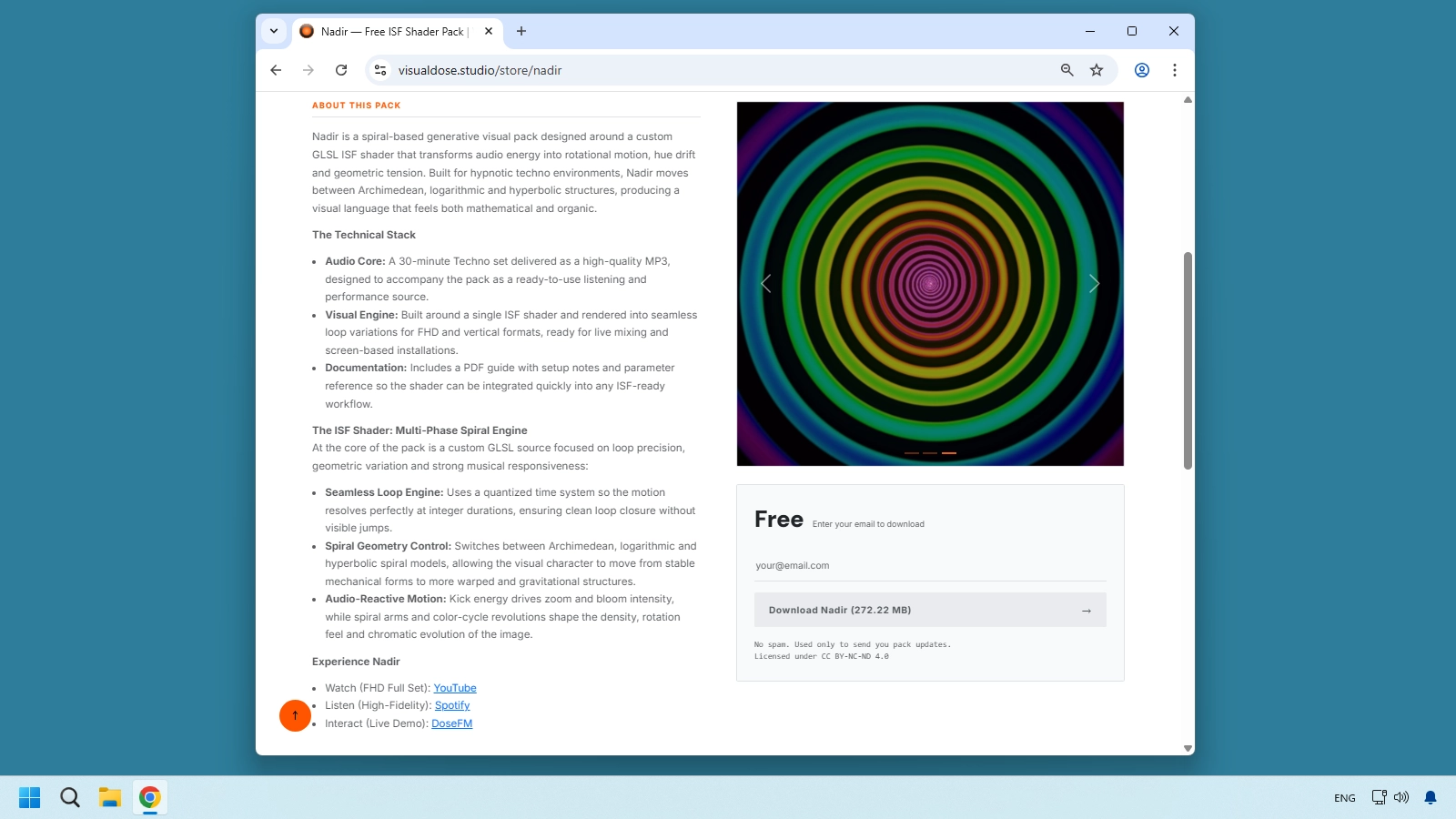
Step 01 - Download the free Nadir pack from the Visual Dose store
Go to visualdose.studio/store/ and download the free pack Nadir.
Step 02 - Extract the pack and locate the shader file
Unzip Nadir_Full_Pack. Inside 01_Source_Files, locate the shader file isf_nadir.fs.

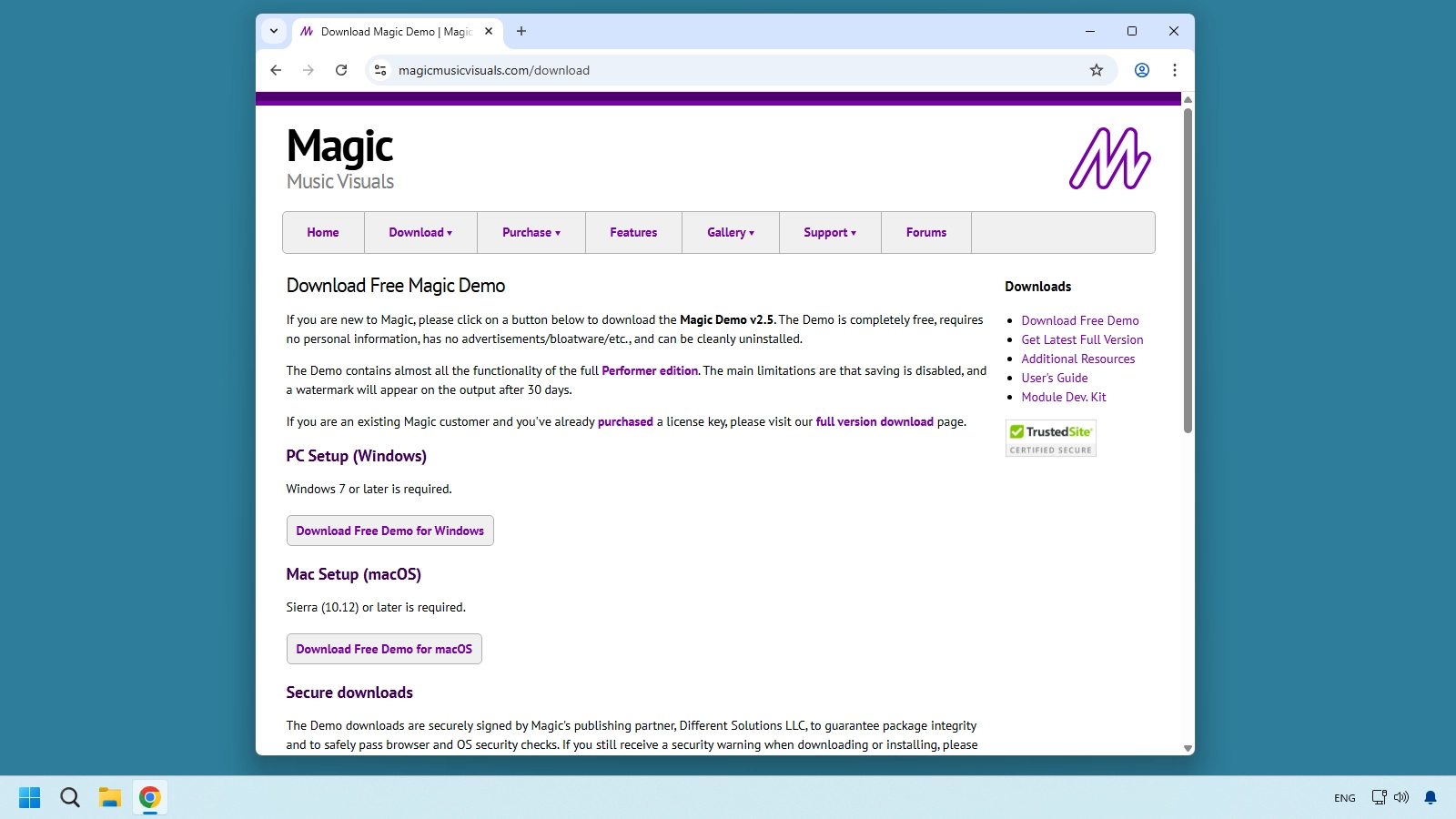
Step 03 - Download Magic Music Visuals Demo for Windows
Open magicmusicvisuals.com/download and download the free Windows demo version.
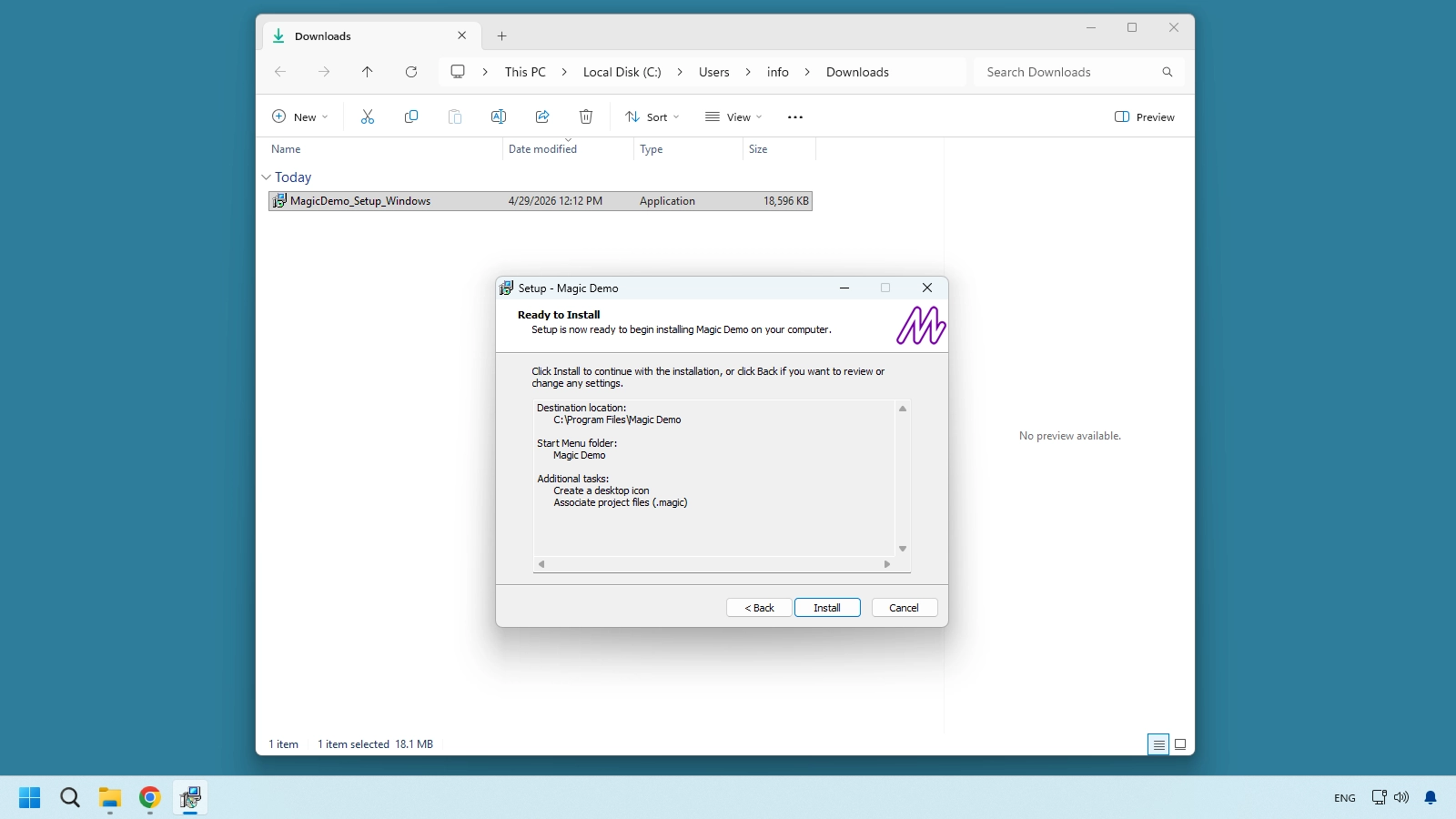
Step 04 - Install Magic Demo with the recommended options
Install Magic Demo like any standard Windows app. Use the recommended setup; in this example, Create a desktop icon is enabled.
Step 05 - Create a custom shader folder and copy isf_nadir.fs
Create a folder named Shaders, then create My-Shaders inside it. Copy isf_nadir.fs from 01_Source_Files into My-Shaders.
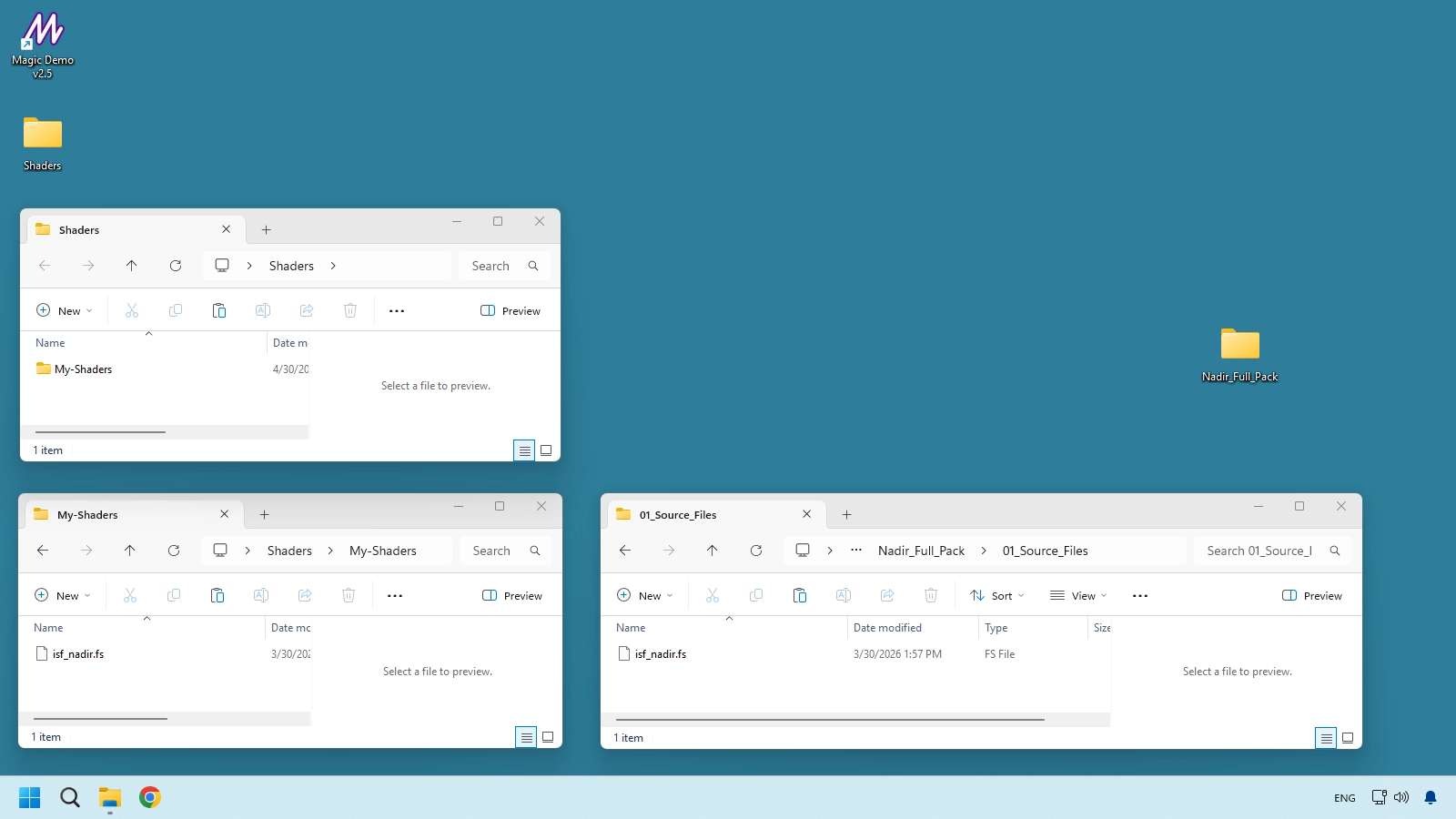
Step 06 - Open Additional Module Folders in Magic Visuals
Launch Magic Visuals and go to Help > Additional Module Folders.
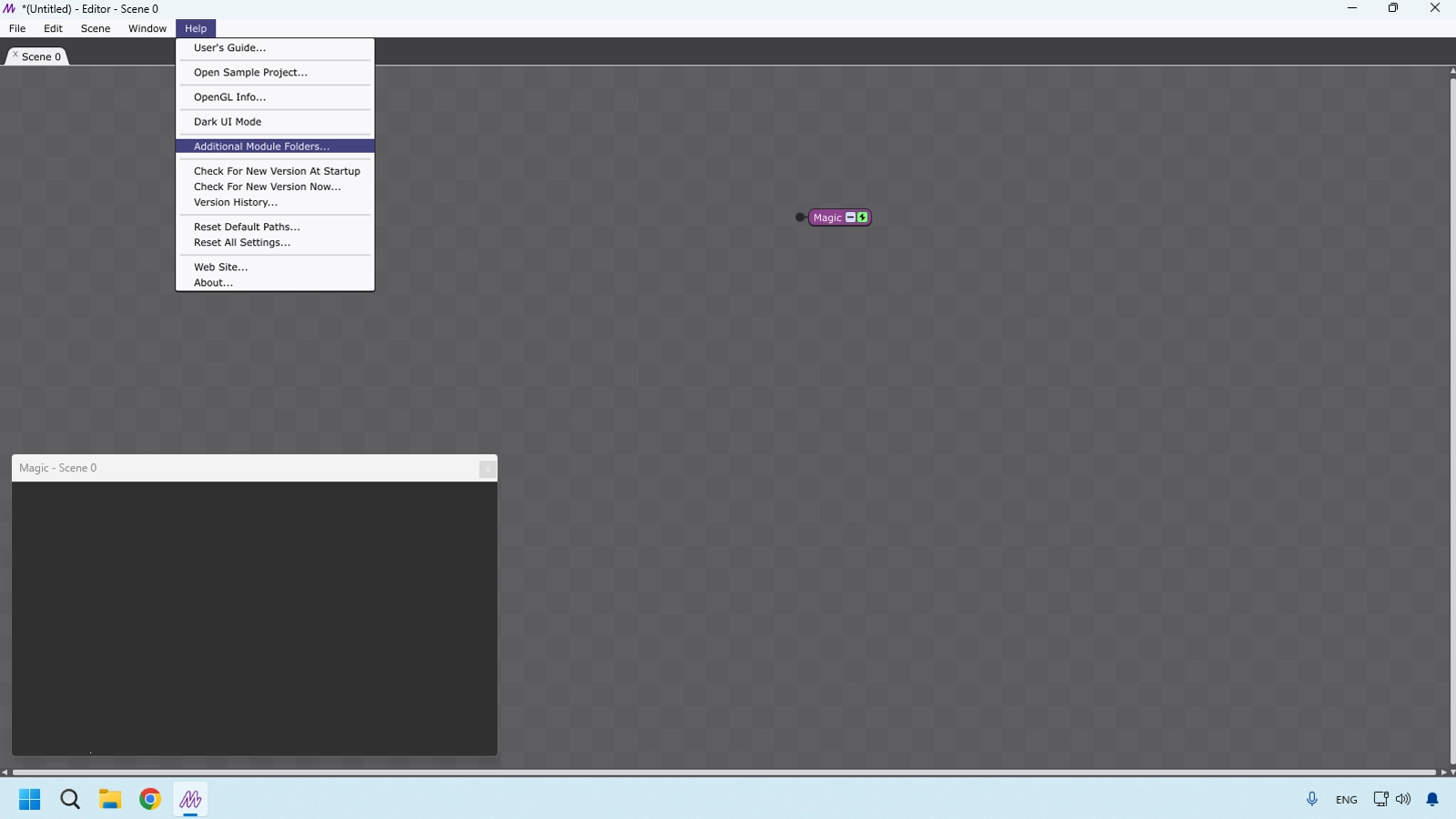
Step 07 - Add the Shaders folder and restart the app
Add your Shaders folder, apply changes, and restart Magic Visuals so it can index the new ISF shader path.
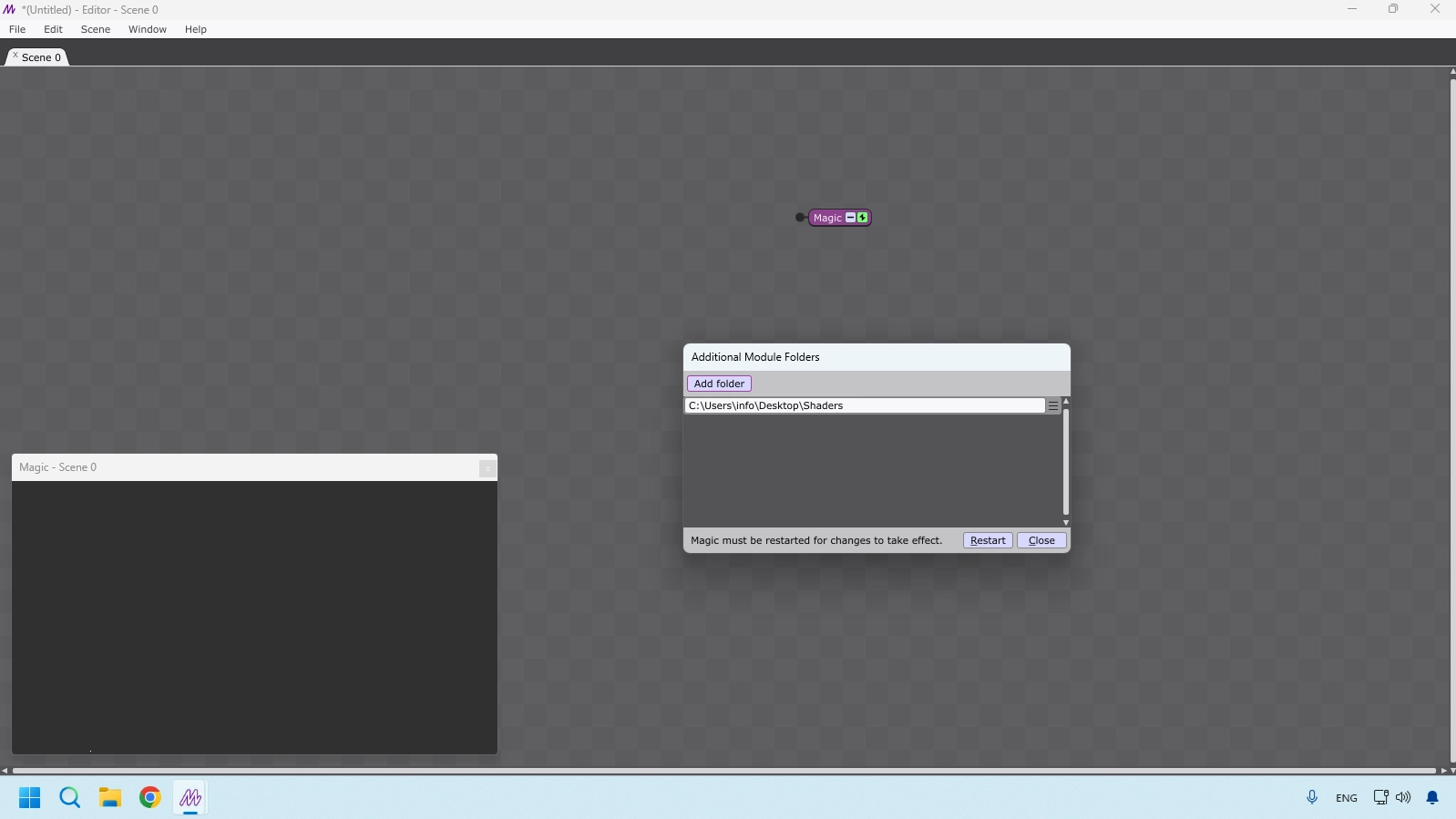
Step 08 - Add the shader from the patch menu
Right-click on the canvas and select Add > My-Shaders > isf_nadir.
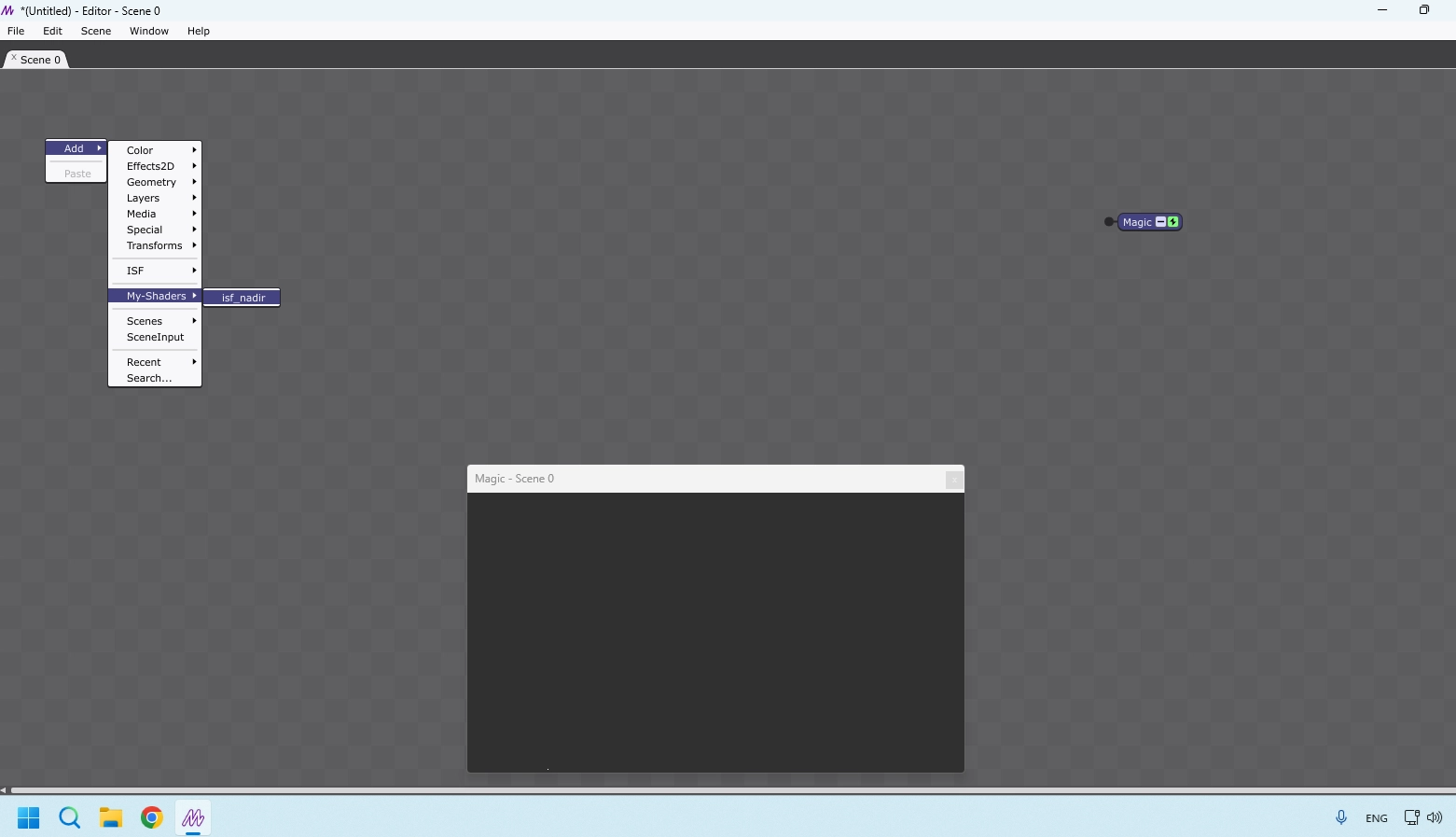
Step 09 - Confirm the shader is connected to Magic output
The shader should connect to the Magic module, which renders to the output screen. In this setup, output is 1280x720 at 60 fps.
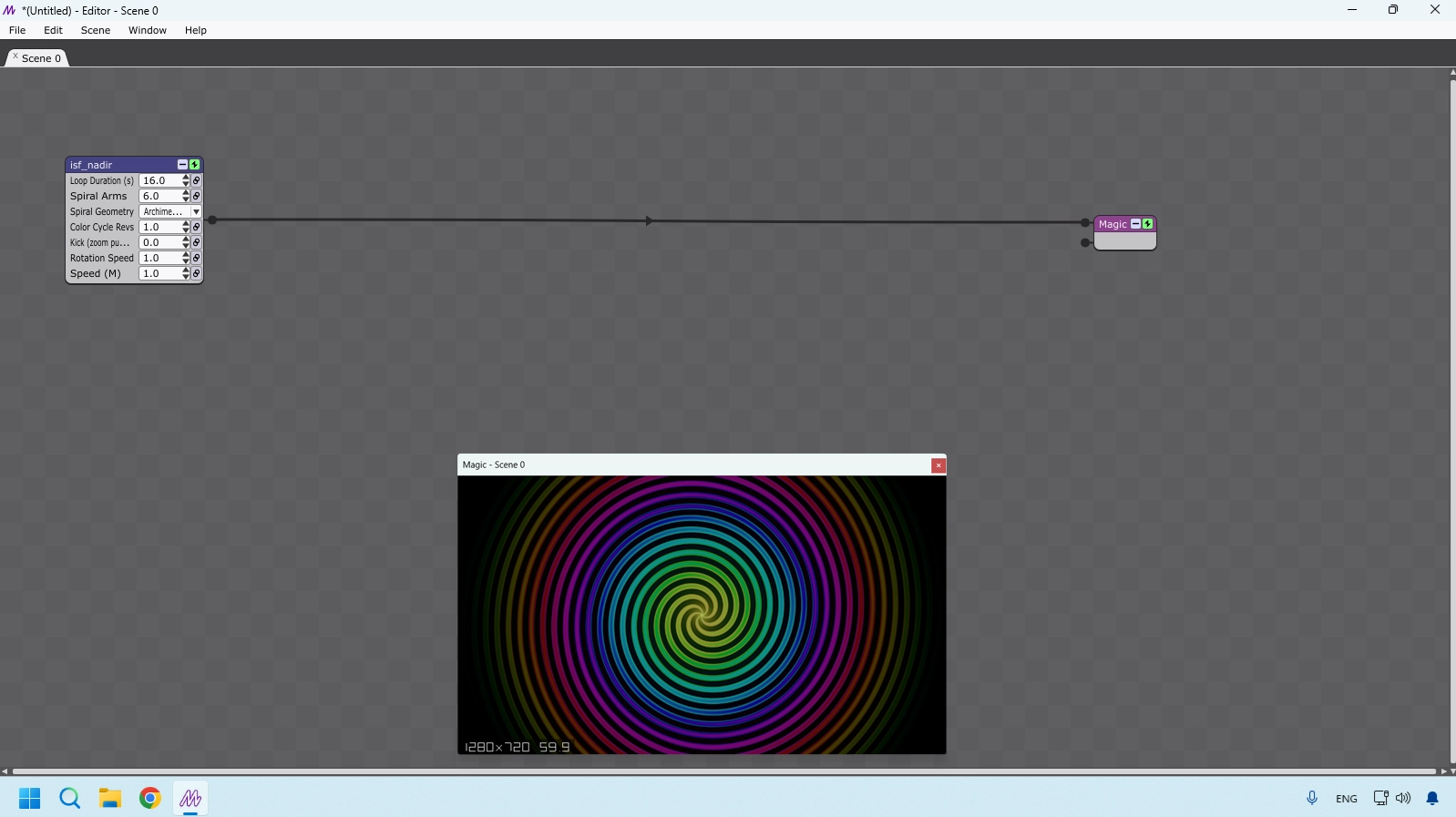
Step 10 - Understand demo limitations for testing workflows
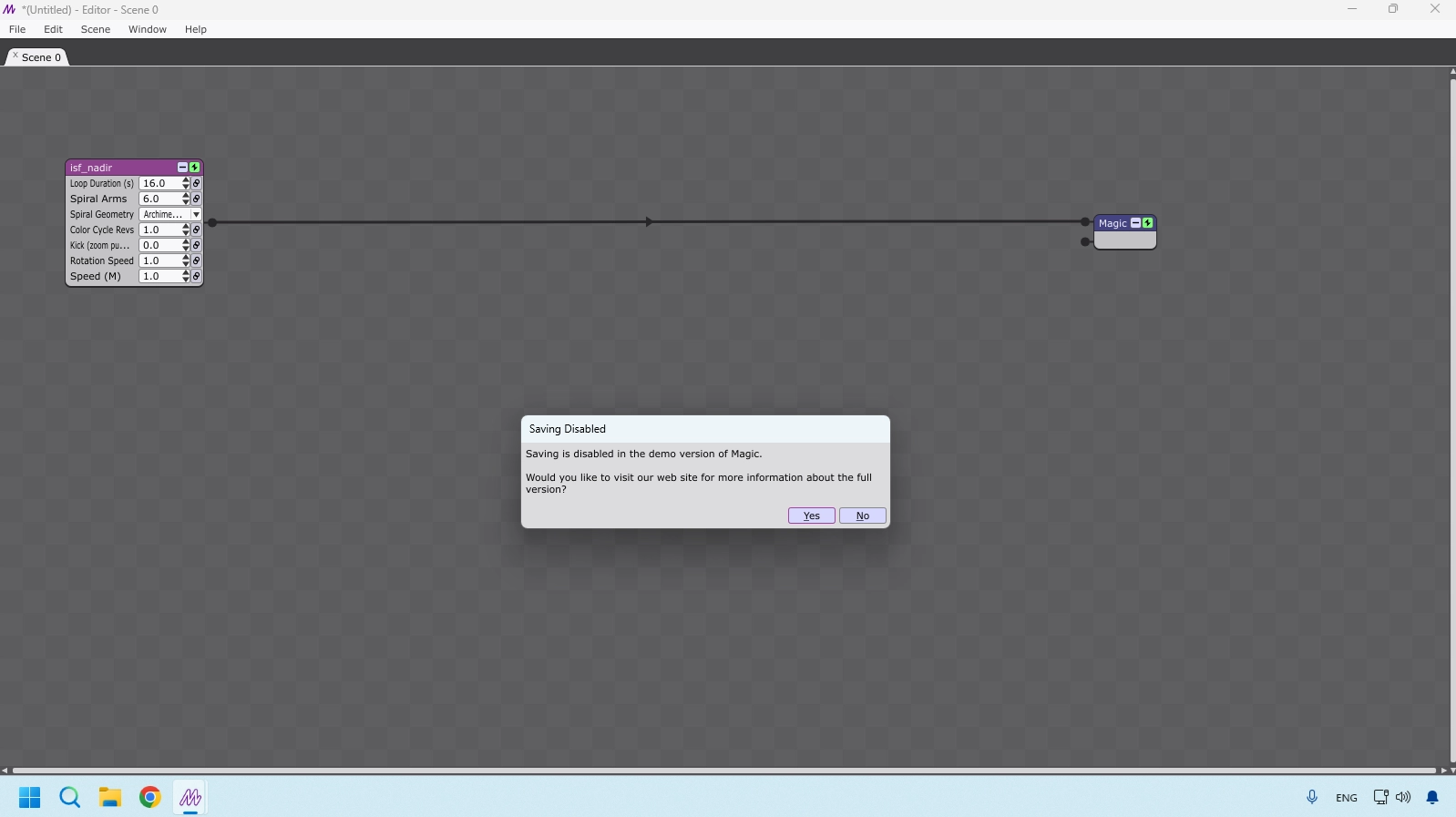
The demo version does not allow saving or exporting projects, but it is enough to test shader loading, parameter setup, and audio-reactive behavior of your ISF shader.
Frequently Asked Questions
What comes next
After your first shader loads in a host, move into the editing bench. ISF Editor Tutorial for VJs — Chapter 5 covers ISF Desktop Editor installation, the three-window workflow, JSON control preview, shader debugging on Windows, and how to save defaults before exporting to live software.
Technical Appendix
This appendix centralizes quick references for this chapter, including cited links and chapter navigation for faster study and review.
Referenced Links
- Vidvox introduced when creating the format
- official Resolume website
- official MadMapper website
- Vidvox
- official Synesthesia website
- official Magic Music Visuals website
- Chapter 2: The Genealogy of the Shader
- Chapter 3: ISF vs. Conventional Video
- visualdose.studio/store/
- magicmusicvisuals.com/download