In the previous chapters, you learned what ISF is and why it changed modern VJ workflows, how the ISF standard evolved historically, why a 2KB shader can outperform heavy 4K video files in real-time performance, and how to load ISF shaders inside host software. Now we enter the lab.

ISF Editor Tutorial: Two Versions, Two Purposes
ISF Web Editor (editor.isf.video)
The Web Editor is the easiest entry point into the shader ecosystem. It is a cloud-based interactive platform that works both as a community repository and a live test bench. Its main strength is accessibility: visual artists can browse thousands of community shaders, tweak them instantly, and share their own versions without installing software.
Think of it as the social layer of ISF: an open place where creators remix and experiment fast.
Access it at editor.isf.video.
ISF Desktop Editor (Production Tool)
The Desktop Editor is Vidvox's professional environment for serious visual development. It runs locally on your machine and acts as a bridge between shader code and live performance. Unlike the web version, it is designed for production workflows where you create, test, and finalize shaders before deploying them to Resolume, VDMX, Magic Music Visuals, or MadMapper.
This chapter focuses entirely on the Desktop Editor.
Download it at isf.vidvox.net/desktop-editor.
Comparison Table: Web Editor vs Desktop Editor
| Feature | ISF Web Editor | ISF Desktop Editor |
|---|---|---|
| Installation | No (browser-based) | Yes (native app) |
| File access | Manual upload/download | Direct local file access |
| Community layer | Built-in browse/share | Local workflow only |
| Performance ceiling | Limited by browser/WebGL context | Maximum native GPU performance |
| Offline work | No | Yes |
| Video input options | Basic webcam-level | Syphon/Spout and pro capture sources |
| Error debugging | Basic | Advanced |
| Best for | Learning, exploring, sharing | Production and live show preparation |
How to Install ISF Desktop Editor on Windows (Step by Step)
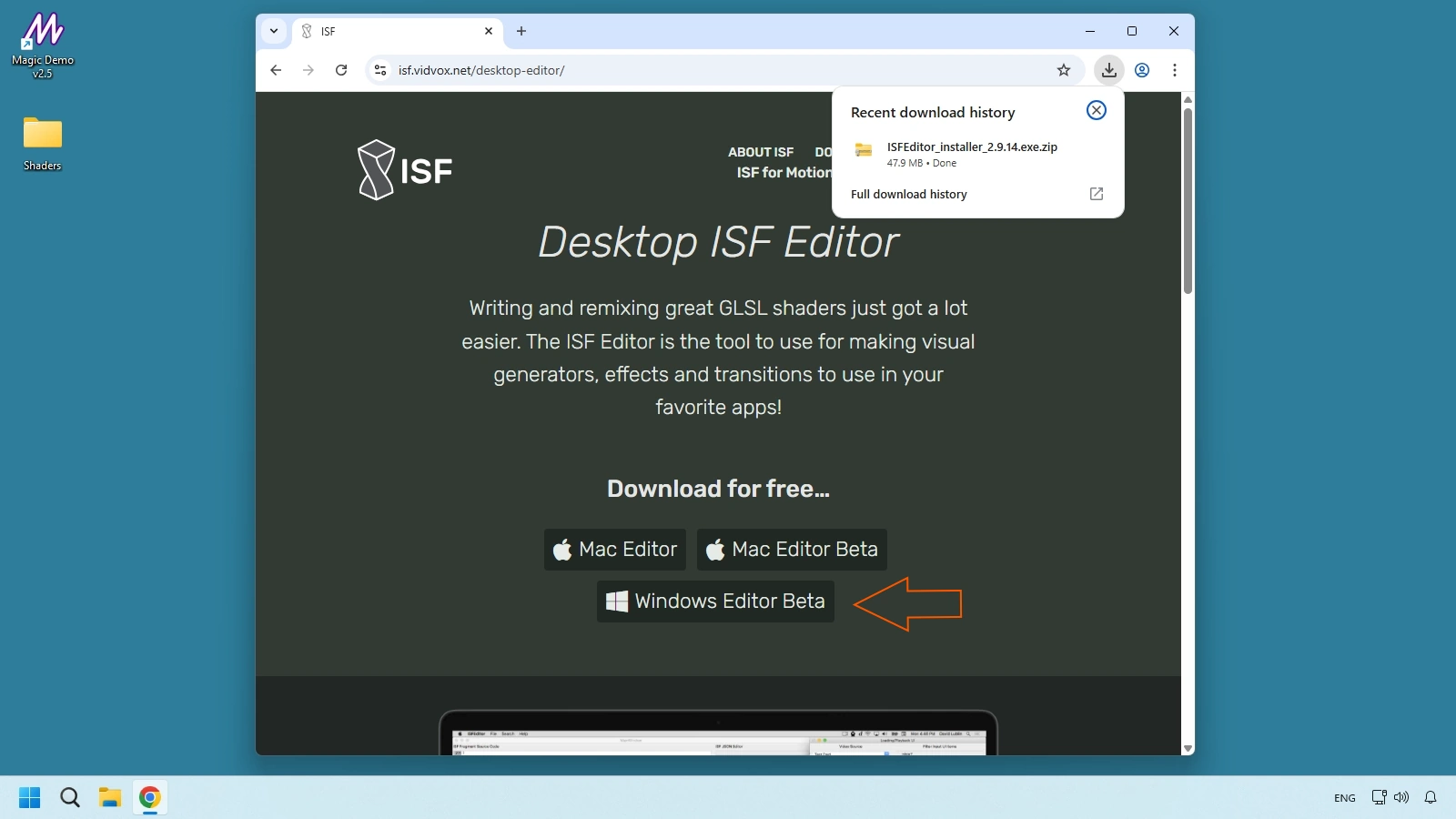
Step 01 - Download the installer
Go to isf.vidvox.net/desktop-editor and download the Windows build. Depending on release packaging, you may receive an .exe or .zip.
Step 02 - Run the installer
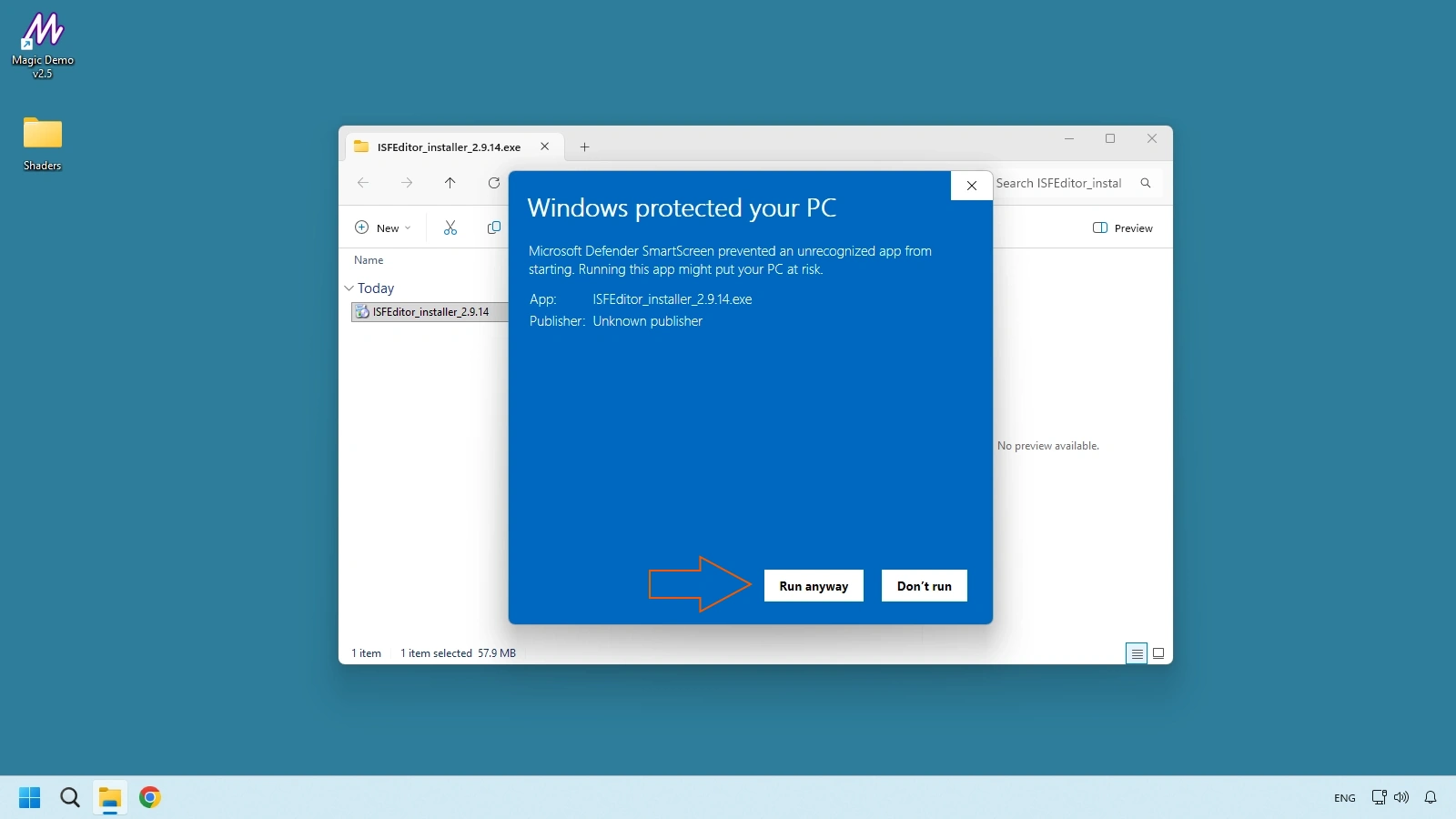
Double-click the downloaded file. If Windows SmartScreen shows "Windows protected your PC," click More info and then Run anyway. This warning is common with independent developer tools.
Step 03 - Complete the setup wizard
Follow the standard installer steps, accept terms, keep default options, and click Install. The process usually takes under one minute.
Step 04 - Open ISF Desktop Editor
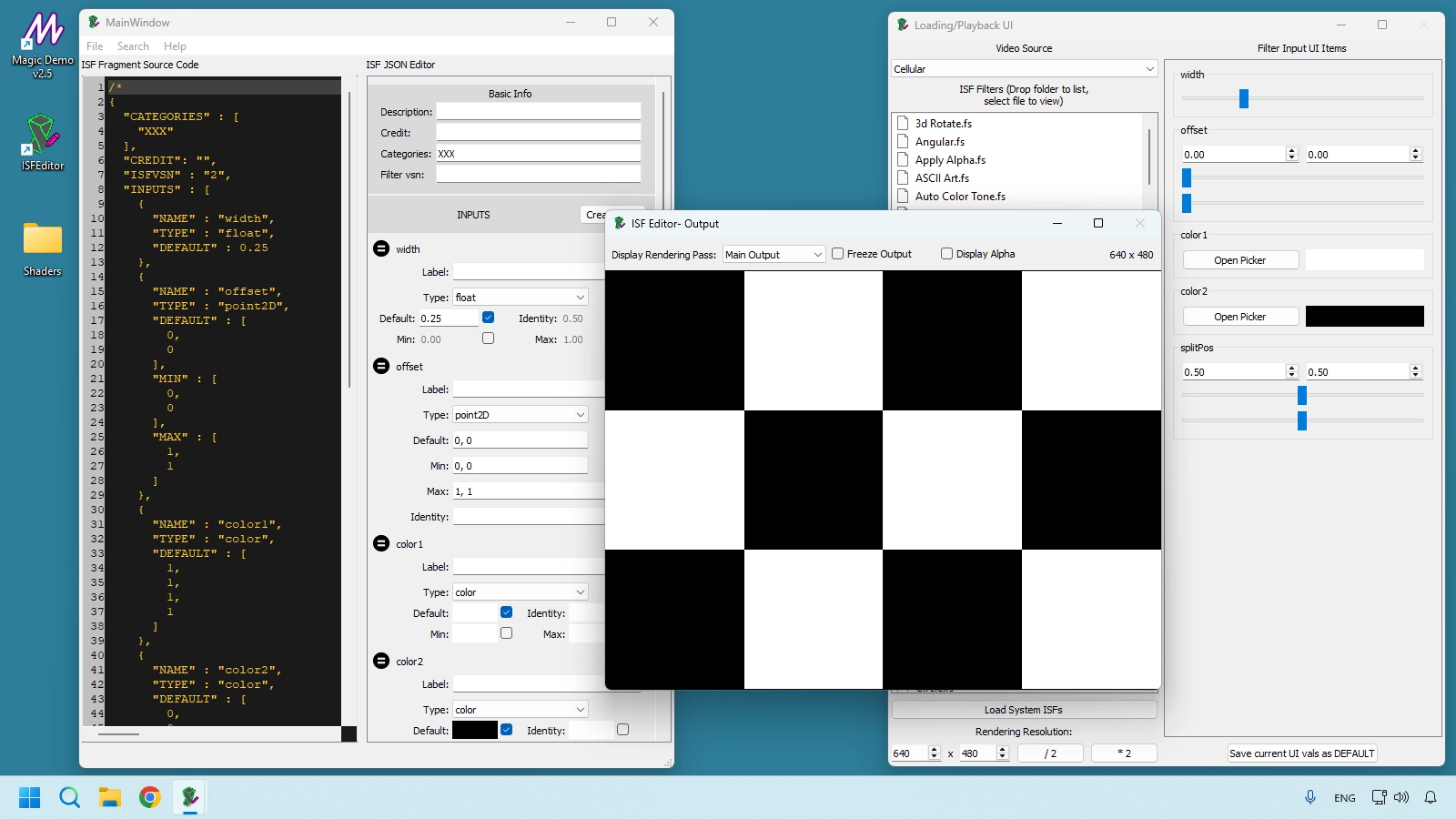
Launch ISF Editor from Start Menu or desktop shortcut. On first run, three windows open at the same time. That is expected behavior.
The Three ISF Editor Windows (System Overview)
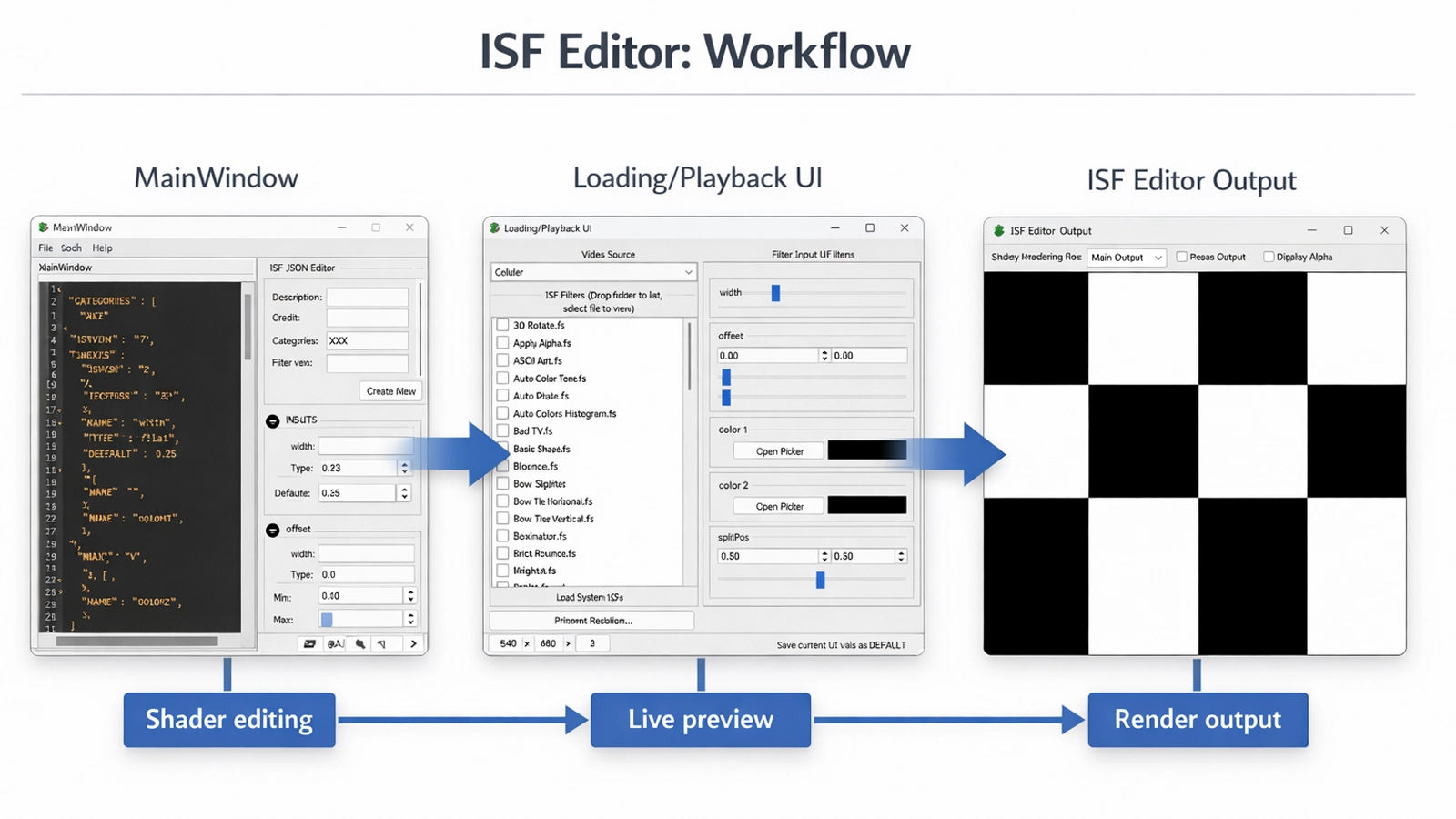
ISF Editor is not a traditional single-window app. It uses three independent windows synchronized in real time:
- MainWindow: code editing and app menus.
- Loading/Playback UI: runtime controls, video input, and render settings.
- ISF Editor Output: visual preview window.
When you edit code in MainWindow, output updates immediately. When you move a slider in Loading/Playback UI, visuals react instantly in Output.
Window 1: MainWindow
MainWindow is the core editor where shader code and JSON metadata are managed.
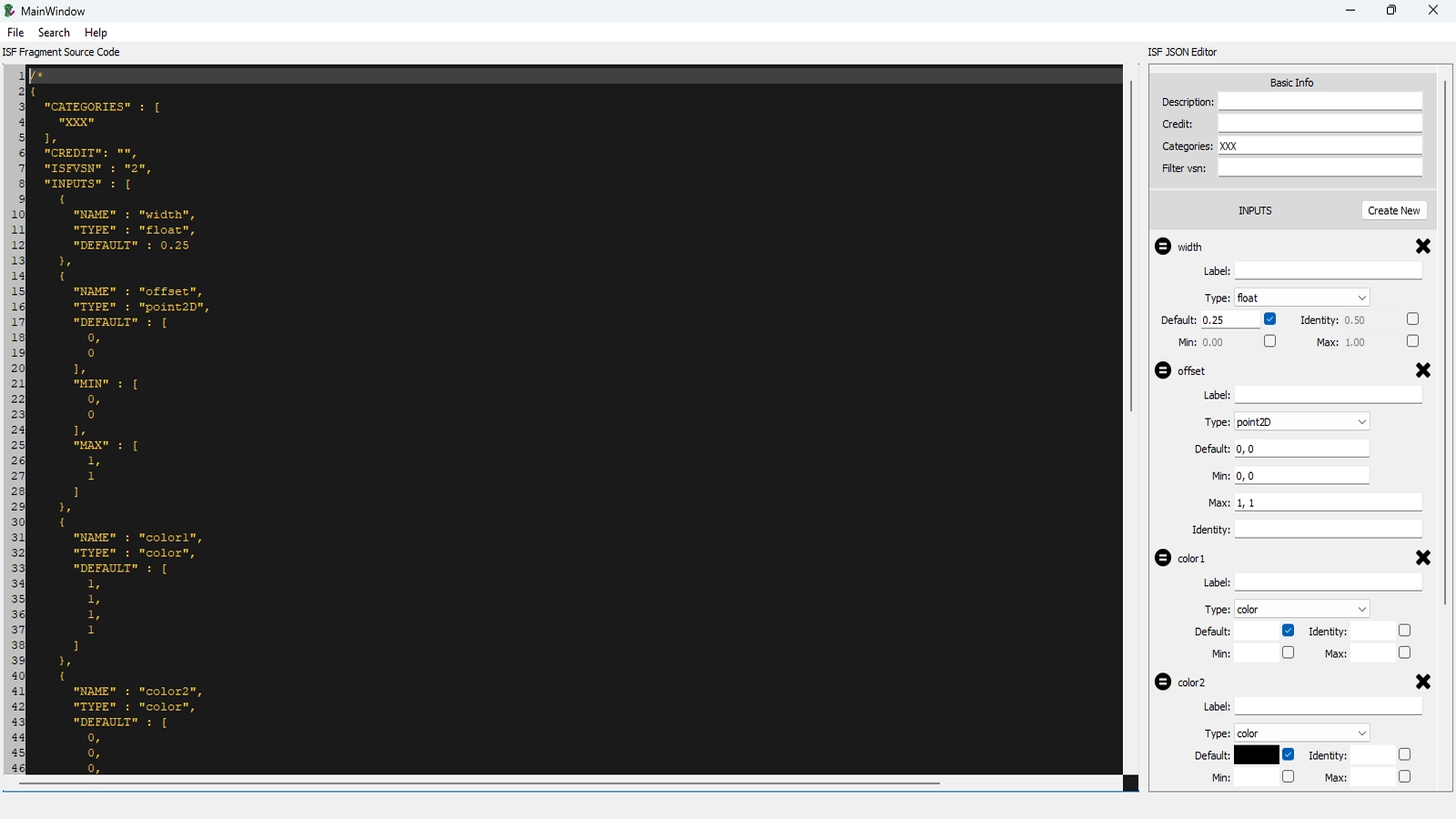
Main panel split:
- Left panel (ISF Fragment Source): GLSL code that generates visuals.
- Right panel (ISF JSON Editor): parameters and controls exposed to users.
File Menu
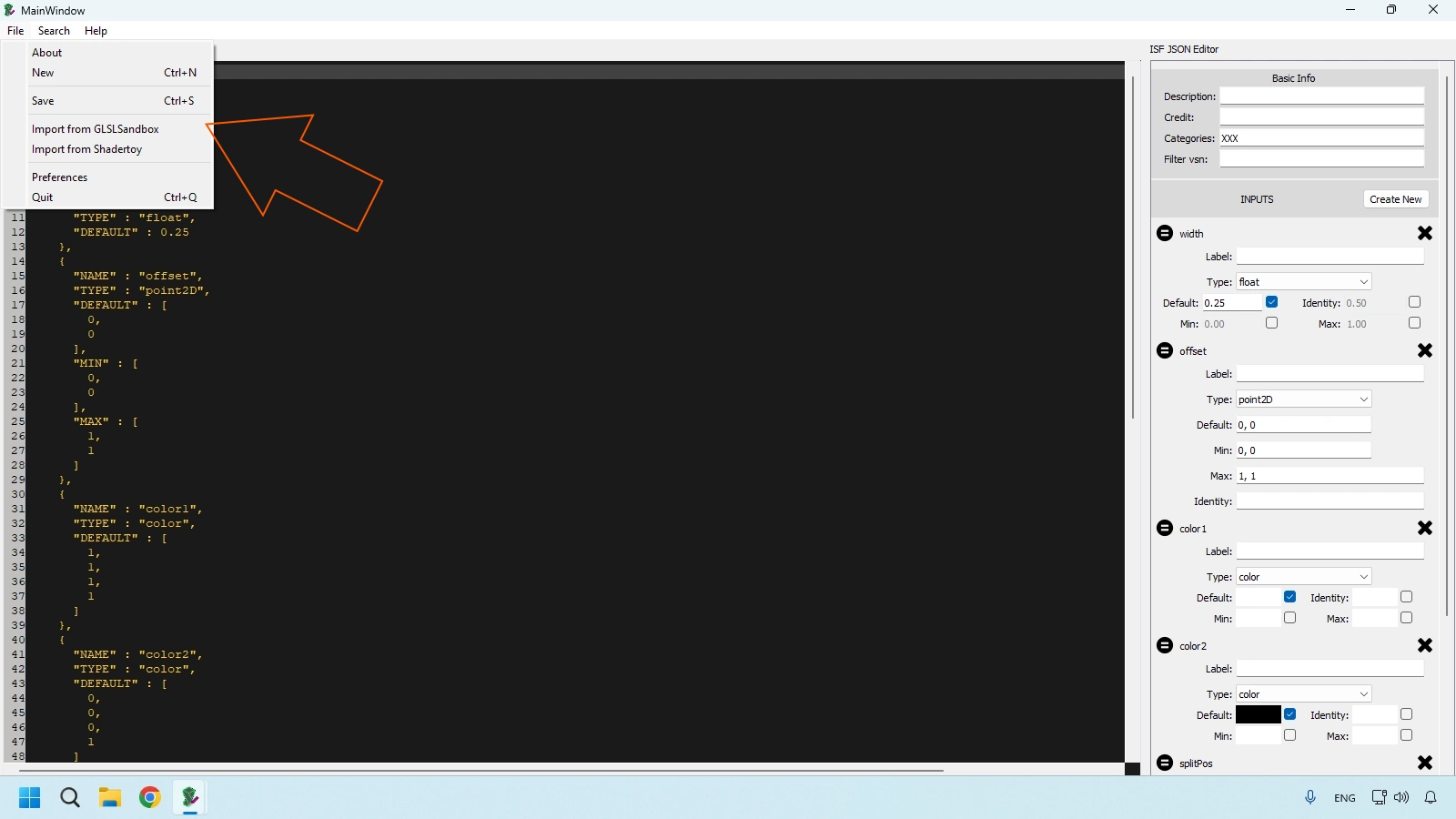
- About: checks current app version, Vidvox credits, and documentation access.
- New: creates a fresh ISF template with a starter JSON header and GLSL snippet.
- Save: stores shader as .fs file; save often because there is no full autosave.
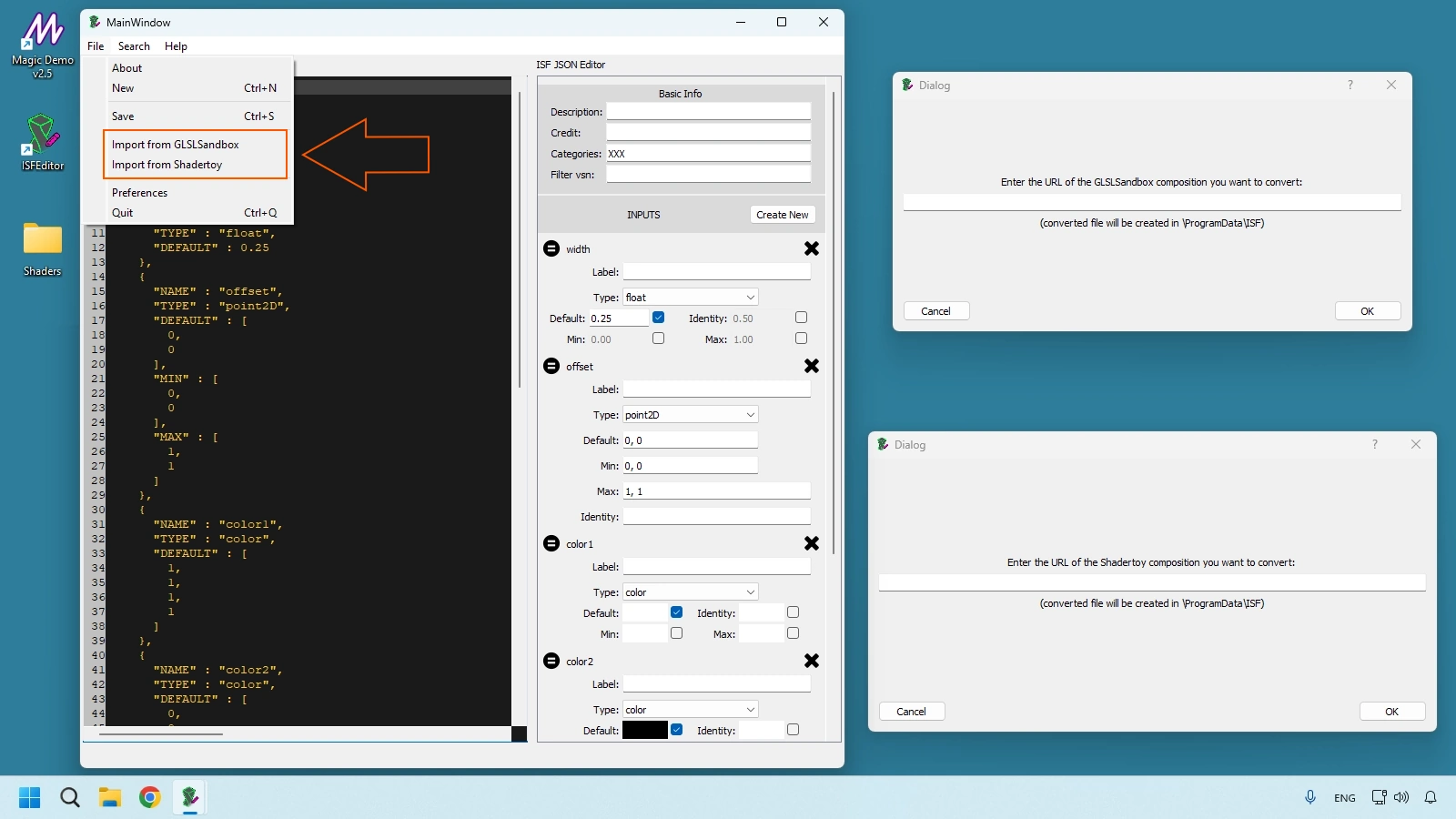
- Import from GLSL Sandbox / Shadertoy: legacy import route; many links may fail today, so manual copy/paste plus JSON input mapping is often more reliable.
Preferences Menu
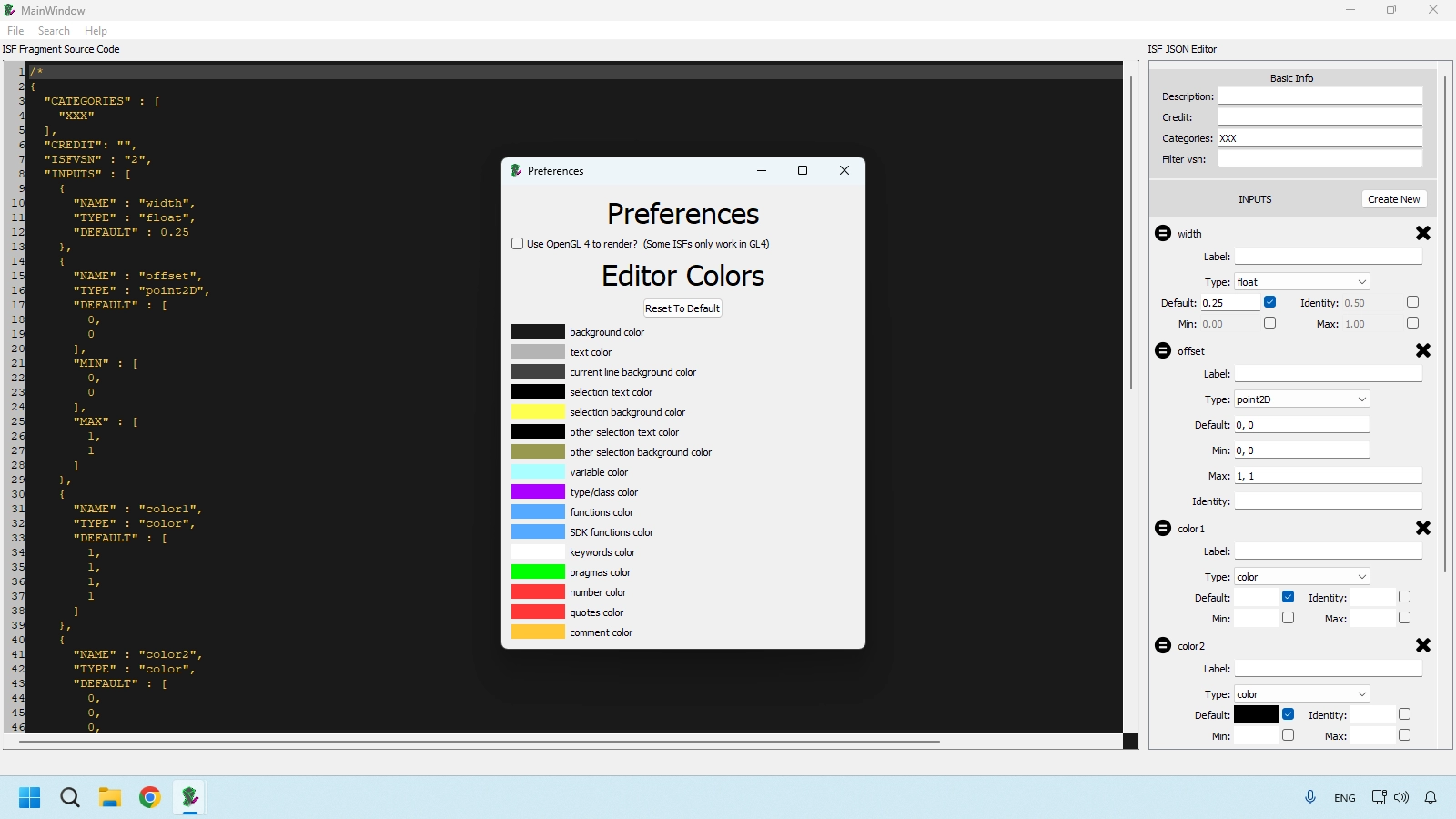
Key options:
- Toggle OpenGL 4 backend for shaders requiring modern GLSL features.
- Reset syntax/theme colors to defaults.
- Customize primary selection, secondary selection, and syntax highlighting groups.
Search Menu
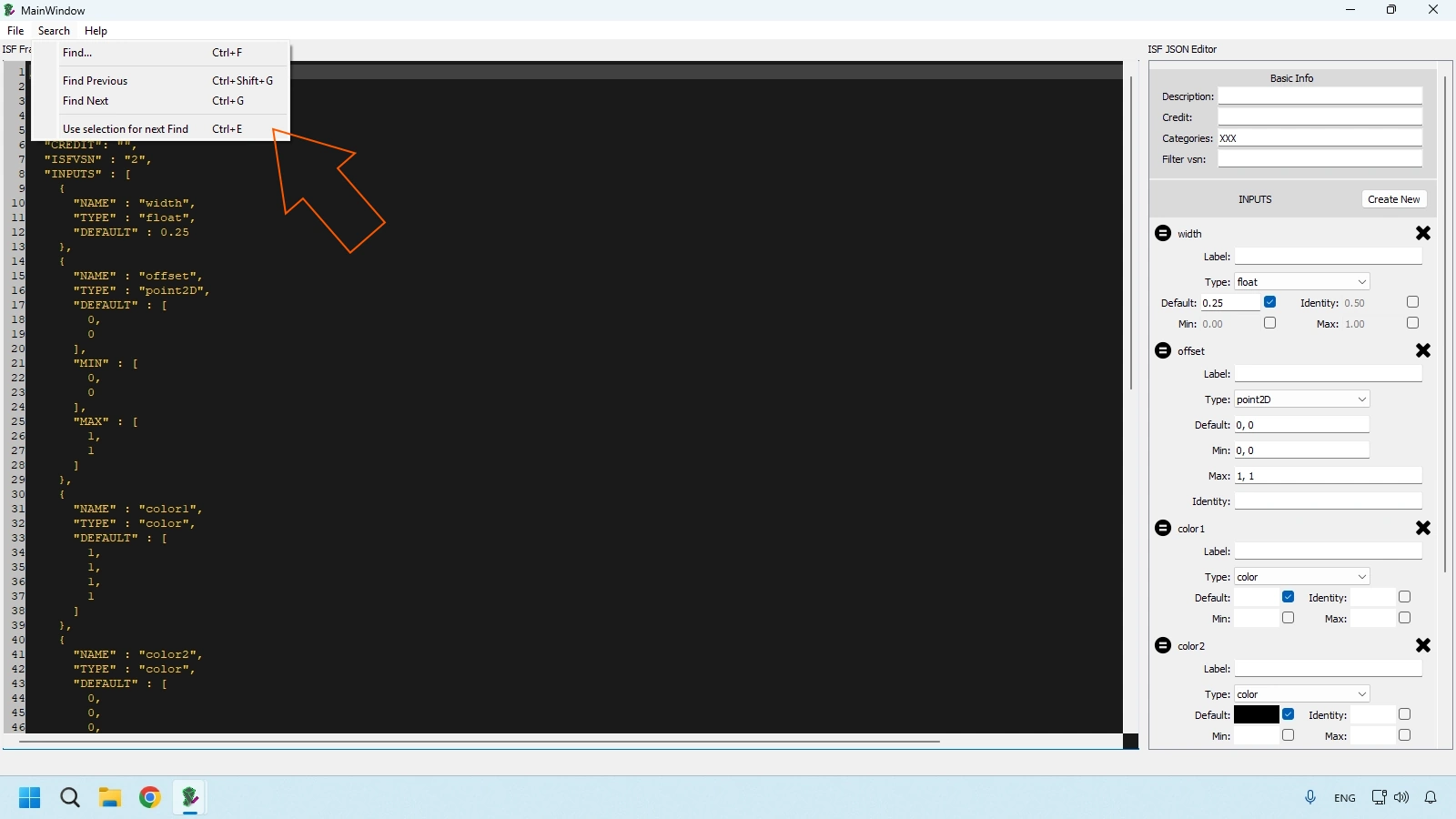
- Find (Cmd/Ctrl + F): opens search.
- Find Previous (Cmd/Ctrl + Shift + G): jumps to previous occurrence.
- Find Next (Cmd/Ctrl + G): jumps to next occurrence.
- Use Selection for Next Find: turns selected text into the active search token.
Help Menu
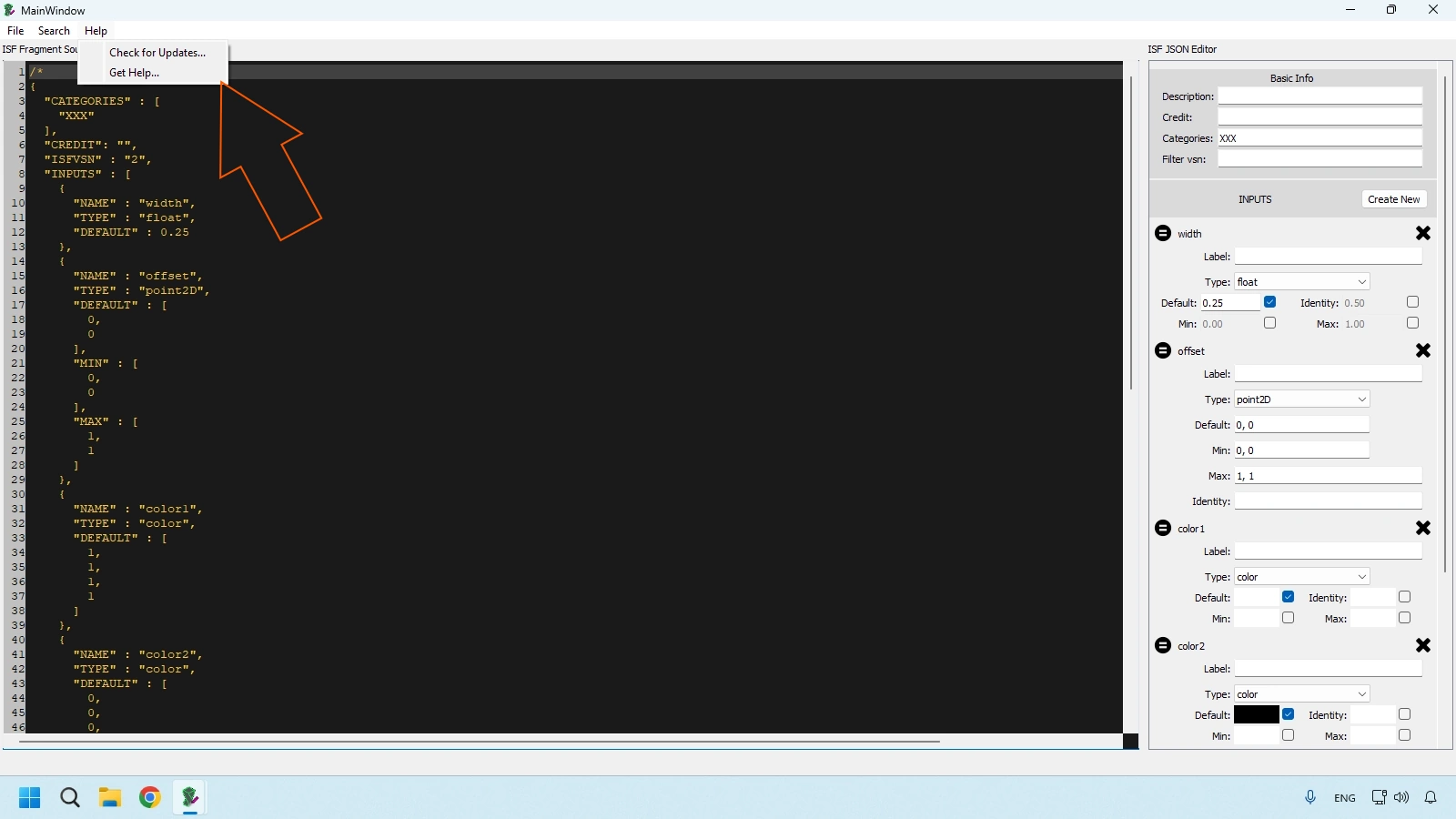
- Check for Updates: looks for newer ISF Editor builds.
- Get Help: opens the official docs at docs.isf.video.
ISF JSON Editor Panel
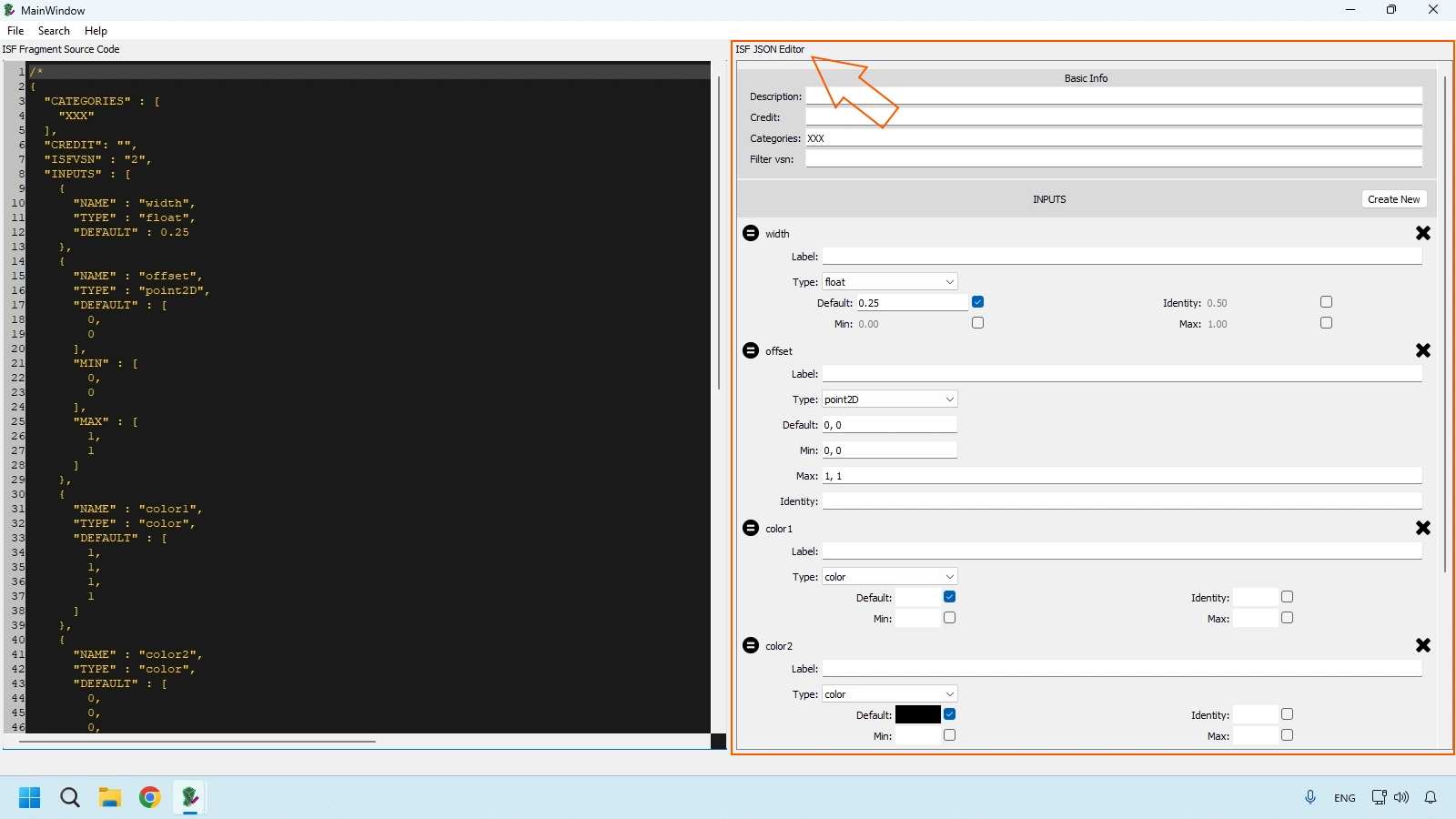
ISF shaders combine:
- GLSL rendering logic.
- JSON metadata that defines user controls.
Every JSON input appears as a control in Loading/Playback UI. Example:
{
  "NAME": "speed",
  "TYPE": "float",
  "DEFAULT": 0.5,
  "MIN": 0.0,
  "MAX": 1.0
}
When your JSON input schema is clear, live control mapping becomes predictable and reusable across host apps.
Window 2: Loading/Playback UI
This is your runtime control console: input source, shader list, render resolution, UI controls, and default-state saving.
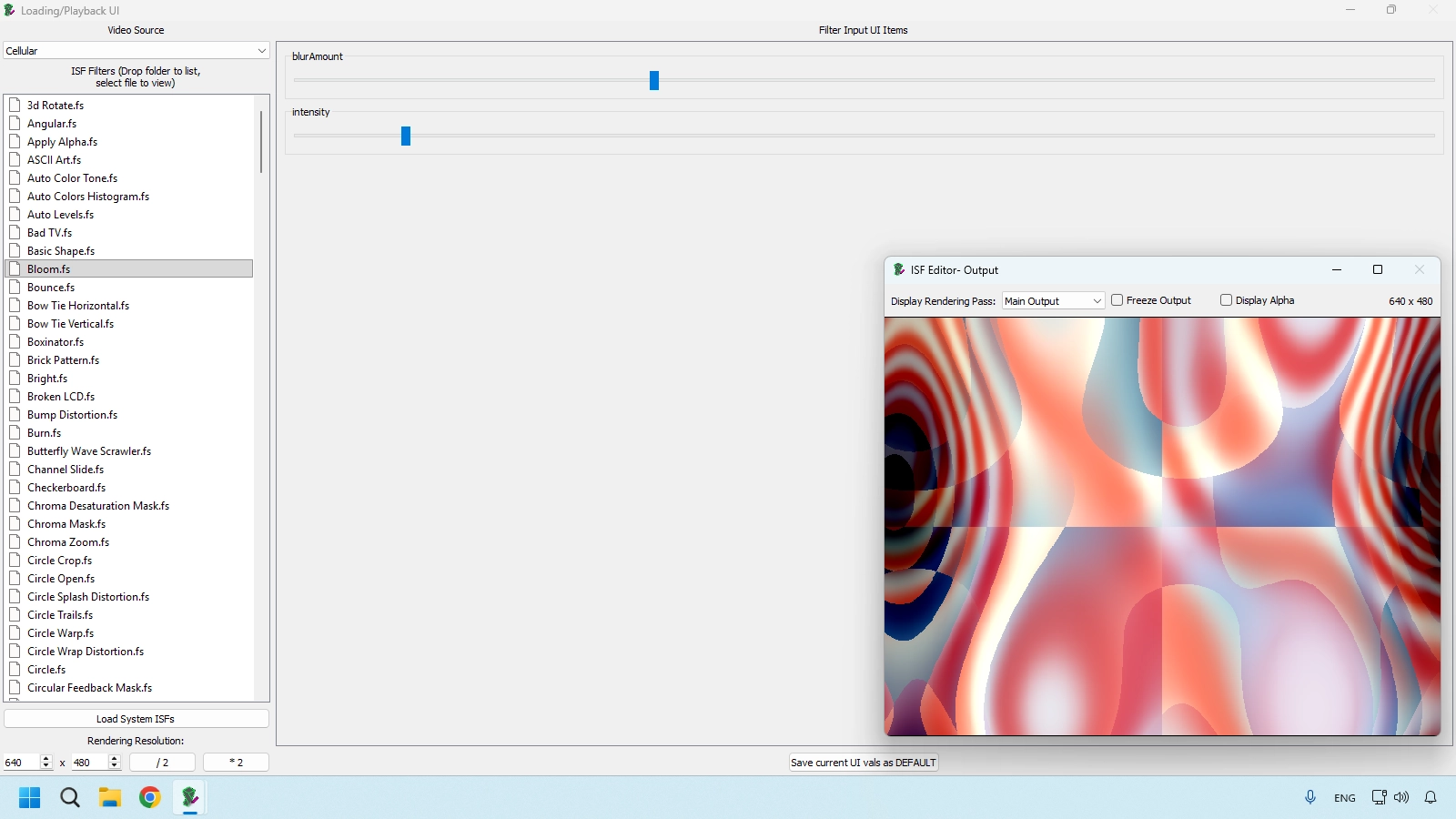
Video Source Selector
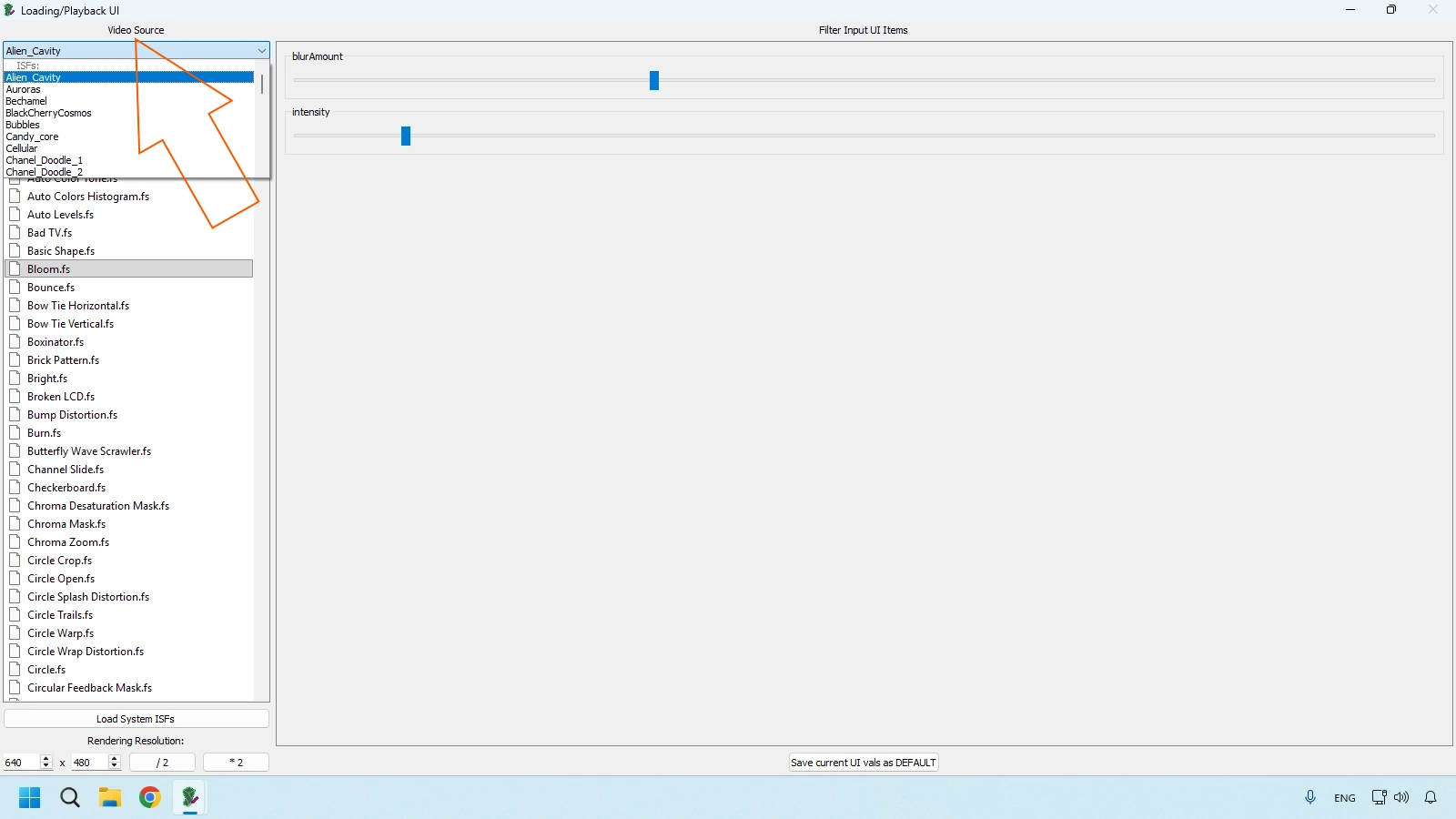
This dropdown defines what media enters the shader pipeline. For filter-type shaders, this source is critical because the effect processes incoming frames rather than generating visuals from black.
Built-In Sample Sources (What They Are Good For)
- Alien_Cavity: high-contrast alien organic shapes, useful for distortion tests.
- Auroras: smooth gradient motion, useful for color and blend behavior.
- Bechamel: fluid organic texture for mixing and texture response.
- BlackCherryCosmos: bright elements on dark background for bloom/particle stress.
- Bubbles: alpha/refraction behavior testing.
- Candy_core: saturated palette for hue/saturation workflow checks.
- Cellular: dense pattern for high-frequency shader response.
- Chanel_Doodle_1 and Chanel_Doodle_2: line-based content for edge/detail processing.
Shader List and Load System ISFs
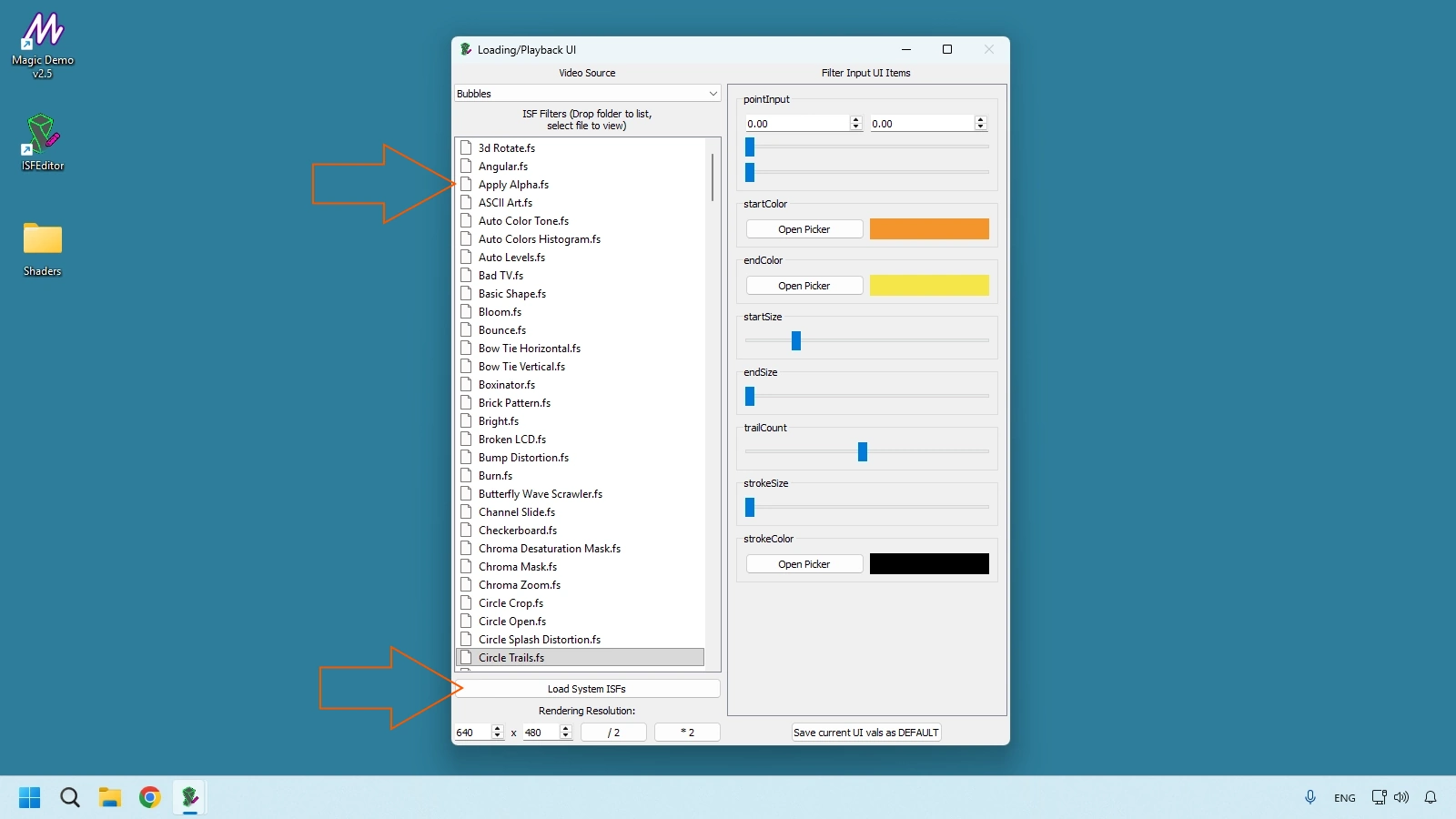
Load System ISFs scans standard shader locations and repopulates the shader list with built-in and user-added .fs files.
Rendering Resolution
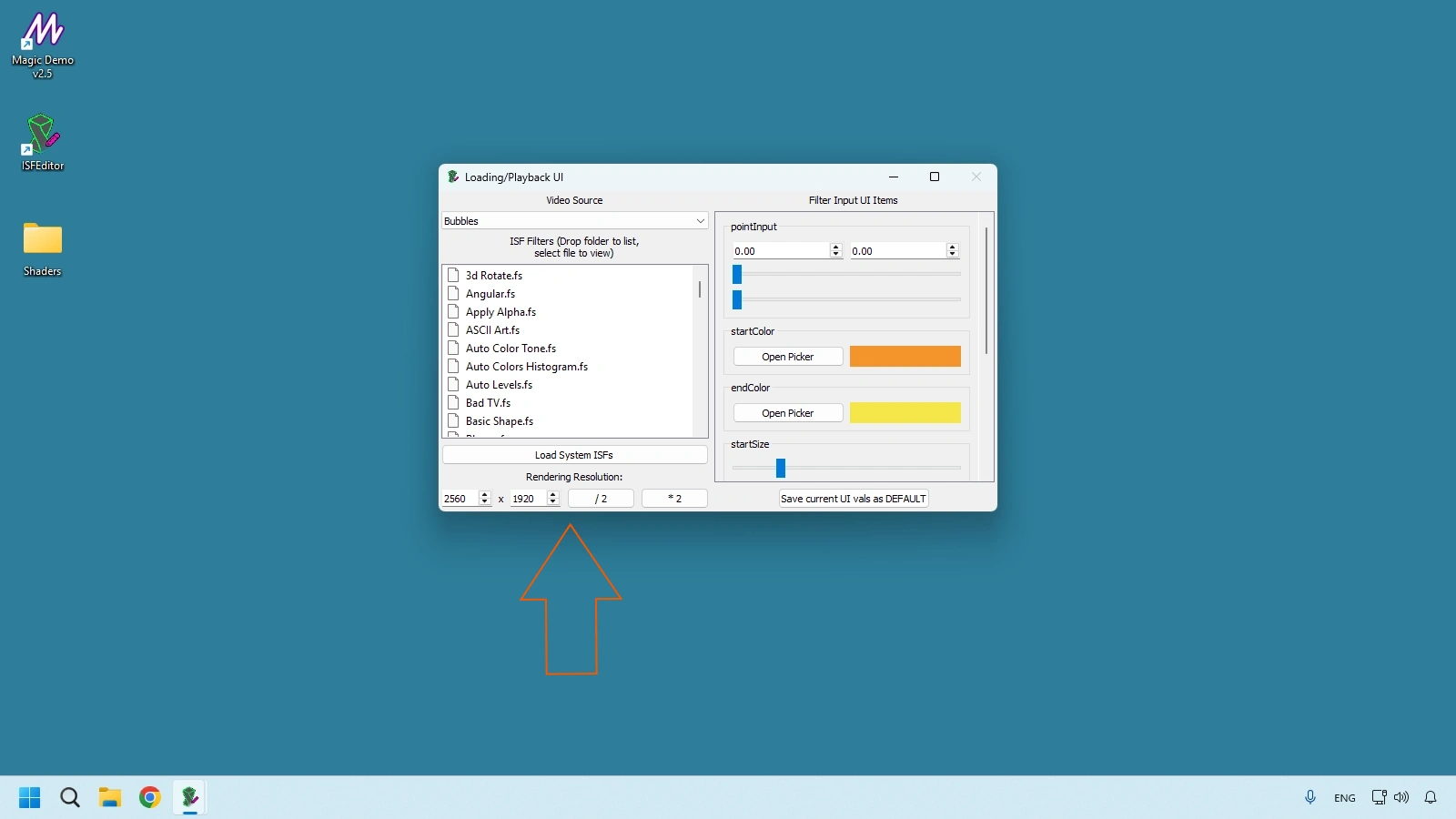
Choose predefined resolutions or custom values. Medium settings are ideal for iteration speed; switch to higher resolutions to validate production output before export to host software.
Filter Input UI Items
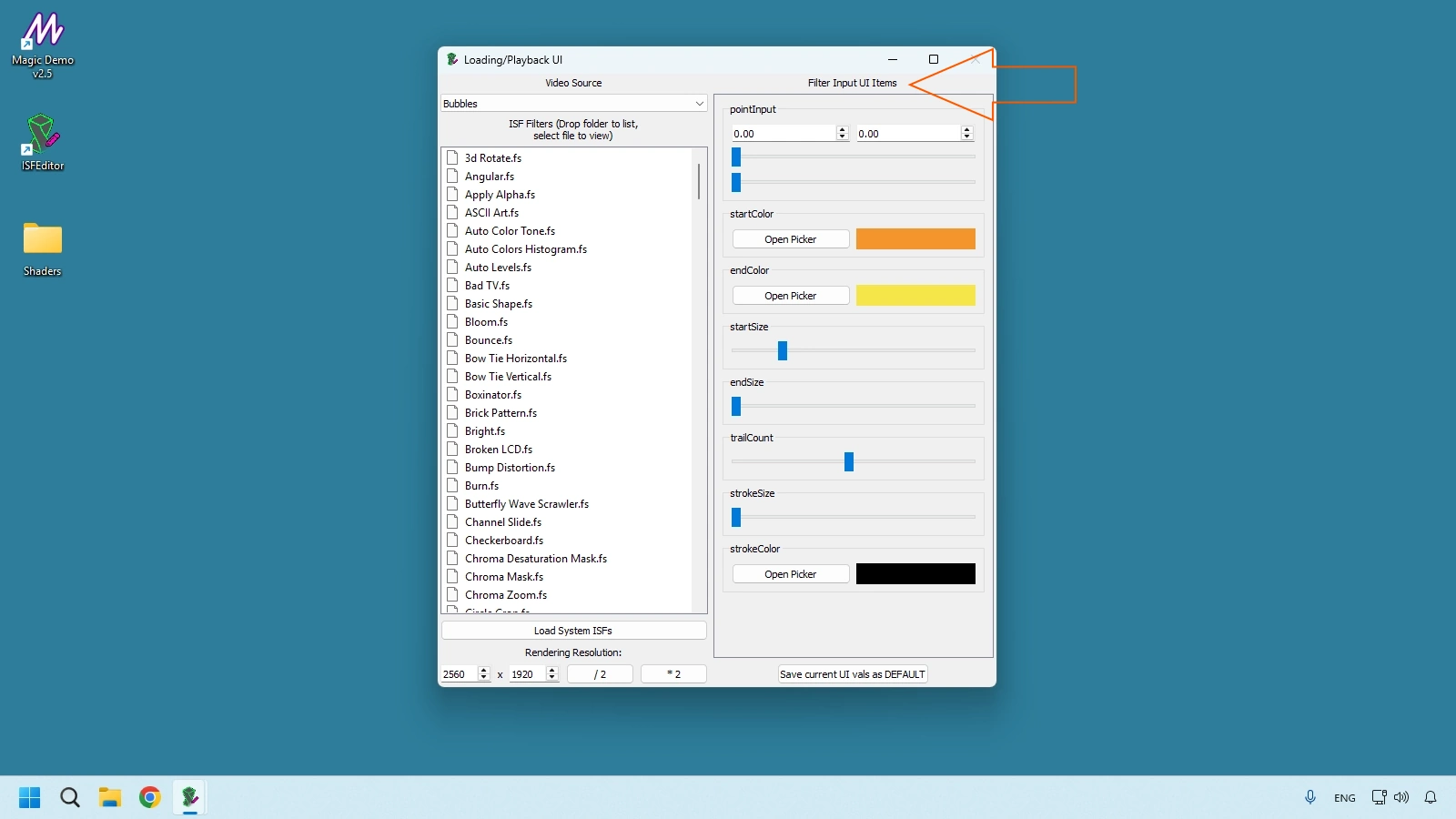
Every slider, color picker, toggle, or menu shown here maps directly to JSON inputs.
Save Current UI Values as Default
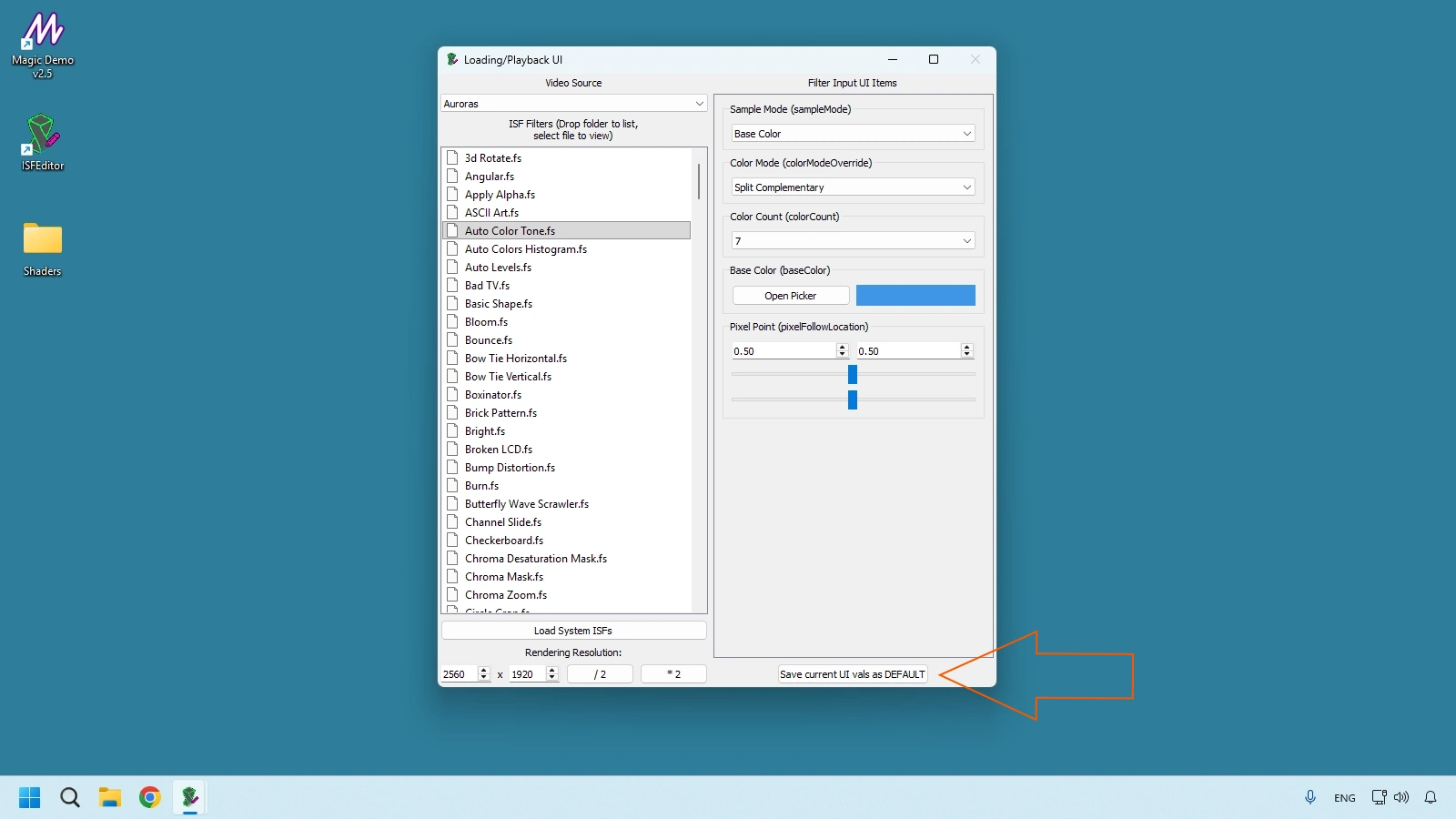
This action persists your best-tested control setup so the shader opens later with the same baseline in ISF Editor and compatible host software.
Window 3: ISF Editor Output
ISF Editor Output is the real-time render destination for your shader.
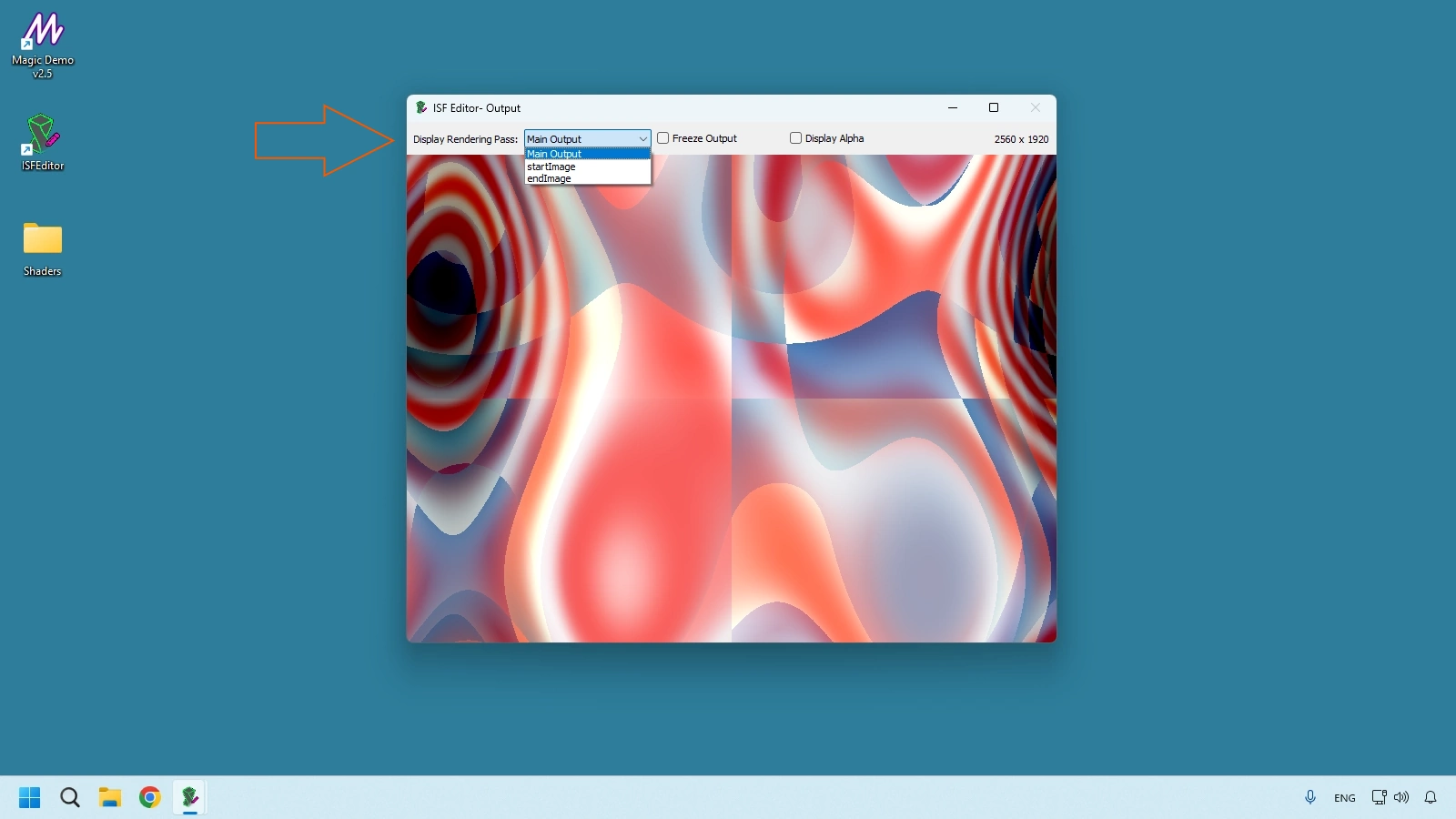
Display Rendering Pass
- Main Output: final visual as seen by the audience.
- startImage: source frame before processing.
- endImage: frame at the end of the render chain before final composition.
For single-pass shaders these may look identical; multi-pass shaders reveal more debugging value.
Freeze Output
Pauses animation at current frame so you can inspect detail, diagnose artifacts, or make JSON/GLSL adjustments without moving output.
Display Alpha
Shows transparency using checkerboard preview, crucial when authoring overlays that must blend correctly in Resolume or VDMX.
Guided Practice Blocks
These exercises are designed as practical lab drills so you can move from theory to confidence inside ISF Desktop Editor.
Guided Practice Block 1 - Where Are My Files? (ISF Desktop Editor Default Library)
Before creating anything new, locate the assets you already have. ISF Desktop Editor installs a default shader library on your drive.
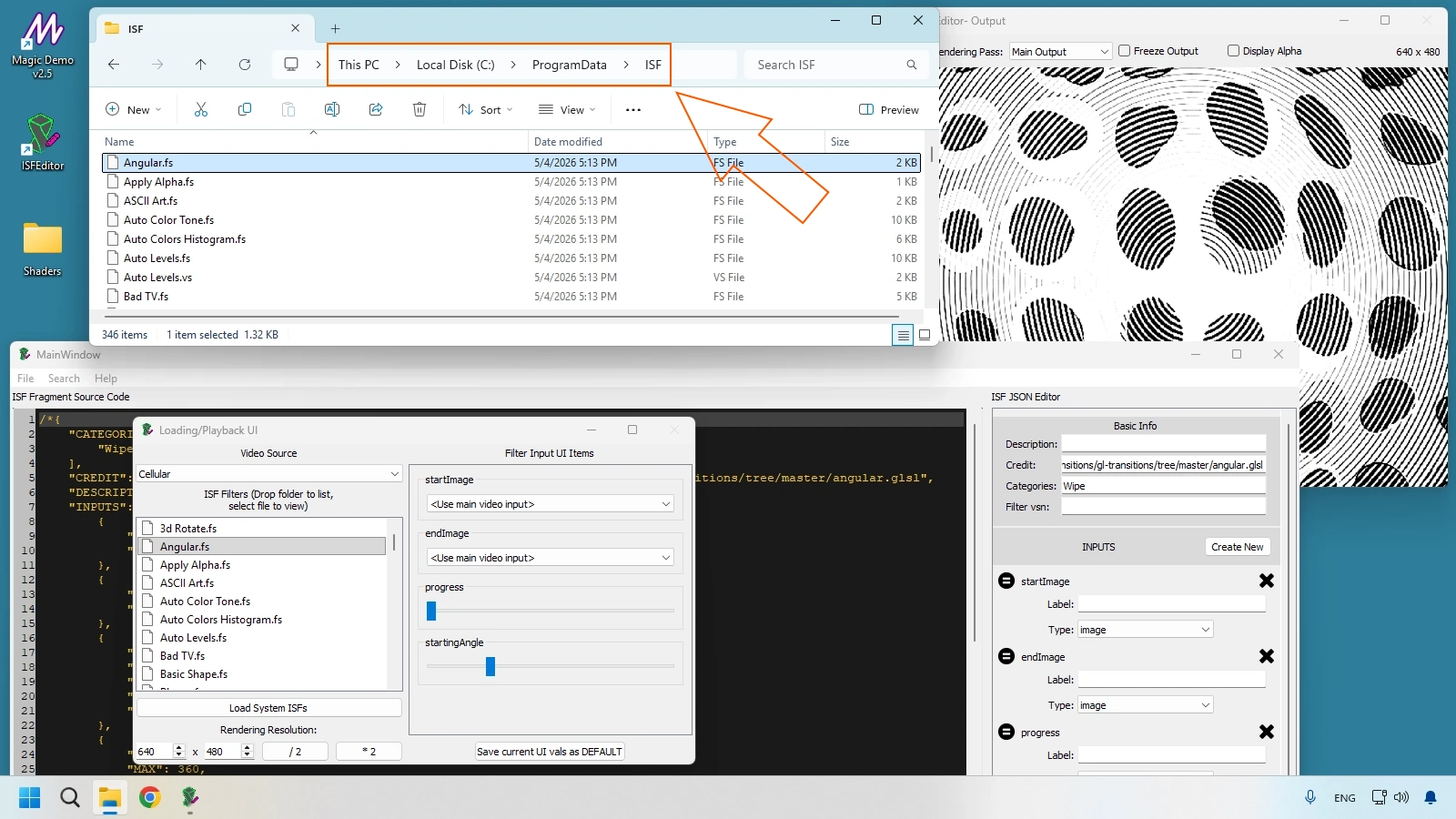
On Windows, check C:\ProgramData\ISF or the app installation directory. This default library is where many ISF shader workflows begin before you build custom folders.
Practice:
- Open File Explorer and locate the default ISF library folder.
- Find .fs shader files.
- Drag any .fs file directly into MainWindow.
- Confirm code and controls load instantly.
Guided Practice Block 2 - Creating Your First "Generative" Shader from Scratch
You are not coding deeply yet; this exercise teaches the creation flow of a brand-new shader file in ISF Editor Desktop on Windows.
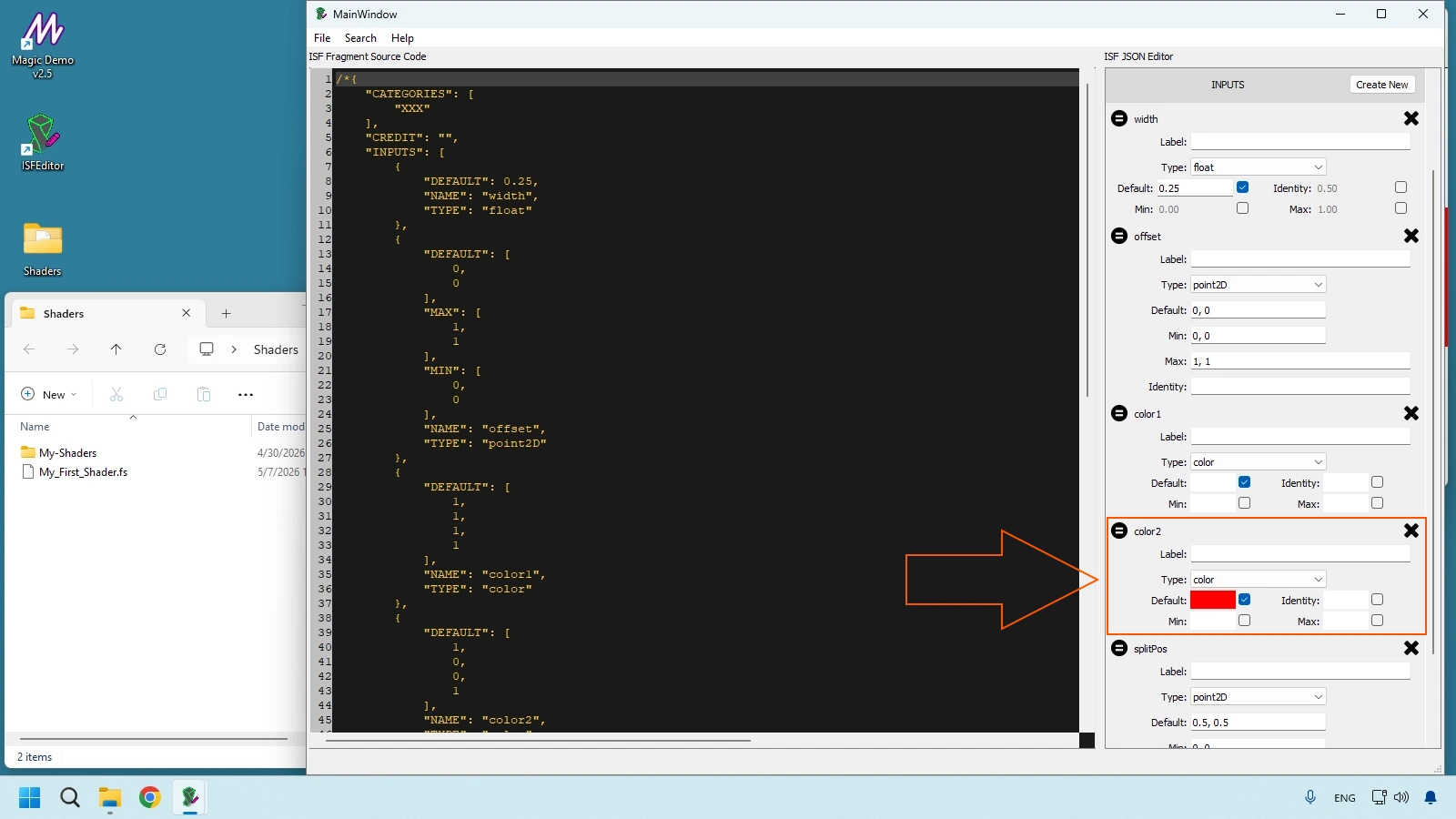
- Go to File > New.
- In "What type of ISF would you like to create?", choose Generator.
- When prompted to save pending changes, click Yes and save into your desktop Shaders folder as My_First_Shader.
- Change color2 in the ISF JSON Editor panel.
- Check the visual result in the ISF Editor Output window.
Guided Practice Block 3 - Using Webcam and External Inputs in ISF Editor
To test filter-type shaders properly, you need a real incoming image source. If you have not configured host-side loading yet, review how to install ISF shaders in Magic Visuals first.
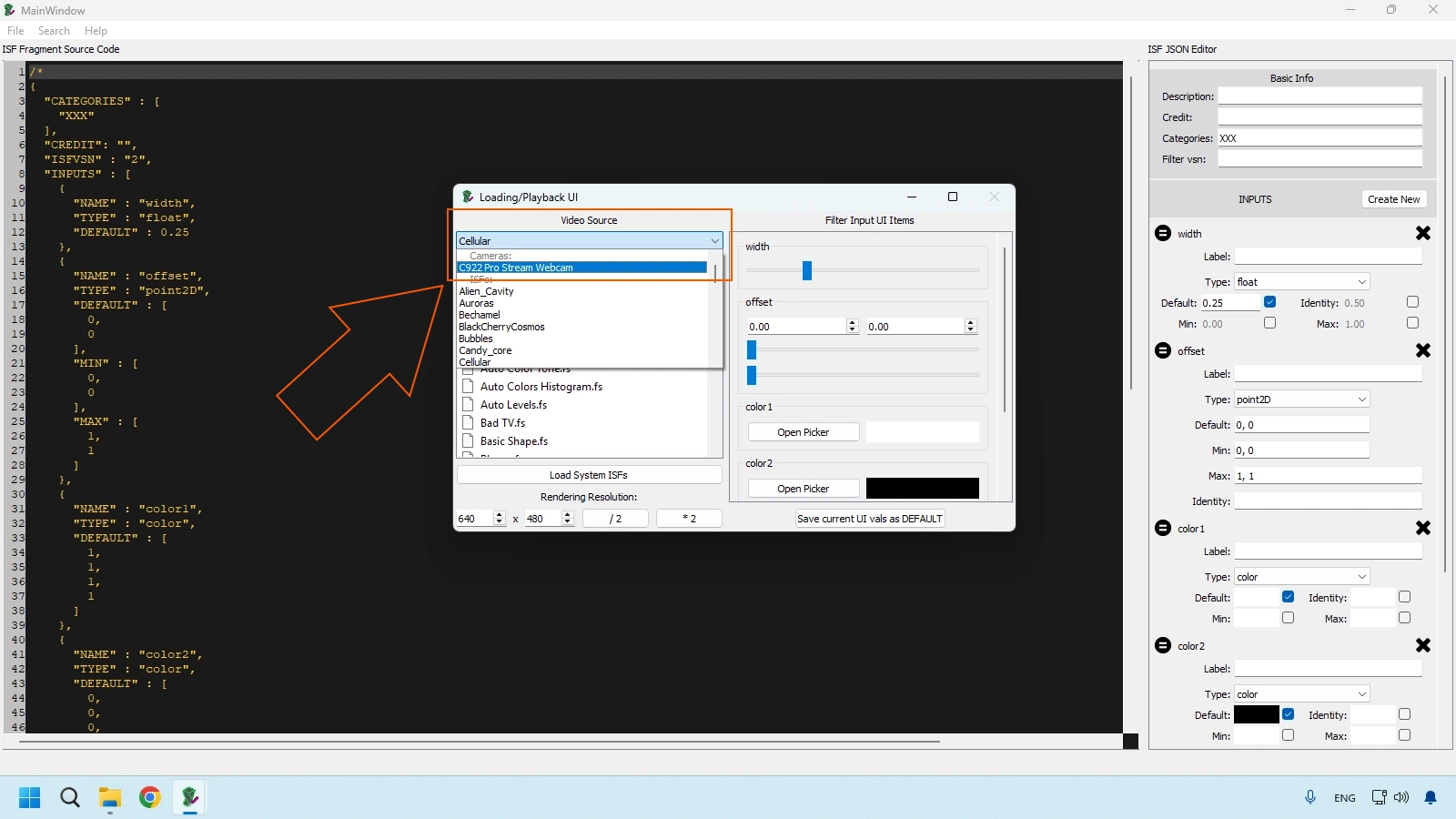
- In Loading/Playback UI, open the Video Source dropdown.
- If a webcam is connected, select it (for example, "Built-in FaceTime HD Camera" or similar).
- Load a shader (for example, Bad TV) using Load System ISFs.
- Confirm the effect applies to your live camera feed in real time.
Guided Practice Block 4 - The Fixer: Correcting a Common ISF Shader Error
This is where the lab mindset matters: force a simple error and learn to read it fast.
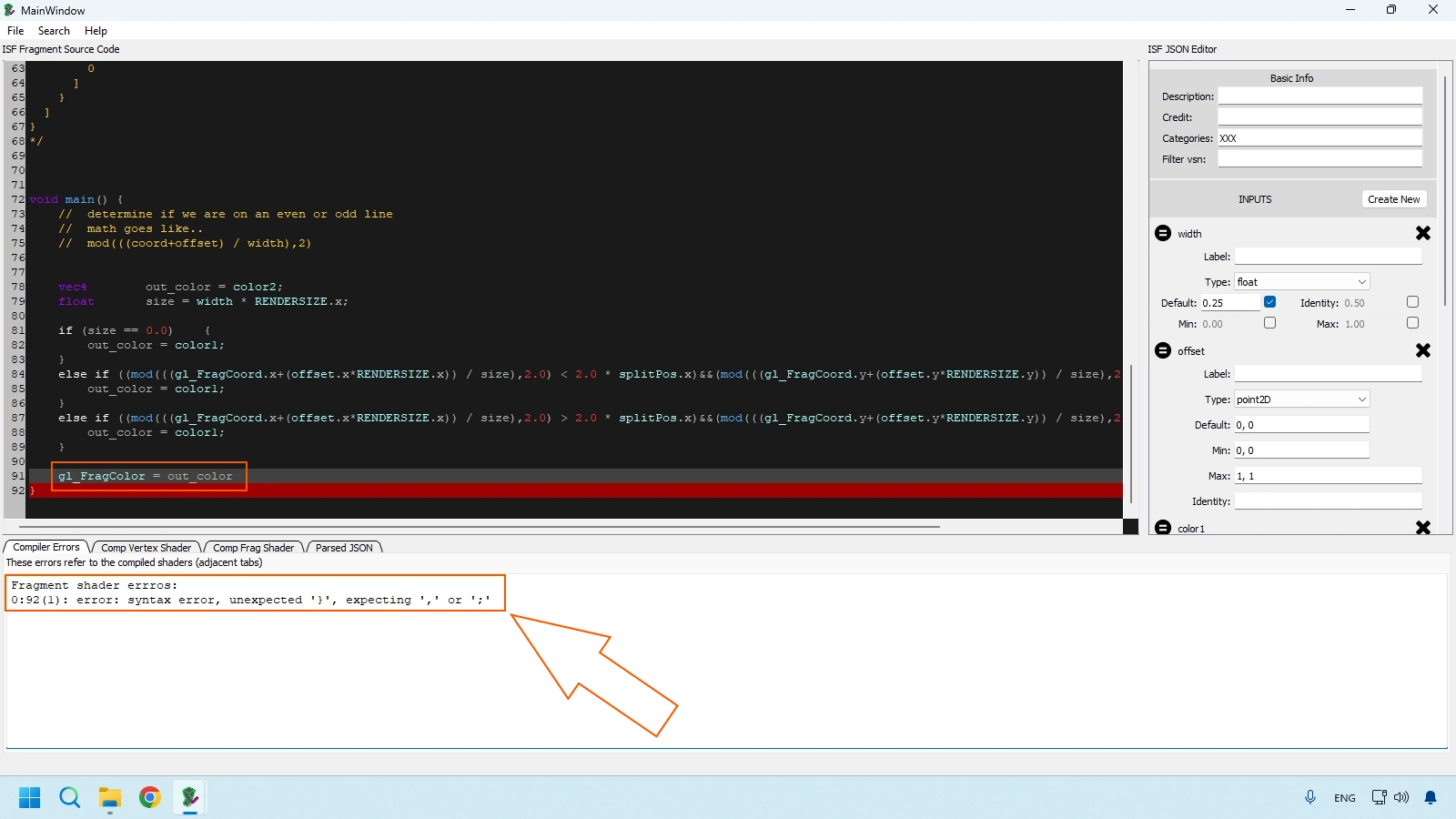
- In the left GLSL panel, remove the semicolon (;) at the end of the last line.
- Watch Output turn black or freeze.
- In MainWindow, find the red error bar with technical details.
- Locate the reported line number, restore the semicolon, and verify rendering comes back immediately.
Complete Workflow Recap
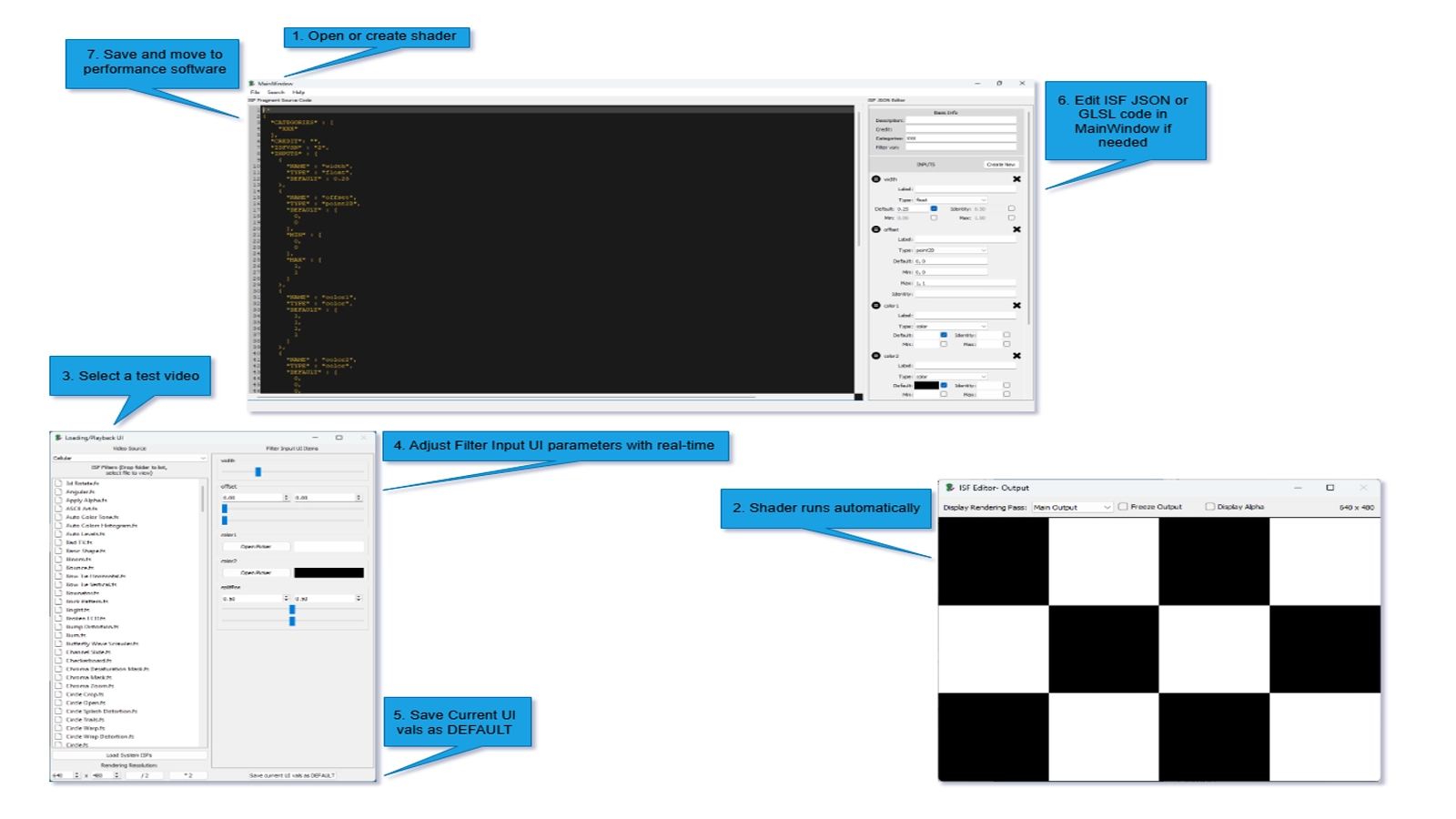
In a typical session:
- Start from File -> New or load an existing shader.
- Review runtime output immediately in ISF Editor Output.
- Choose the most useful Video Source for validation.
- Tune controls in Filter Input UI Items.
- Save best defaults.
- Adjust GLSL or JSON as needed.
- Save final .fs and move it into your live host workflow.
Next chapter: we move from the editor to discovery and curation workflows in The Hidden Library inside the ISF ecosystem.
Frequently Asked Questions
What comes next
When you can test and debug shaders locally, you need reliable source material. Download Free ISF Shaders (isf.video) — Chapter 6 teaches how to browse editor.isf.video, filter Generators vs Filters, download .fs files, organize a performance-ready library, and validate GPU load before show time.
Technical Appendix
This appendix centralizes quick references for this chapter, including cited links and chapter navigation for faster study and review.
Referenced Links
- what ISF is and why it changed modern VJ workflows
- how the ISF standard evolved historically
- why a 2KB shader can outperform heavy 4K video files in real-time performance
- how to load ISF shaders inside host software
- editor.isf.video
- isf.vidvox.net/desktop-editor
- docs.isf.video
- how to install ISF shaders in Magic Visuals
- The Hidden Library