In earlier chapters you learned what ISF is, where GLSL and ISF came from, and why shaders can outperform MP4/MOV loops on a live rig. You also installed hosts in Install ISF Shaders in Magic Visuals — Chapter 4, debugged files in the ISF Editor (Chapter 5), and built a library from isf.video (Chapter 6).
Until now, shaders felt like finished instruments. This chapter opens the case and shows the wiring: every .fs file is JSON + GLSL working as one system. Use the ISF for VJs manual index if you need to jump between modules.
JSON vs GLSL in ISF shaders: two layers of one file
An ISF shader is not “JSON or GLSL.” It is both: the JSON block between /*{ and }*/ defines what you can control on stage; the GLSL fragment shader below defines what the GPU paints every frame. When those two layers disagree—wrong NAME, mismatched TYPE, or a missing uniform—the shader breaks or ignores your sliders. This chapter maps that relationship so you can open any downloaded .fs file and know exactly what each section does.
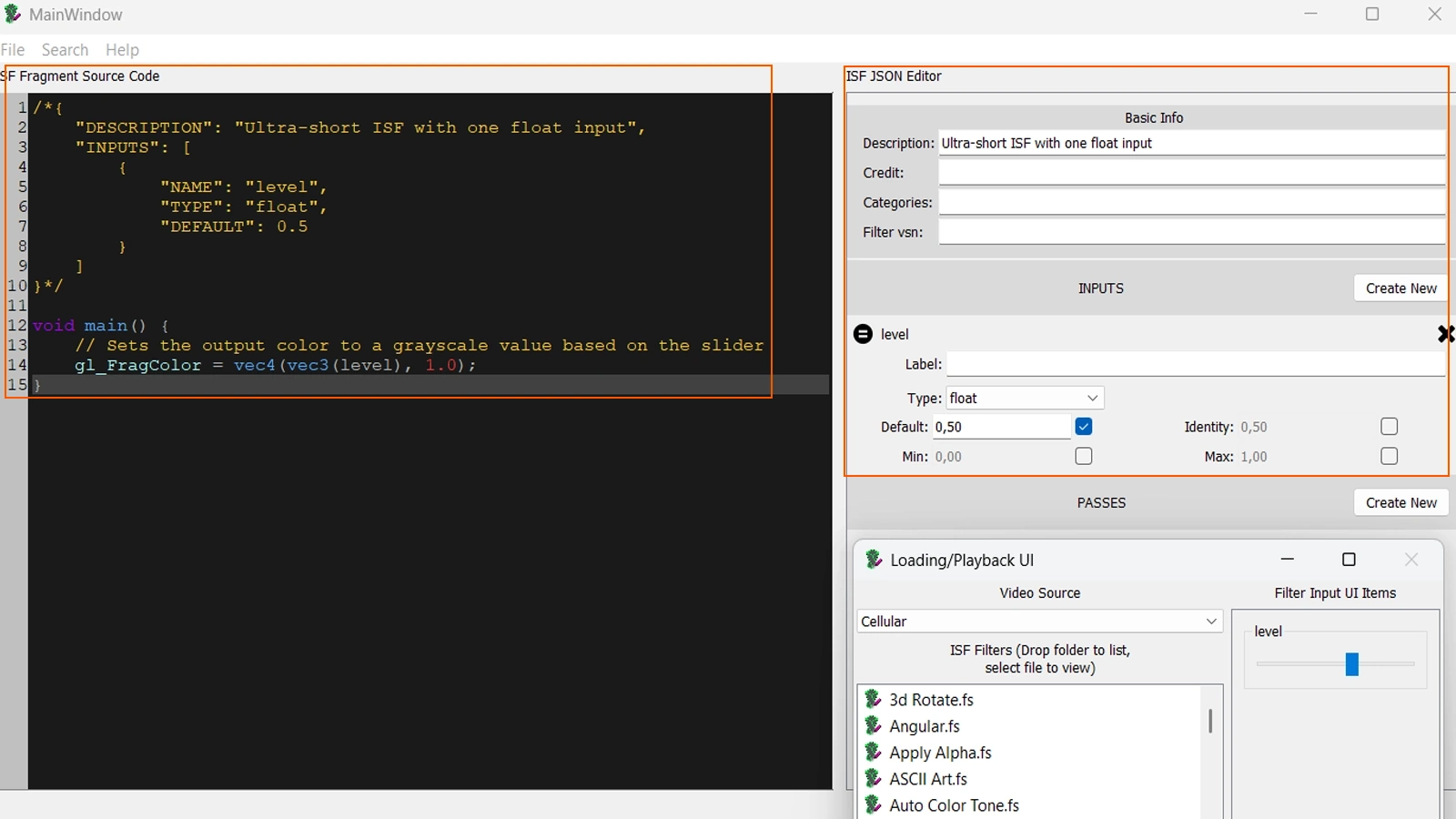
Inside the .fs file: JSON first, GLSL second
If you open a .fs file in any text editor, you will not find a binary blob. It is plain text you can copy, diff, and version-control like source code.
Every ISF shader follows the same layout:
- Part 1 — JSON block: wrapped between
/*{and}*/. It declares interactive controls (sliders, toggles, color pickers) and their ranges. - Part 2 — GLSL code: everything after the JSON block. This is the GPU program that paints each pixel every frame.
Think of JSON as the script and GLSL as the actor: JSON defines what can be controlled; GLSL interprets those values and renders the image.
GLSL: the engine that paints pixels
GLSL in VJ language
GLSL (OpenGL Shading Language) tells the GPU what color to output for each pixel. For live visuals, the important part is parallelism: the GPU evaluates the fragment shader across the full frame at once, not pixel-by-pixel like a printer.
On a 1920×1080 output, that means more than two million evaluations per frame, which is why complex generative looks can still run in real time when the math stays efficient.
The main() function
Every fragment shader has a main() entry point. The final color is written to gl_FragColor as RGBA channels from 0.0 to 1.0.
A full-screen solid red shader looks like this:
void main() {
    gl_FragColor = vec4(1.0, 0.0, 0.0, 1.0);
}
vec4(1.0, 0.0, 0.0, 1.0) means maximum red, no green, no blue, full opacity. If you understand that line, you understand the core idea behind every ISF shader, no matter how complex the math becomes.
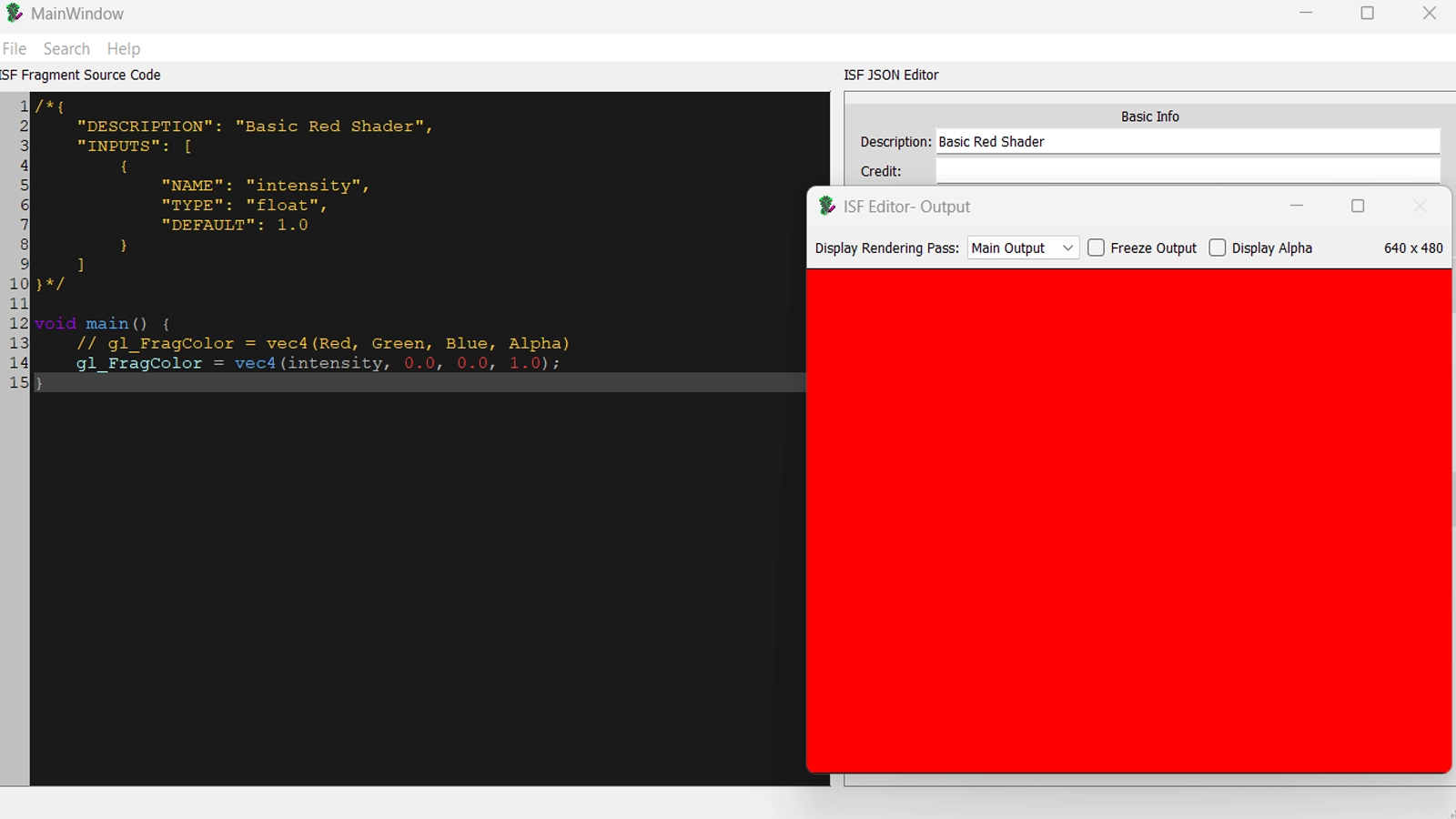
main() writes one color to gl_FragColor, and the GPU fills the frame.Built-in variables: TIME and isf_FragNormCoord
Static color shaders are useful for tests, but VJ workflows need motion and spatial variation. ISF passes two foundational values automatically:
TIME— seconds since playback started. Any formula that usesTIMEanimates frame by frame.isf_FragNormCoord— normalized pixel position (x,yfrom0.0to1.0). Each pixel knows where it sits on screen.
TIME drives temporal change. isf_FragNormCoord drives spatial change. Together they are the base fuel for generative ISF looks in Resolume, VDMX, and other ISF hosts.
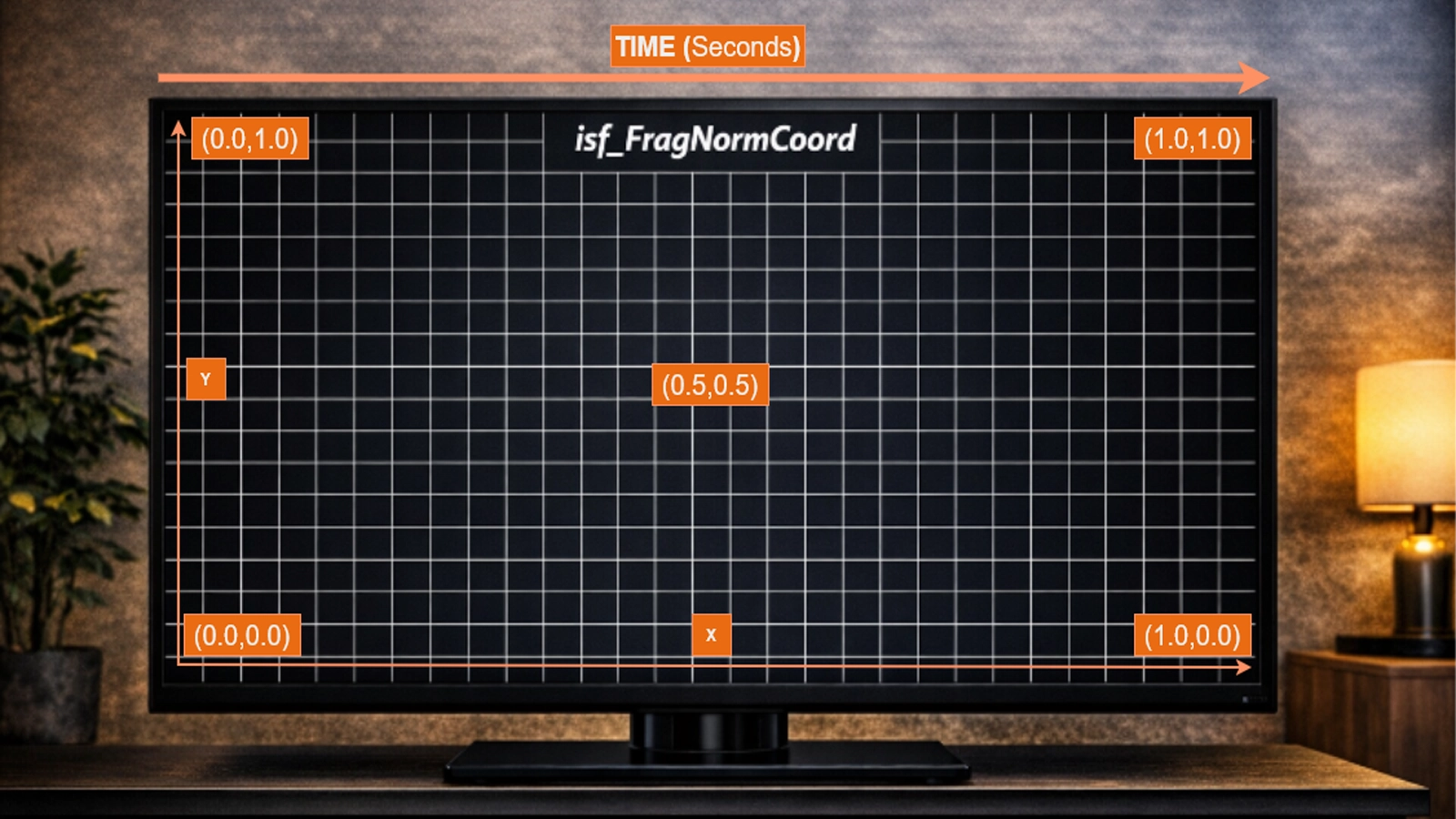
TIME creates motion over frames. isf_FragNormCoord gives each pixel a position. Most animated ISF shaders rely on both.JSON: the control panel on top of GLSL
If GLSL is the engine, JSON is the dashboard. The metadata block between /*{ and }*/ defines what a host exposes to the performer.
A minimal JSON header looks like this:
/*{
  "DESCRIPTION": "Descriptive shader name",
  "CATEGORIES": ["Generative"],
  "INPUTS": [
    {
      "NAME": "speed",
      "TYPE": "float",
      "DEFAULT": 1.0,
      "MIN": 0.0,
      "MAX": 5.0
    }
  ]
}*/
Each object inside INPUTS becomes a control in your host UI: sliders in Resolume, faders in VDMX, knobs in Magic Visuals. You define the control once in JSON; each application maps it to its own interface.
Anatomy of one JSON input
NAME— internal parameter ID. Must match the variable name used in GLSL.TYPE— data type (float,bool,color,int).DEFAULT— startup value when the shader loads.MIN— lower slider bound.MAX— upper slider bound.
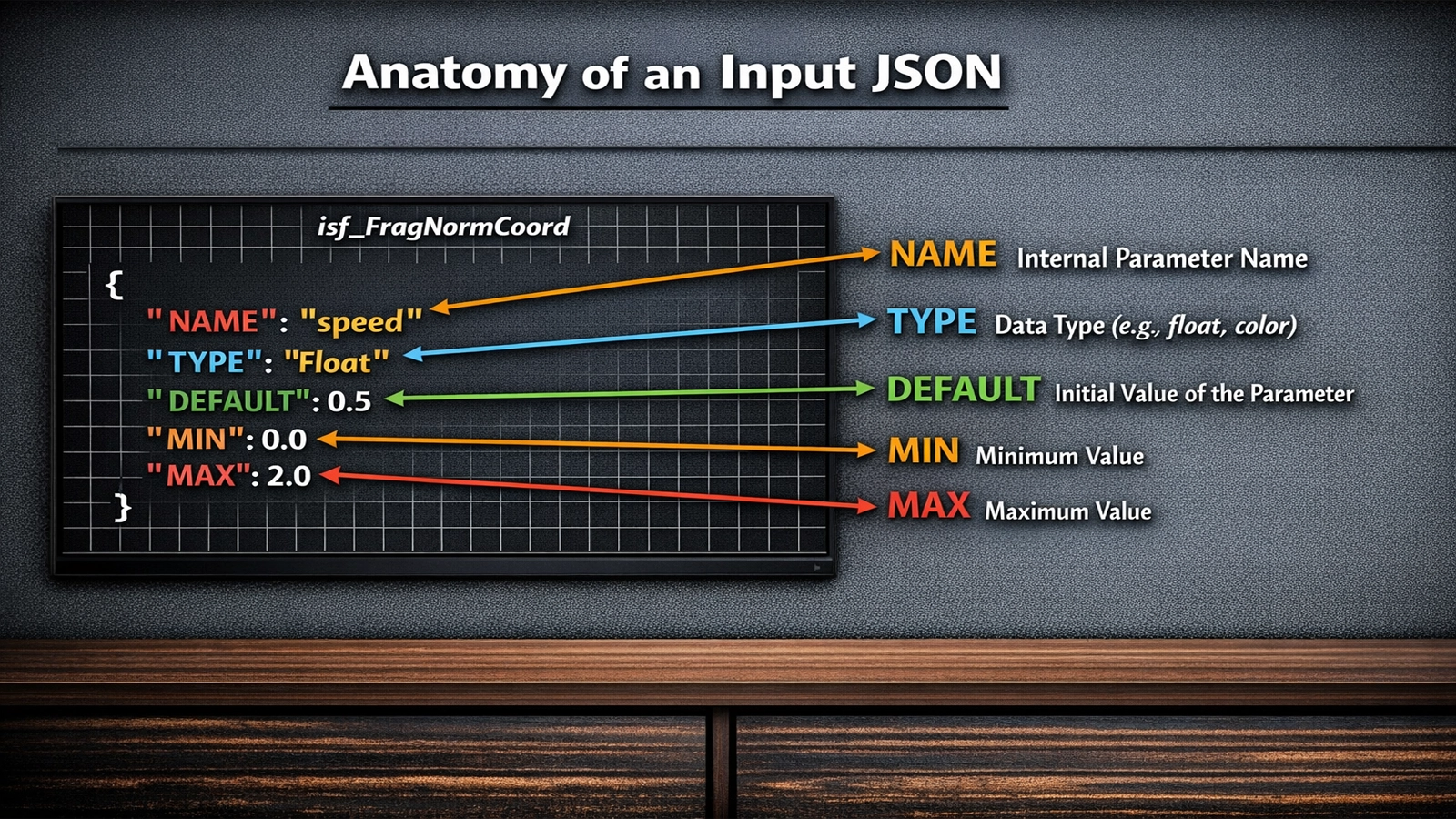
The bridge: how JSON talks to GLSL
When you declare a NAME in JSON, ISF exposes it as a uniform in GLSL automatically. No extra declaration is required.
{
  "NAME": "speed",
  "TYPE": "float",
  "DEFAULT": 1.0,
  "MIN": 0.0,
  "MAX": 5.0
}
void main() {
float t = TIME * speed; // speed comes from the JSON slider
}When a performer moves speed from 1.0 to 3.0, the GLSL variable updates on the next frame and motion accelerates. That is the practical power of ISF for live sets: no recompile, no code edits mid-show.
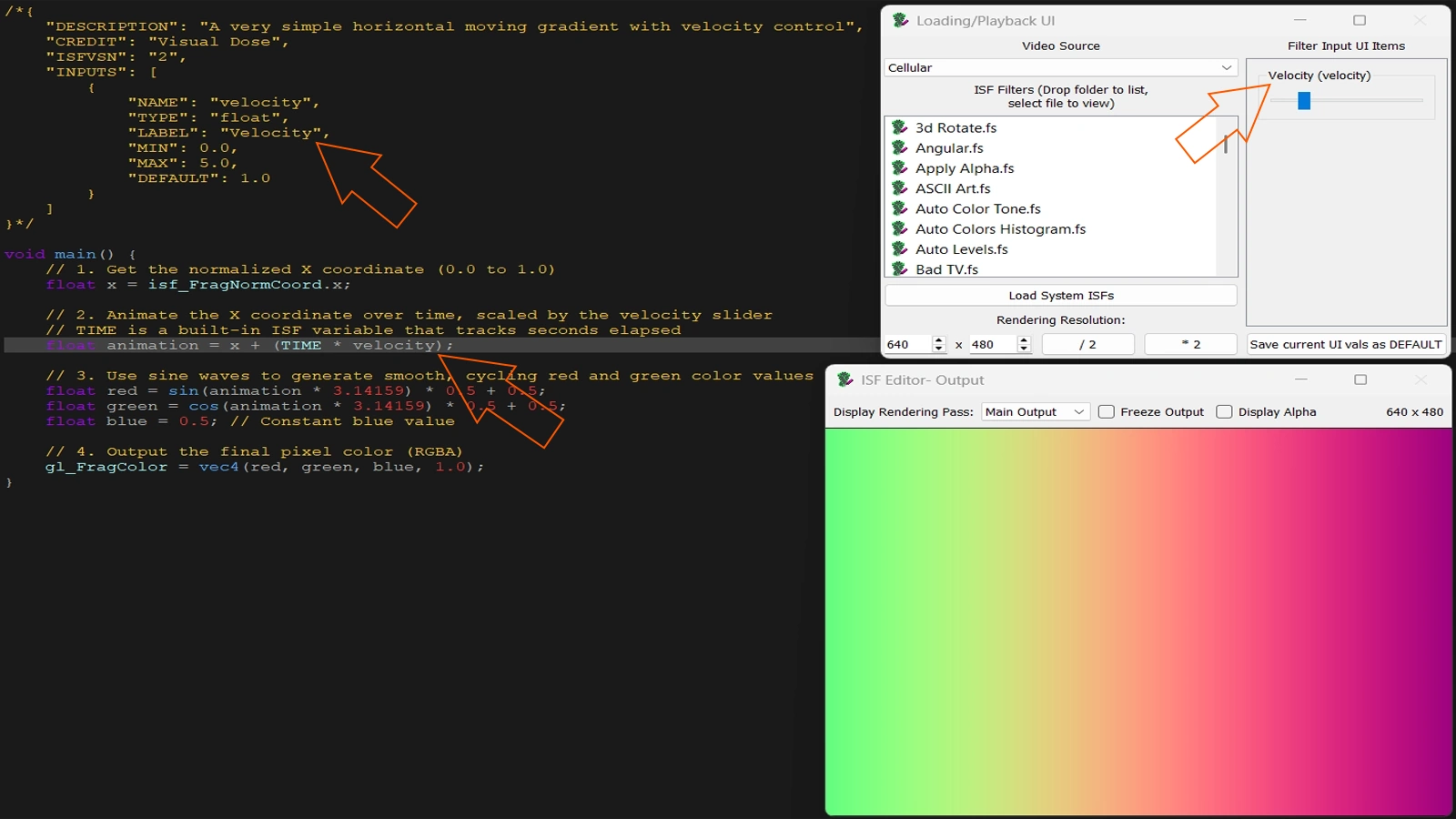
NAME becomes a GLSL uniform. That is the direct bridge between UI controls and shader math.Build the full shader layer by layer
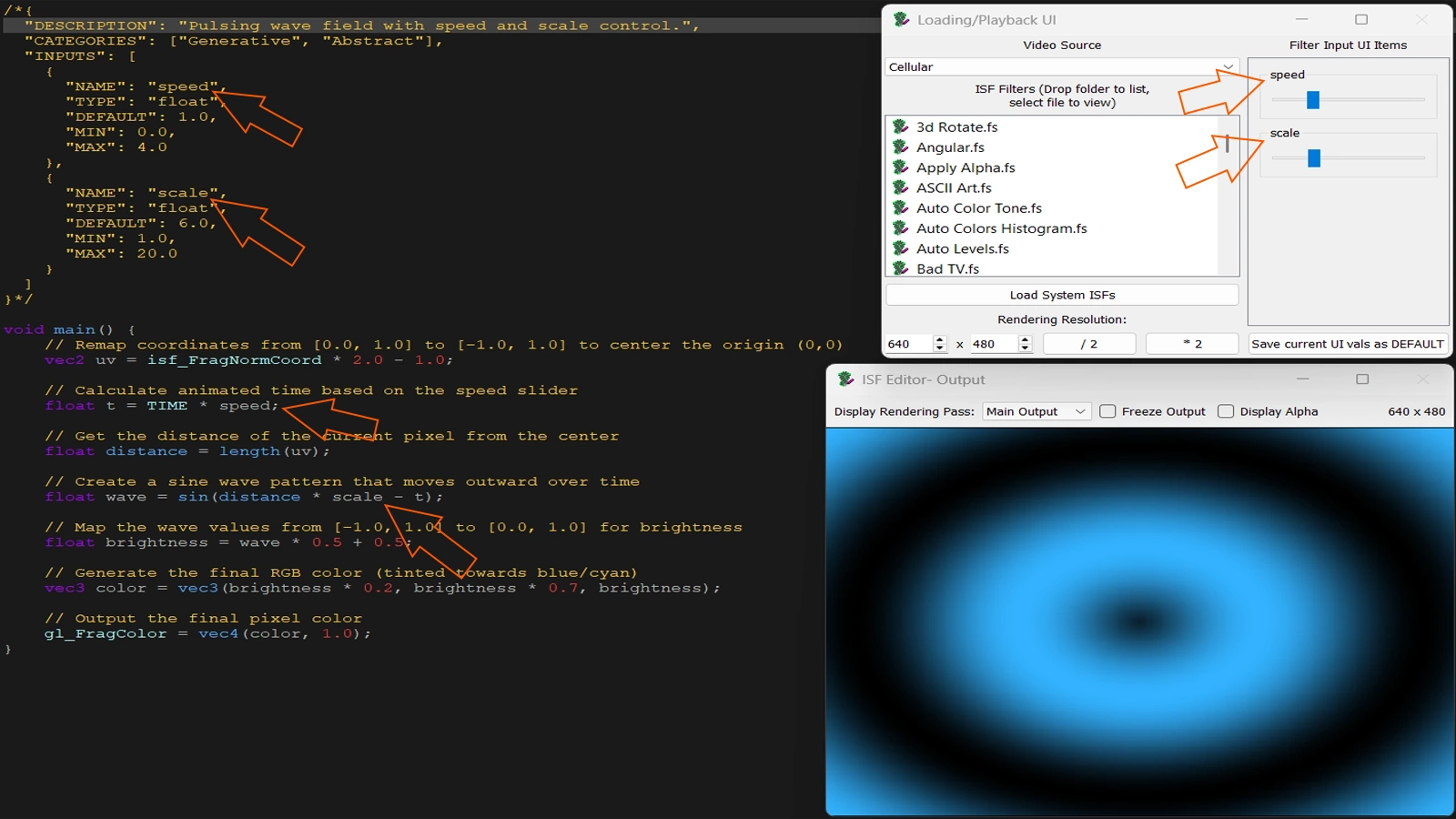
We will build a real pulsing wave-field shader with two controls: speed and scale. The goal is not memorization, but reading any downloaded .fs file with confidence.
Step 1: JSON with two parameters
/*{
  "DESCRIPTION": "Pulsing wave field with speed and scale control.",
  "CATEGORIES": ["Generative", "Abstract"],
  "INPUTS": [
    {
      "NAME": "speed",
      "TYPE": "float",
      "DEFAULT": 1.0,
      "MIN": 0.0,
      "MAX": 4.0
    },
    {
      "NAME": "scale",
      "TYPE": "float",
      "DEFAULT": 6.0,
      "MIN": 1.0,
      "MAX": 20.0
    }
  ]
}*/
speed controls animation rate. scale controls pattern density. Setting MIN to 0.0 on speed is useful live: the shader freezes on the current frame when the slider hits zero.
Step 2: GLSL body
void main() {
    vec2 uv = isf_FragNormCoord * 2.0 - 1.0;
    float t = TIME * speed;
    float distance = length(uv);
    float wave = sin(distance * scale - t);
    float brightness = wave * 0.5 + 0.5;
    vec3 color = vec3(brightness * 0.2, brightness * 0.7, brightness);
    gl_FragColor = vec4(color, 1.0);
}
Step 3: complete .fs file (copy into ISF Editor)
/*{
  "DESCRIPTION": "Pulsing wave field with speed and scale control.",
  "CATEGORIES": ["Generative", "Abstract"],
  "INPUTS": [
    {
      "NAME": "speed",
      "TYPE": "float",
      "DEFAULT": 1.0,
      "MIN": 0.0,
      "MAX": 4.0
    },
    {
      "NAME": "scale",
      "TYPE": "float",
      "DEFAULT": 6.0,
      "MIN": 1.0,
      "MAX": 20.0
    }
  ]
}*/

void main() {
    vec2 uv = isf_FragNormCoord * 2.0 - 1.0;
    float t = TIME * speed;
    float distance = length(uv);
    float wave = sin(distance * scale - t);
    float brightness = wave * 0.5 + 0.5;
    vec3 color = vec3(brightness * 0.2, brightness * 0.7, brightness);
    gl_FragColor = vec4(color, 1.0);
}
Line-by-line GLSL breakdown
vec2 uv = isf_FragNormCoord * 2.0 - 1.0; — remaps coordinates from 0–1 to a centered -1–+1 space. Most generative patterns start here for symmetry.
float t = TIME * speed; — time scaled by the JSON slider. speed = 0 freezes motion; higher values accelerate it.
float distance = length(uv); — radial distance from center. This creates circular symmetry.
float wave = sin(distance * scale - t); — core pattern. scale controls ring density; subtracting t pushes rings outward over time.
float brightness = wave * 0.5 + 0.5; — remaps sine output (-1..1) into color range (0..1).
vec3 color = vec3(brightness * 0.2, brightness * 0.7, brightness); — channel weights define palette. Change multipliers to shift color without changing motion.
gl_FragColor = vec4(color, 1.0); — writes final pixel color and alpha.
Guided experiments: change one value at a time
Open the shader in ISF Desktop Editor, edit one number, save, and observe. If something breaks, undo and retry.
Experiment 1: palette swap
// Original (cyan-blue):
vec3 color = vec3(brightness * 0.2, brightness * 0.7, brightness);

// Orange-red:
vec3 color = vec3(brightness, brightness * 0.3, brightness * 0.05);

// Lime-green:
vec3 color = vec3(brightness * 0.1, brightness, brightness * 0.2);
Experiment 2: invert wave direction
float wave = sin(distance * scale - t); // expanding rings
float wave = sin(distance * scale + t); // collapsing rings
Experiment 3: change geometry
float wave = sin(distance * scale - t);      // circular
float wave = sin(uv.y * scale - t);          // horizontal lines
float wave = sin((uv.x + uv.y) * scale - t); // diagonal lines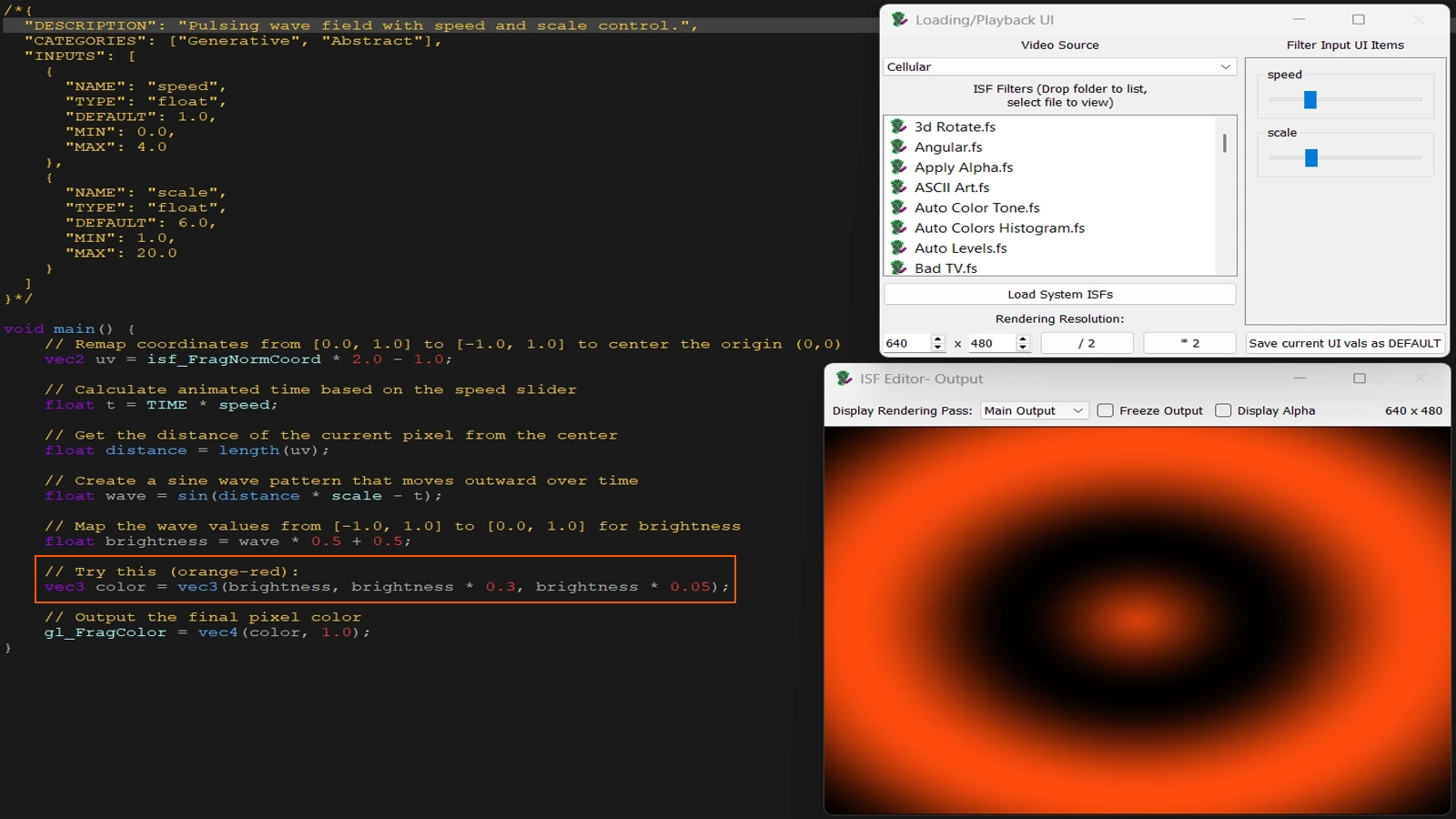
JSON input types you will see in the wild
Beyond float, library shaders commonly use:
float — continuous slider for speed, intensity, scale, smoothing.
{
  "NAME": "intensity",
  "TYPE": "float",
  "DEFAULT": 0.5,
  "MIN": 0.0,
  "MAX": 1.0
}
bool — on/off toggle for modes or inversions.
{
  "NAME": "invert",
  "TYPE": "bool",
  "DEFAULT": false
}
color — RGBA picker for explicit palette control.
{
  "NAME": "baseColor",
  "TYPE": "color",
  "DEFAULT": [1.0, 0.5, 0.0, 1.0]
}
int — discrete mode selector or integer count.
{
  "NAME": "mode",
  "TYPE": "int",
  "DEFAULT": 0,
  "MIN": 0,
  "MAX": 3
}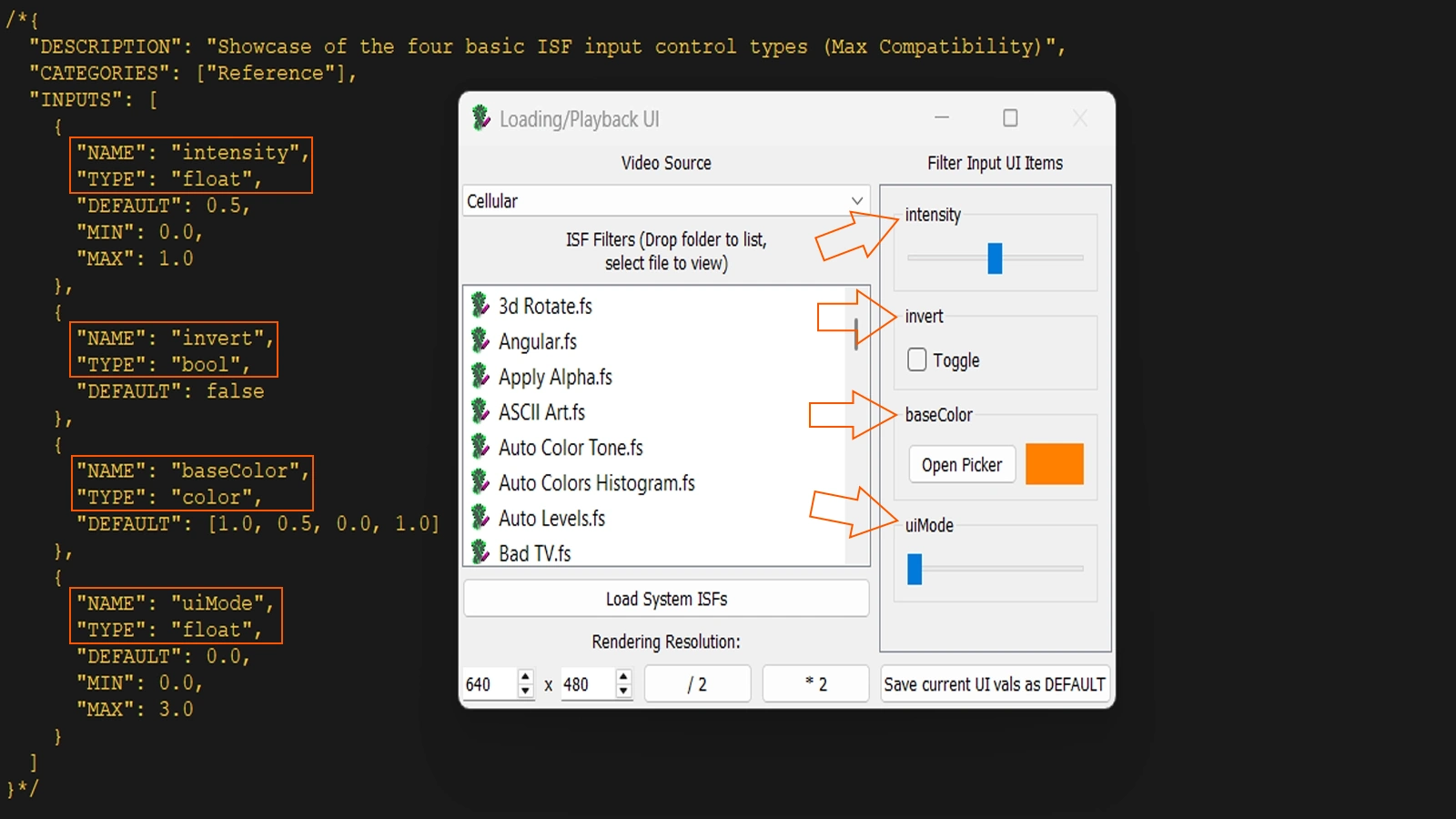
TYPE maps to a different host control: slider, toggle, color picker, or integer selector.Quick reference table: JSON ↔ GLSL
| JSON element | UI behavior | GLSL meaning |
|---|---|---|
"NAME": "speed" |
Control label and mapping key | Uniform variable name |
"TYPE": "float" |
Slider | Decimal number |
"TYPE": "bool" |
Toggle | true or false |
"TYPE": "color" |
Color picker | vec4 RGBA |
"TYPE": "int" |
Discrete selector | Integer value |
"DEFAULT": 1.0 |
Startup control position | Initial uniform value |
"MIN" / "MAX" |
Slider limits in UI | Not used directly in GLSL math |
Live shader preview on this page
Control speed and scale live
The demo above runs the same wave shader from this chapter. The speed and scale sliders map to JSON-defined uniforms exactly like they would in Resolume, VDMX, or Magic Visuals.
Set speed to zero and the pattern freezes on the current frame. Raise scale to tighten the rings. Under the hood, the GPU executes the GLSL once per pixel per frame while your slider values update uniforms in real time.
For official references while you practice, use editor.isf.video and the ISF documentation. Test edits locally in the ISF Desktop Editor before moving files into live host software.
Frequently Asked Questions
What comes next
You now understand how JSON and GLSL work as one system in every .fs file. The next chapter — ISF Shader UI Controls (JSON Inputs) — Chapter 8 — shows how to author every input type ISF supports: sliders, color pickers, toggles, events, and XY pads, tuned for MIDI and OSC busking without touching GLSL mid-show.
Technical Appendix
This appendix centralizes quick references for this chapter, including cited links and chapter navigation for faster study and review.

Referenced Links
- what ISF is
- where GLSL and ISF came from
- why shaders can outperform MP4/MOV loops
- Install ISF Shaders in Magic Visuals — Chapter 4
- ISF Editor Tutorial for VJs — Chapter 5
- Download Free ISF Shaders (isf.video) — Chapter 6
- ISF for VJs manual index
- OpenGL Shading Language Wiki
- Resolume
- VDMX
- ISF Desktop Editor
- editor.isf.video
- ISF documentation