In Chapter 1 you learned what ISF is. In Chapter 7 you opened the .fs file and understood the JSON + GLSL split. In Chapter 8 you authored every ISF input type — sliders, color pickers, toggles, events, and XY pads — tuned for MIDI and OSC busking. Use the ISF for VJs manual index if you need to jump between modules.
You open a shader from the ISF library or copy a snippet from StackOverflow, paste it into ISF Editor, and the output goes black. The error bar says something like ERROR: 0:12: '' : wrong operand types - no operation '+' exists that takes a left-hand operand of type 'float' and a right operand of type 'int'. You stare at it. Nothing makes sense.
This chapter on GLSL data types for VJs fixes that. No programming background required. You will learn exactly what float, bool, int, vec2, vec3, and vec4 are, why the GPU cares so much about them, and what to do the next time you see a type error in your shader. After this chapter, those red error messages will tell you exactly what to fix instead of feeling like a wall.
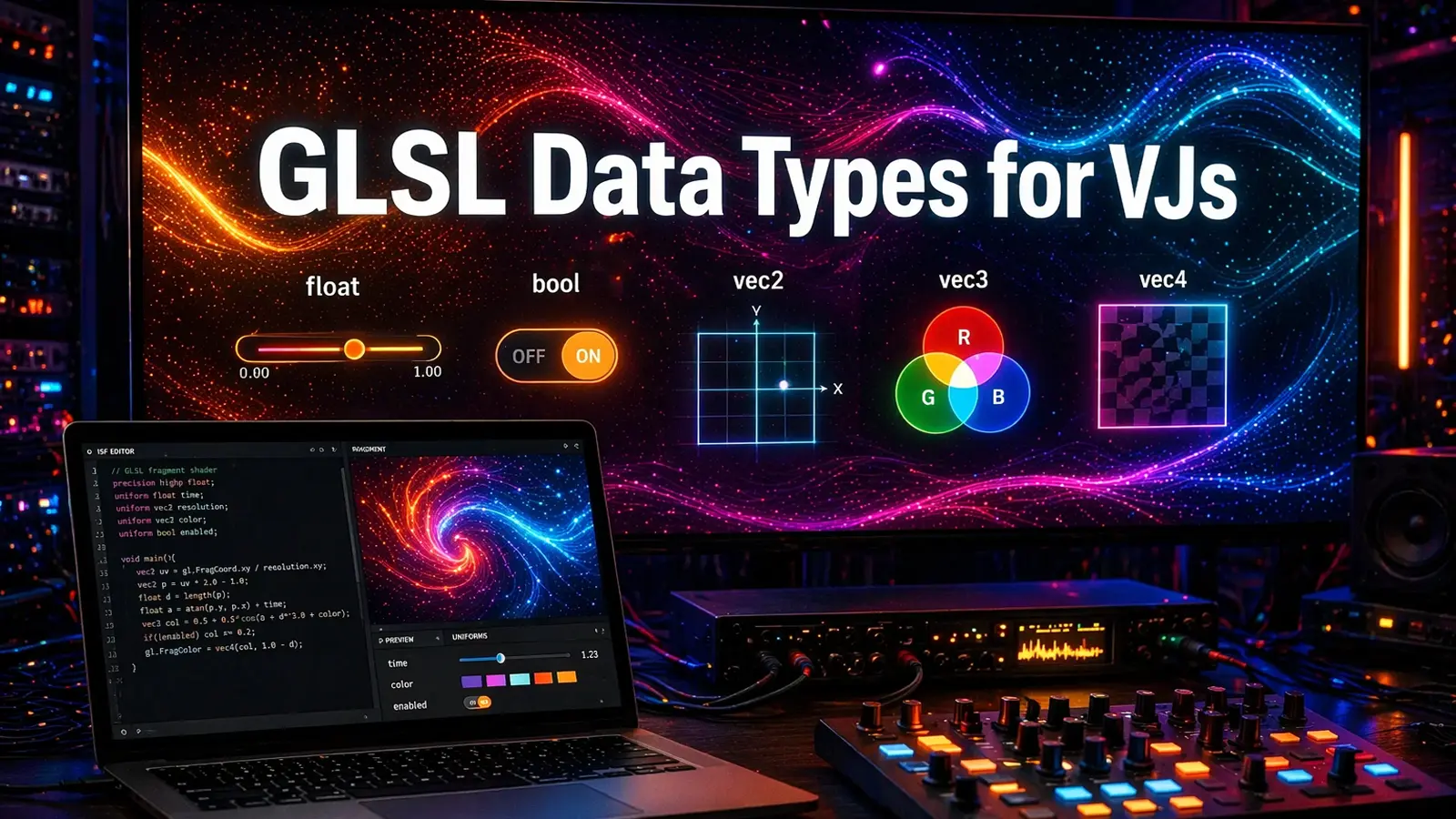
GLSL data types for VJs: float, bool, vec2, vec3, and vec4
Every value inside an ISF shader belongs to one of six core GLSL data types. Sliders map to float. Toggles map to bool. Color pickers arrive as vec4. Screen position lives in vec2. When you understand which container each value uses, compile errors stop being cryptic and start reading like plain instructions.
Why data types cause most shader errors
When you DJ, you know that a channel fader and an EQ knob do different jobs, even if they both look like something you can move. You do not try to plug a USB cable into an XLR port. Categories matter because different things work differently.
The GPU works the same way. It needs to know what kind of value every variable holds before it can use it. Is it a color? A position? An on/off switch? A speed value? Each one has a different type, and if you mix them incorrectly — even by accident — the shader refuses to compile. Not crashes. Refuses. It simply will not start.
This is actually a feature, not a flaw. The GPU checks everything before rendering a single pixel, so errors never make it to your output screen live. But it does mean that small mistakes in the code stop everything cold.
The good news: type errors are the most mechanical errors in GLSL. Once you understand the six types covered in this chapter, you can fix 80% of compile failures in under a minute.
What is a data type? (In plain English)
A data type is a label that tells the GPU what kind of information a variable holds. Think of it like the label on a container:
- A container labeled float holds one number, like a speed slider set to 0.75.
- A container labeled bool holds only true or false, like a mute button.
- A container labeled vec3 holds three numbers at the same time, like a color (red=0.2, green=0.8, blue=0.5).
You cannot pour a liquid (float) into a container designed for a switch (bool). GLSL enforces these containers strictly. If you try to combine incompatible types, the compiler stops you before anything renders.
Every value in a GLSL shader belongs to one of these containers. Once you recognize the containers, the code starts to read almost like sentences.
float — The most important type for VJs
float is a number with a decimal point. It can be any number: positive, negative, very large, very small, or a fraction. The word "float" comes from "floating point," which is just the technical name for how computers store decimal numbers.
In ISF shaders, almost every parameter you control — speed, intensity, distortion amount, hue rotation — is a float. When you move a slider in Resolume or Magic Visuals and the visual changes, you are changing a float value somewhere in the shader.
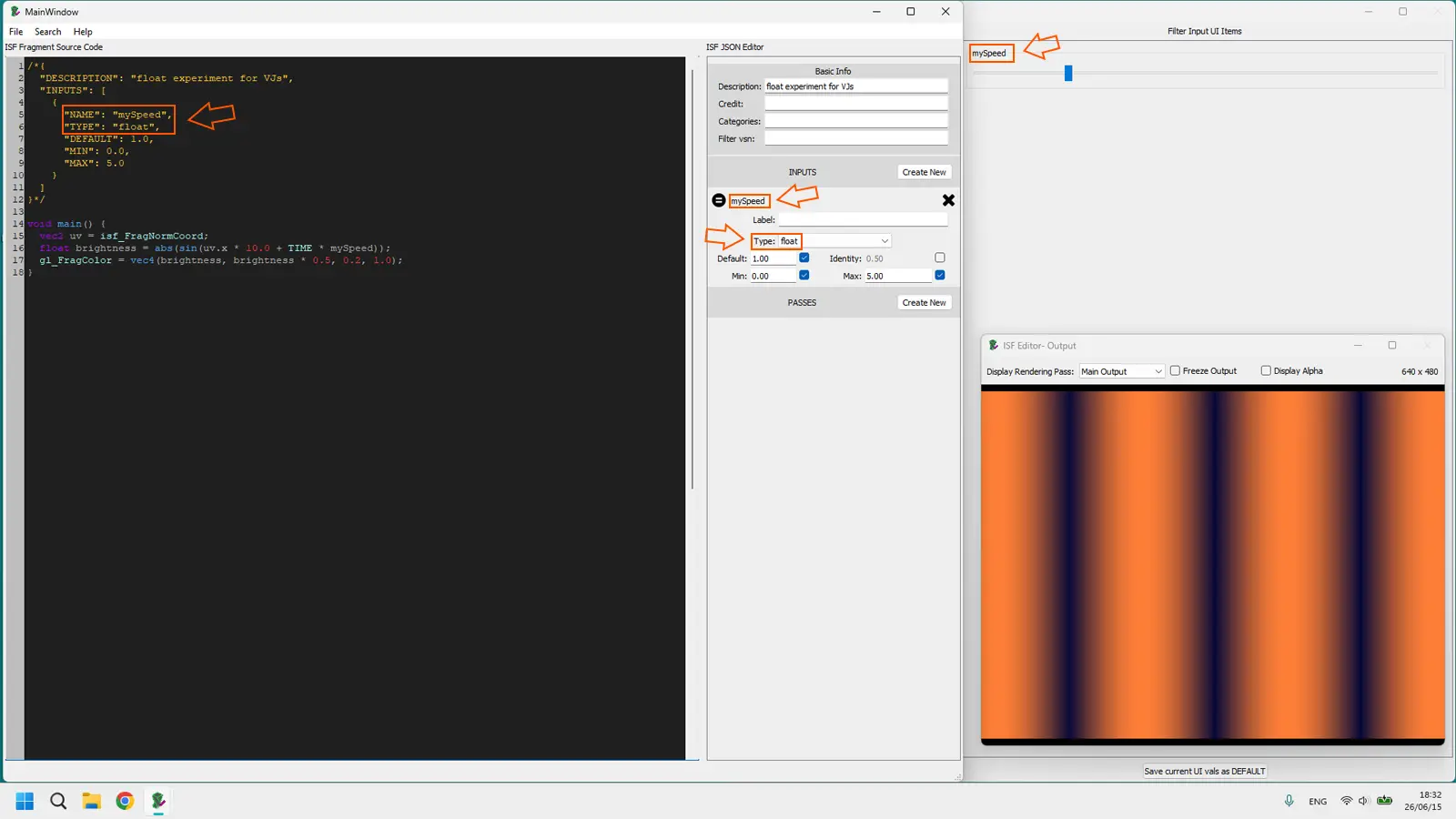
What float means for you
Every time you see a slider in your ISF host software — a speed knob, a blur amount, a rotation angle — that slider controls a float. The number goes into the shader and the shader uses it to calculate something visual.
When you write 0.5 in GLSL, that is a float. When you write 1.0, that is also a float. Notice the decimal point. The GPU always needs it. If you write just 1 without the decimal point, the GPU reads it as a different type called int. This one difference causes more red screens for non-programmers than anything else in GLSL.
// Correct: these are all floats
float speed = 1.0;
float intensity = 0.75;
float angle = 3.14159;

// Wrong: missing decimal point makes it an int, not a float
float speed = 1;   // ERROR in GLSL — even though it "looks" like 1.0
float: Common mistakes VJs make
The most common mistake when tweaking copied GLSL code is forgetting the decimal point on whole numbers. If you see a number like 2 or 10 used in a float calculation, the shader will compile fine in some environments but fail in others. The safest habit: always write float numbers with a decimal point, even when the value is a whole number. Write 2.0, not 2. Write 10.0, not 10.
The second common mistake: trying to add a float and an int directly without converting. The GPU does not do automatic conversion between these types the way most calculators do.
// This causes a compile error:
float mySpeed = 1.5;
int myCount = 3;
float result = mySpeed + myCount; // ERROR: cannot add float + int

// Fix: convert int to float using float()
float result = mySpeed + float(myCount); // OK
Guided experiment: float
Open ISF Editor and create a new Generator shader. Replace the content with this:
/*{
  "DESCRIPTION": "float experiment for VJs",
  "INPUTS": [
    {
      "NAME": "mySpeed",
      "TYPE": "float",
      "DEFAULT": 1.0,
      "MIN": 0.0,
      "MAX": 5.0
    }
  ]
}*/

void main() {
  vec2 uv = isf_FragNormCoord;
  float brightness = abs(sin(uv.x * 10.0 + TIME * mySpeed));
  gl_FragColor = vec4(brightness, brightness * 0.5, 0.2, 1.0);
}
Move the mySpeed slider. Watch the animation speed change. That slider is your float in action. Now try changing 10.0 to just 10 and watch the error bar appear. Change it back to 10.0 and the error disappears. You just witnessed a type error caused by the missing decimal point — and you fixed it.
bool — The on/off switch
bool is short for boolean, which is a fancy word for a value that can only be one of two things: true or false. That is all. Nothing in between.
In ISF shaders, a bool uniform becomes a toggle button or checkbox in your host software. You use it to switch shader features on or off: mirror mode on/off, invert colors yes/no, show grid yes/no.
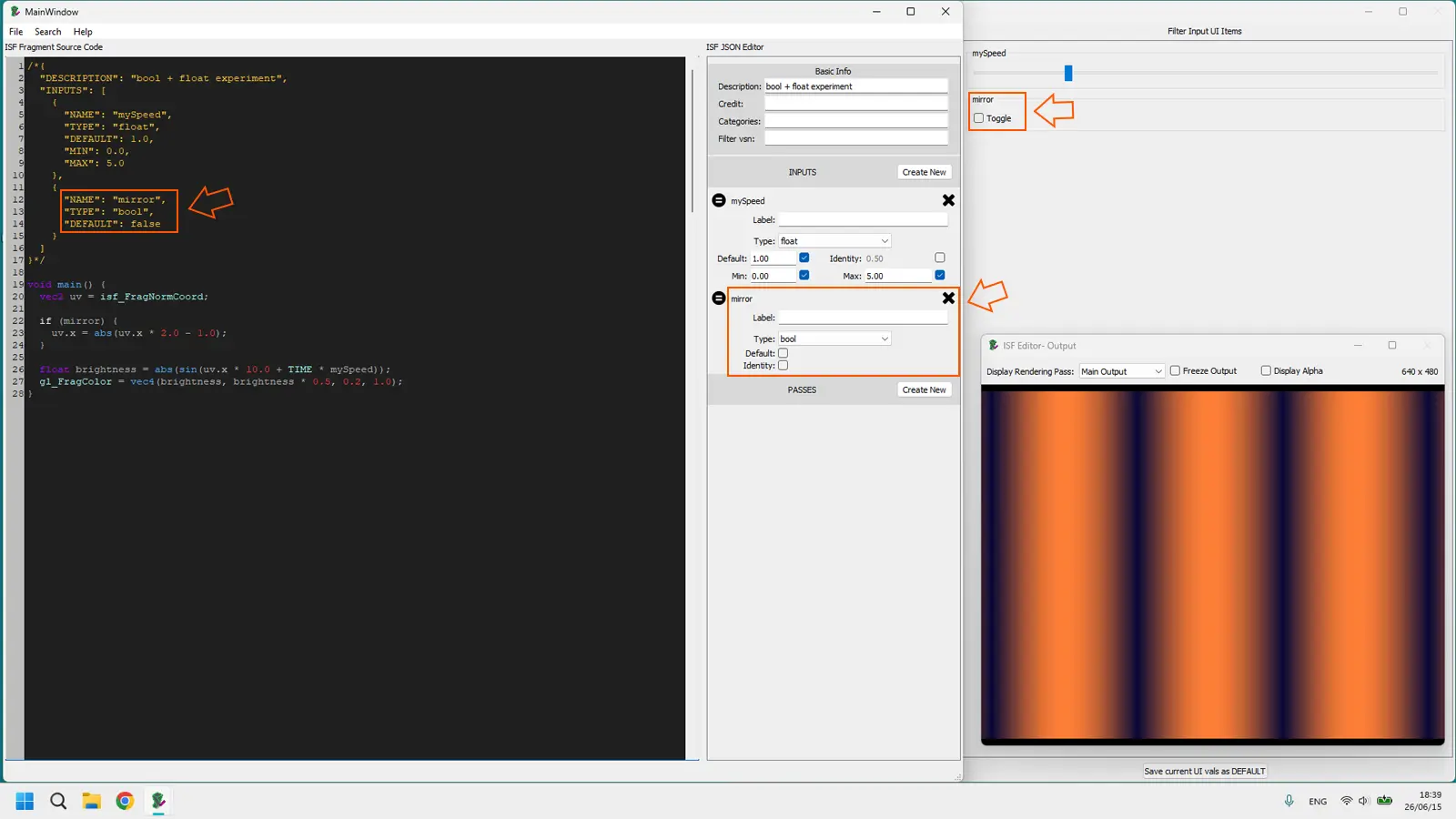
What bool means for you
A bool is a switch. You use it in shader code with if statements: "if this bool is true, do this visual thing; if it is false, do the other thing." For VJs this is incredibly useful for creating shaders that have two distinct modes you can flip live.
/*{
  "INPUTS": [
    {
      "NAME": "mirrorMode",
      "TYPE": "bool",
      "DEFAULT": false
    }
  ]
}*/

void main() {
  vec2 uv = isf_FragNormCoord;

  if (mirrorMode) {
    uv.x = abs(uv.x * 2.0 - 1.0);
  }

  gl_FragColor = vec4(uv.x, uv.y, 0.5, 1.0);
}
bool: Common mistakes VJs make
The most common bool mistake when copying code from StackOverflow examples: the example uses int values (0 and 1) for true/false instead of proper booleans. Some older GLSL examples do this. If you paste that code and use it with a proper bool uniform, you will get a type error because bool and int are not interchangeable.
// Old style you might find on StackOverflow (some GLSL versions):
uniform int invertColors; // 0 or 1
if (invertColors == 1) { ... }

// ISF style (correct for modern ISF shaders):
uniform bool invertColors; // true or false
if (invertColors) { ... }
When you copy code from StackOverflow and it uses int for switches, the fix is simple: replace int myFlag with bool myFlag and replace == 1 comparisons with just using the bool directly.
Guided experiment: bool
Add a bool to your previous float experiment. This time add a mirroring toggle:
/*{
  "DESCRIPTION": "bool + float experiment",
  "INPUTS": [
    {
      "NAME": "mySpeed",
      "TYPE": "float",
      "DEFAULT": 1.0,
      "MIN": 0.0,
      "MAX": 5.0
    },
    {
      "NAME": "mirror",
      "TYPE": "bool",
      "DEFAULT": false
    }
  ]
}*/

void main() {
  vec2 uv = isf_FragNormCoord;

  if (mirror) {
    uv.x = abs(uv.x * 2.0 - 1.0);
  }

  float brightness = abs(sin(uv.x * 10.0 + TIME * mySpeed));
  gl_FragColor = vec4(brightness, brightness * 0.5, 0.2, 1.0);
}
Toggle the mirror checkbox in the Playback UI. The symmetry flips on and off instantly. You just used a bool to create a live performance switch with zero extra complexity.
int — The whole number counter
int is a whole number. No decimal point. No fractions. Just a complete integer: 1, 2, 5, 100, -3. The GPU stores these differently than floats and treats them differently in math operations.
In ISF shaders, int is less common than float for live controls, but you will see it used for things that count: number of repetitions, number of layers, number of iterations in a loop, or a mode selector (mode 1, mode 2, mode 3).
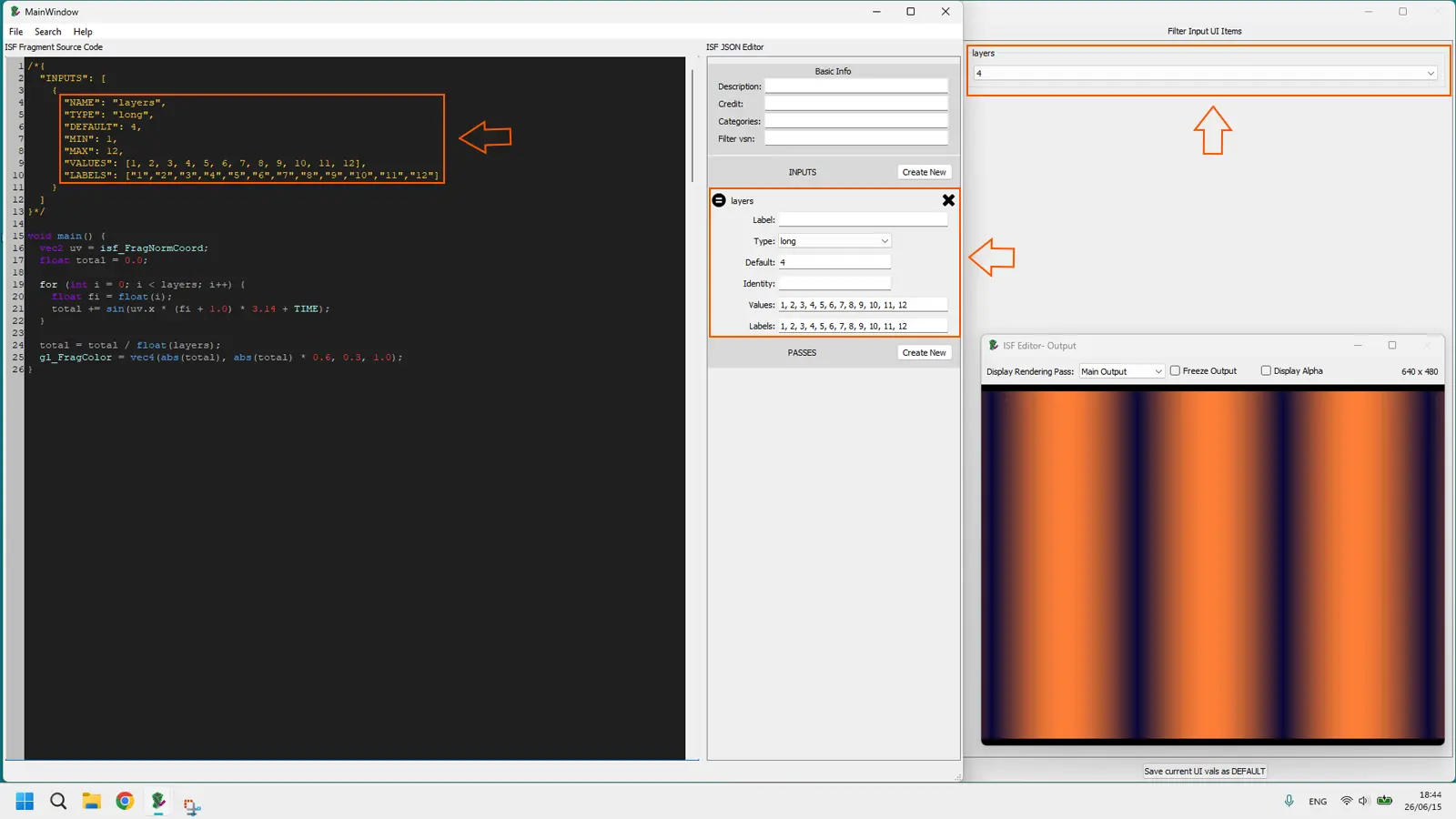
What int means for you
You use int in GLSL when you need a counter, a number of repetitions, or when you are selecting between a fixed set of modes. The important thing to remember: int and float cannot be mixed in math operations directly. If you have an int and need to use it in a float calculation (which happens constantly), convert it with float(myInt).
/*{
  "INPUTS": [
    {
      "NAME": "layers",
      "TYPE": "long",
      "DEFAULT": 4,
      "MIN": 1,
      "MAX": 12,
      "VALUES": [1, 2, 3, 4, 5, 6, 7, 8, 9, 10, 11, 12],
      "LABELS": ["1","2","3","4","5","6","7","8","9","10","11","12"]
    }
  ]
}*/

void main() {
  vec2 uv = isf_FragNormCoord;
  float total = 0.0;

  for (int i = 0; i < layers; i++) {
    float fi = float(i);
    total += sin(uv.x * (fi + 1.0) * 3.14 + TIME);
  }

  total = total / float(layers);
  gl_FragColor = vec4(abs(total), abs(total) * 0.6, 0.3, 1.0);
}
Note: in ISF JSON, the equivalent of int for user controls is called "TYPE": "long". Inside GLSL code you still declare and use it as int. This naming difference between JSON and GLSL is covered in detail in Chapter 7: JSON vs GLSL in ISF Shaders.
Guided experiment: int
Create a fresh shader and experiment with the loop count. Start with layers set to 1, then move it to 8 and notice how the visual complexity stacks. This is you controlling an int live. Also try deliberately removing float() from the division and watch the type error appear.
vec2 — Position, size, and 2D coordinates
vec2 is a container that holds exactly two floats at the same time. Think of it as a pair of values that belong together. The most common example in VJ shaders: screen coordinates. Every pixel on your screen has an X position and a Y position. Instead of writing them as two separate variables, GLSL packs them into one vec2.
When you read vec2 uv = isf_FragNormCoord; in a shader, that single line is giving you the position of the current pixel being processed: uv.x is the horizontal position (0.0 at left, 1.0 at right) and uv.y is the vertical position (0.0 at bottom, 1.0 at top).
What vec2 means for you
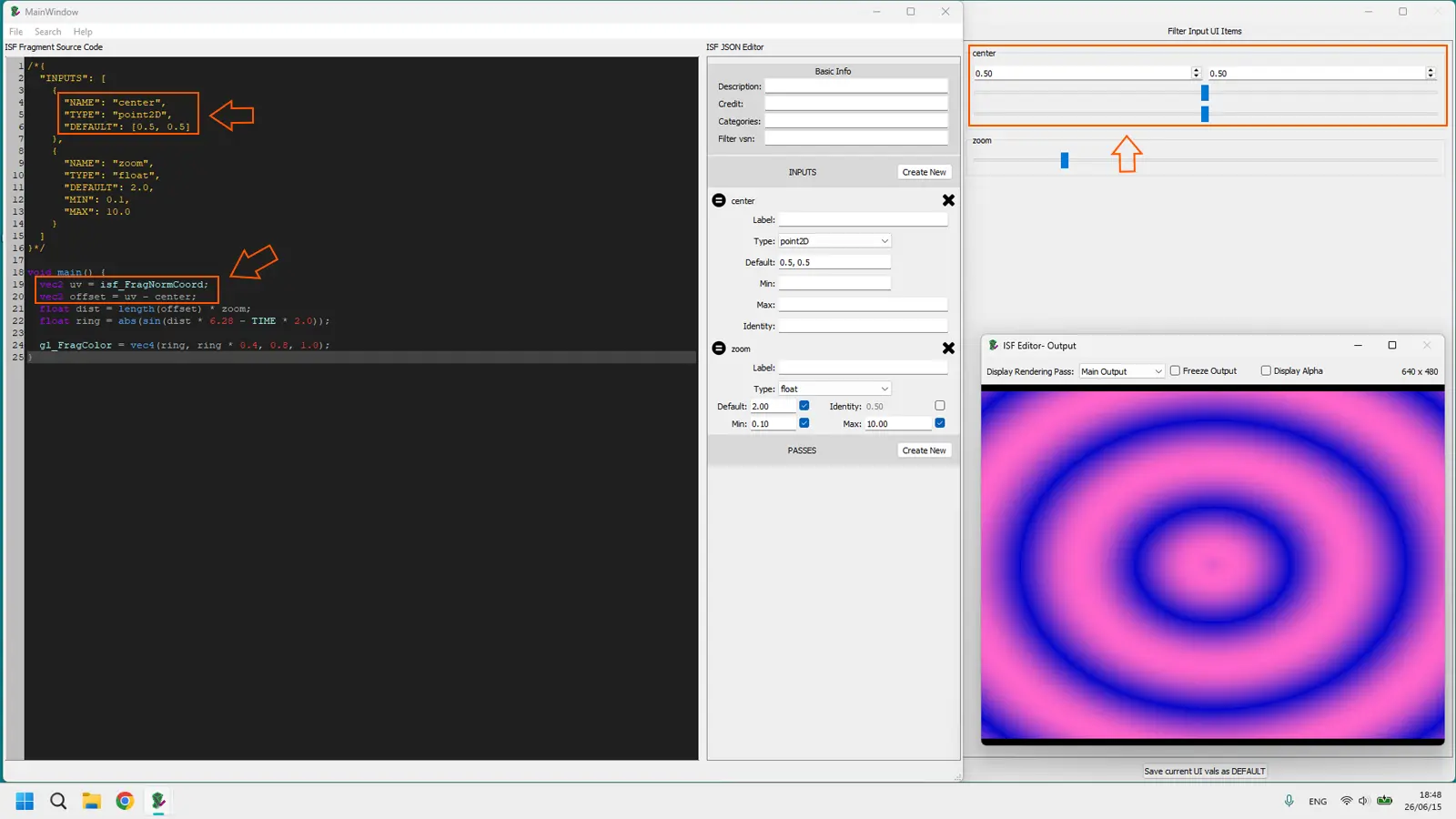
Every visual effect you build will use vec2 for coordinates. When you see code that adds distortion or shifts position, it is almost always manipulating a vec2. You can also use vec2 as a uniform input in ISF — for example, a "center point" parameter that lets the user pick an XY position where an effect is centered.
In the ISF JSON header, vec2 inputs are declared as "TYPE": "point2D". In the GLSL code, they arrive as a vec2.
/*{
  "INPUTS": [
    {
      "NAME": "center",
      "TYPE": "point2D",
      "DEFAULT": [0.5, 0.5]
    },
    {
      "NAME": "zoom",
      "TYPE": "float",
      "DEFAULT": 2.0,
      "MIN": 0.1,
      "MAX": 10.0
    }
  ]
}*/

void main() {
  vec2 uv = isf_FragNormCoord;
  vec2 offset = uv - center;
  float dist = length(offset) * zoom;
  float ring = abs(sin(dist * 6.28 - TIME * 2.0));

  gl_FragColor = vec4(ring, ring * 0.4, 0.8, 1.0);
}
vec2 swizzling: The shortcut VJs use
GLSL has a shortcut called "swizzling" that lets you access the parts of a vector using letters. For vec2, the two parts are called .x and .y. You can also use .r and .g (as if it were a color) — the GPU treats them identically.
vec2 uv = isf_FragNormCoord;

float horizontal = uv.x;
float vertical   = uv.y;

uv.x = 1.0 - uv.x;
uv = uv.yx;
That last line — uv.yx — is swizzling. It reads the Y first, then the X, and packs them into a new vec2. This is a technique you will see constantly in shaders copied from StackOverflow or Shadertoy.
Guided experiment: vec2
Try the center point example above. Drag the center point in your ISF host's playback UI and watch the ring effect follow your drag. Then try swapping uv for uv.yx in the distance calculation and observe how the visual rotates 90 degrees. You are directly manipulating coordinates with swizzling.
vec3 — Color and 3D position
vec3 holds three floats at the same time. In VJ shaders it is most commonly used for two things: RGB color values (red, green, blue — three numbers) and 3D coordinates (x, y, z — three numbers).
If you see vec3 in the middle of shader code, it is very likely a color. If you see it in a vertex shader or 3D context, it is probably a position in space. For the kind of ISF shaders VJs use most, it is almost always a color.
What vec3 means for you
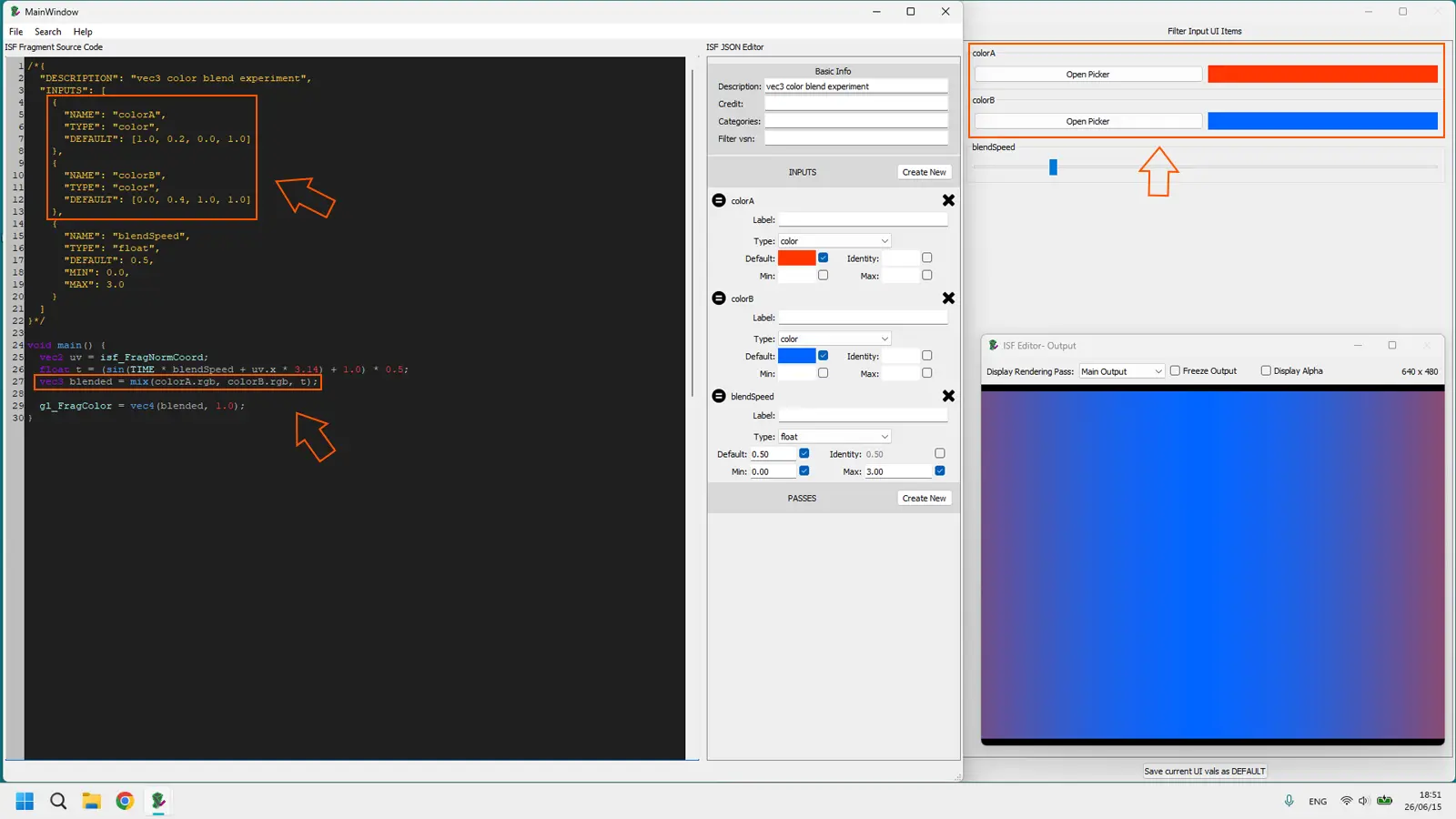
When you want to define or manipulate a color in GLSL, you work with vec3. When you see a "color" input in ISF JSON ("TYPE": "color"), it actually arrives in the shader as a vec4 (with an alpha channel), but the RGB part — the actual hue and saturation — is always three floats: red, green, blue, each ranging from 0.0 (off) to 1.0 (full).
vec3 + rgb: The color connection
GLSL lets you access the components of a vec3 using either .x .y .z or .r .g .b. Both work identically. The .r .g .b notation is preferred when you are thinking about the vector as a color, because it makes the code self-documenting.
vec3 myColor = vec3(1.0, 0.5, 0.0);

float redAmount   = myColor.r;
float greenAmount = myColor.g;
float blueAmount  = myColor.b;

vec3 shifted = vec3(myColor.g, myColor.b, myColor.r);

vec3 colorA = vec3(1.0, 0.0, 0.2);
vec3 colorB = vec3(0.0, 0.5, 1.0);
vec3 blended = mix(colorA, colorB, 0.5);
The mix() function is one of the most powerful tools in VJ shaders. It blends between two values (any type: float, vec2, vec3, vec4) based on a third value between 0.0 and 1.0. You will use it constantly for smooth color transitions.
Guided experiment: vec3
Create a shader that lets you control two colors and blend between them:
/*{
  "DESCRIPTION": "vec3 color blend experiment",
  "INPUTS": [
    {
      "NAME": "colorA",
      "TYPE": "color",
      "DEFAULT": [1.0, 0.2, 0.0, 1.0]
    },
    {
      "NAME": "colorB",
      "TYPE": "color",
      "DEFAULT": [0.0, 0.4, 1.0, 1.0]
    },
    {
      "NAME": "blendSpeed",
      "TYPE": "float",
      "DEFAULT": 0.5,
      "MIN": 0.0,
      "MAX": 3.0
    }
  ]
}*/

void main() {
  vec2 uv = isf_FragNormCoord;
  float t = (sin(TIME * blendSpeed + uv.x * 3.14) + 1.0) * 0.5;
  vec3 blended = mix(colorA.rgb, colorB.rgb, t);

  gl_FragColor = vec4(blended, 1.0);
}
Change the two colors in the Playback UI and move the blendSpeed slider. The blend oscillates between them. Notice how we used colorA.rgb to extract just the three color channels from the vec4 input. That is swizzling at work again.
vec4 — Color with transparency
vec4 holds four floats at the same time. In ISF shaders for VJs, this almost always means a color plus its transparency: red, green, blue, alpha. Alpha is the transparency channel — 0.0 means completely invisible, 1.0 means completely opaque.
You will see vec4 in every single ISF shader you ever look at, because the final output line of every fragment shader is always:
gl_FragColor = vec4(red, green, blue, alpha);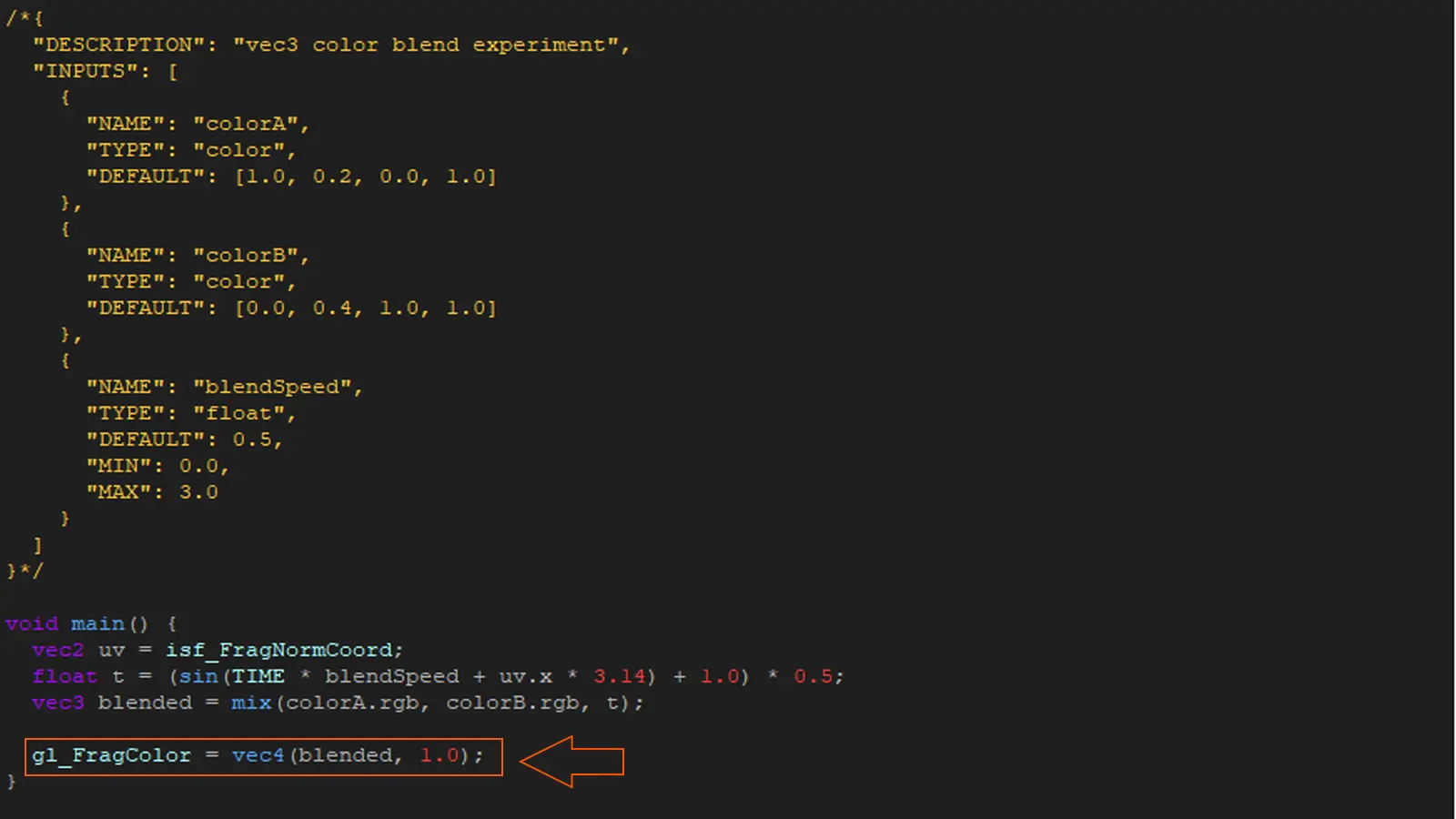
What vec4 means for you
You will use vec4 in two main ways:
First, as the final output of your shader. Every pixel you draw must end up assigned to gl_FragColor, which is a vec4. If you forget the alpha (fourth value), your shader will either fail to compile or render with unexpected transparency.
Second, as the type for color inputs in ISF. When you declare a "TYPE": "color" input in ISF JSON, the uniform inside the GLSL code is a vec4. This is why you see .rgb used to extract just the color part when you only want the three color channels.
gl_FragColor: Why it is always vec4
The GPU needs to know four things about every pixel: how much red, how much green, how much blue, and how transparent. It requires all four, always. This is why gl_FragColor is always a vec4 and not a vec3. Even if your visual is 100% opaque and you never want any transparency, you still have to write the alpha:
gl_FragColor = vec4(red, green, blue, 1.0);

vec3 myColor = vec3(0.8, 0.3, 0.5);
gl_FragColor = vec4(myColor, 1.0);

uniform vec4 userColor;
gl_FragColor = vec4(userColor.rgb, userColor.a * 0.8);
Guided experiment: vec4
Try setting alpha to something less than 1.0 and observe the transparency in ISF Editor using the Display Alpha button. Then try using vec4(myColor.rgb, 0.0) and notice the output becomes invisible. This is the alpha channel working. Knowing how to control transparency with vec4 is essential when building shaders designed to layer over other content in Resolume or VDMX.
Mixing types: The rules that save you from red screens
Now you know the six main types. The most common source of compile errors is not understanding how they can (and cannot) be mixed together. Here are the rules that matter most for VJs.
The golden rule of GLSL types
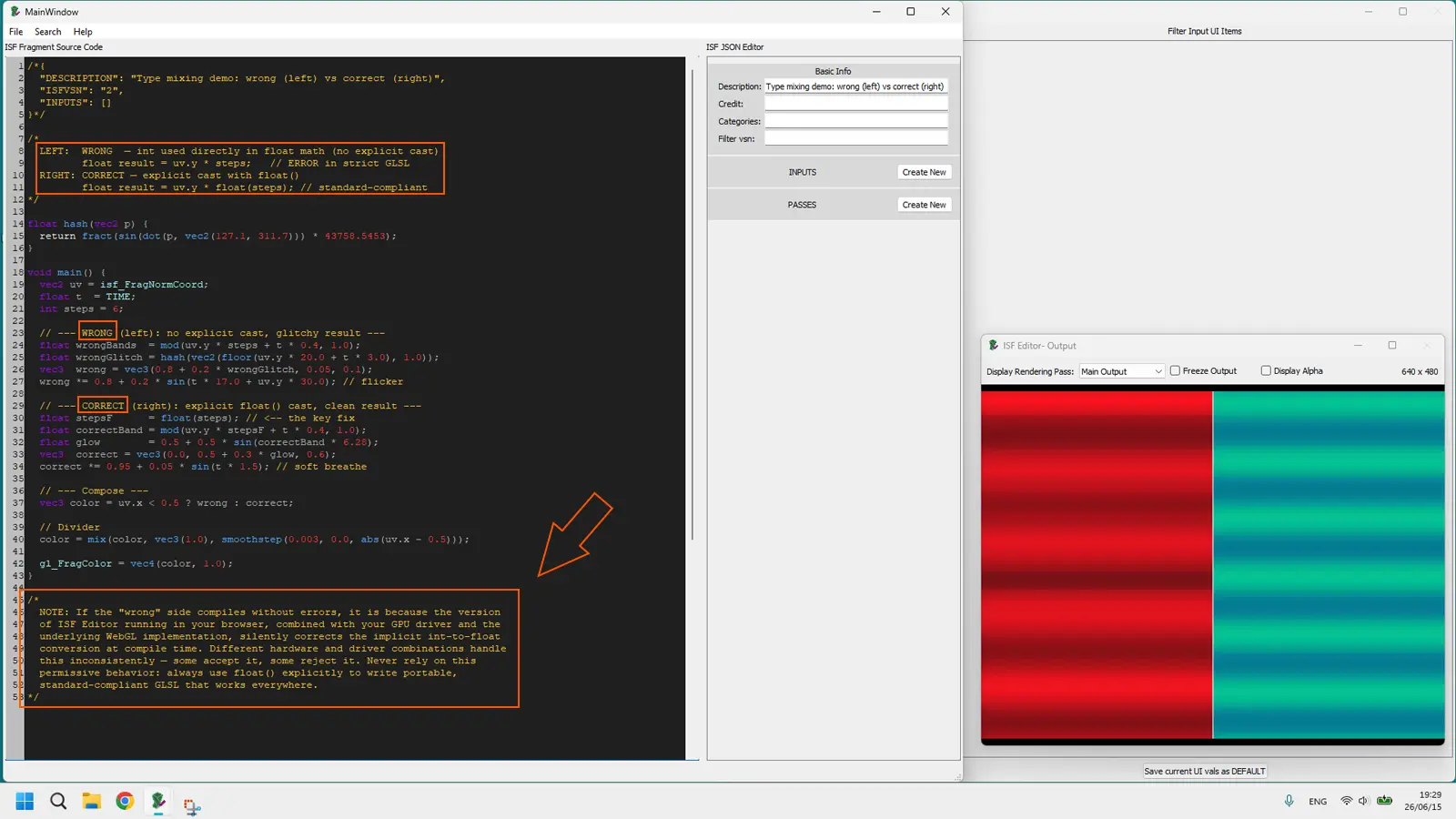
GLSL requires that both sides of any math operation are the same type. You cannot add a float and an int. You cannot multiply a vec3 by a vec4. You cannot assign a vec2 to a float variable. Every time the compiler sees mismatched types in an operation, it stops and gives you an error.
| Operation | Valid? | Why |
|---|---|---|
float + float |
Yes | Same type on both sides |
float + int |
No | Different types — convert int with float() |
vec3 * float |
Yes | Special rule: scalars can multiply vectors |
vec3 + float |
Yes | Special rule: scalar is applied to all components |
vec3 + vec4 |
No | Different size vectors — extract .rgb or .xyz first |
vec2 * vec2 |
Yes | Component-wise multiplication — both same type |
bool + float |
No | bool is not numeric — use if/else instead |
float assigned to vec2 |
No | Size mismatch — wrap as vec2(myFloat, myFloat) |
How to convert between types
GLSL gives you explicit conversion functions. These are your main tools when error messages say "wrong operand types":
int count = 5;
float fCount = float(count);

float amount = 3.9;
int iAmount = int(amount);

float slider = 0.7;
bool isActive = bool(slider);

bool toggle = true;
float asNum = float(toggle);

float brightness = 0.8;
vec3 gray = vec3(brightness);

vec4 fullColor = vec4(1.0, 0.5, 0.2, 1.0);
vec3 rgbOnly = fullColor.rgb;
StackOverflow's most common type traps for VJs
StackOverflow and Shadertoy examples are invaluable when learning shaders. But they are written for different contexts — sometimes older GLSL versions, sometimes desktop OpenGL, sometimes WebGL — and small differences in how types work across versions cause silent failures when you paste them into ISF.
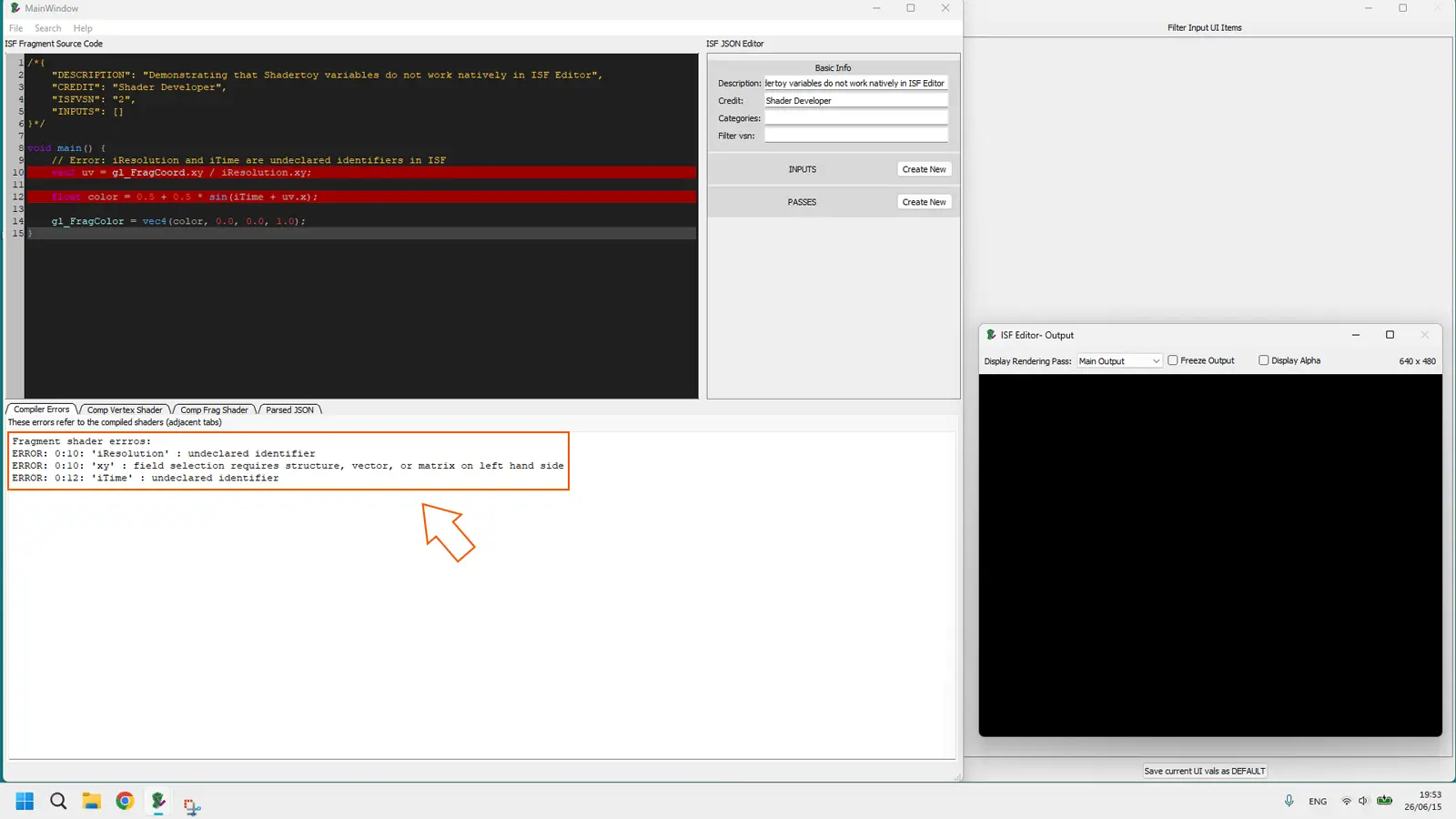
Trap 1: Integer literals in float math. Shadertoy examples frequently write sin(uv.x * 2) instead of sin(uv.x * 2.0). In strict GLSL (which ISF uses) it fails because 2 is an int and uv.x is a float. Fix: add .0 to every whole number in a float calculation.
float r = sin(uv.x * 2.0 + TIME);Trap 2: Shadertoy's iTime vs ISF's TIME. Shadertoy uses iTime and iResolution. ISF uses TIME and RENDERSIZE. When pasting from Shadertoy, do a find-and-replace: iTime → TIME, iResolution → RENDERSIZE, fragCoord → isf_FragNormCoord * RENDERSIZE.
Trap 3: Missing precision specifier. Some GLSL examples from web contexts assume precision mediump float; is declared somewhere. In ISF it usually is, but if you get unexpected errors about precision, add this line at the very top of your GLSL code, before any other code:
precision mediump float;Trap 4: vec4 color vs vec3 color confusion. Many StackOverflow examples define color as vec3 and then assign it directly to the output as gl_FragColor = myColor;. In modern GLSL, gl_FragColor is vec4, so this fails. Fix: wrap it — gl_FragColor = vec4(myColor, 1.0);
ISF JSON types vs GLSL types — The connection
One of the most confusing things for VJs first reading ISF code is that the same concept has different names in the JSON header (the metadata section) versus the GLSL code (the rendering section). This table maps them directly. For a deeper dive into the relationship between JSON and GLSL in ISF, read Chapter 7: JSON vs GLSL in ISF Shaders.
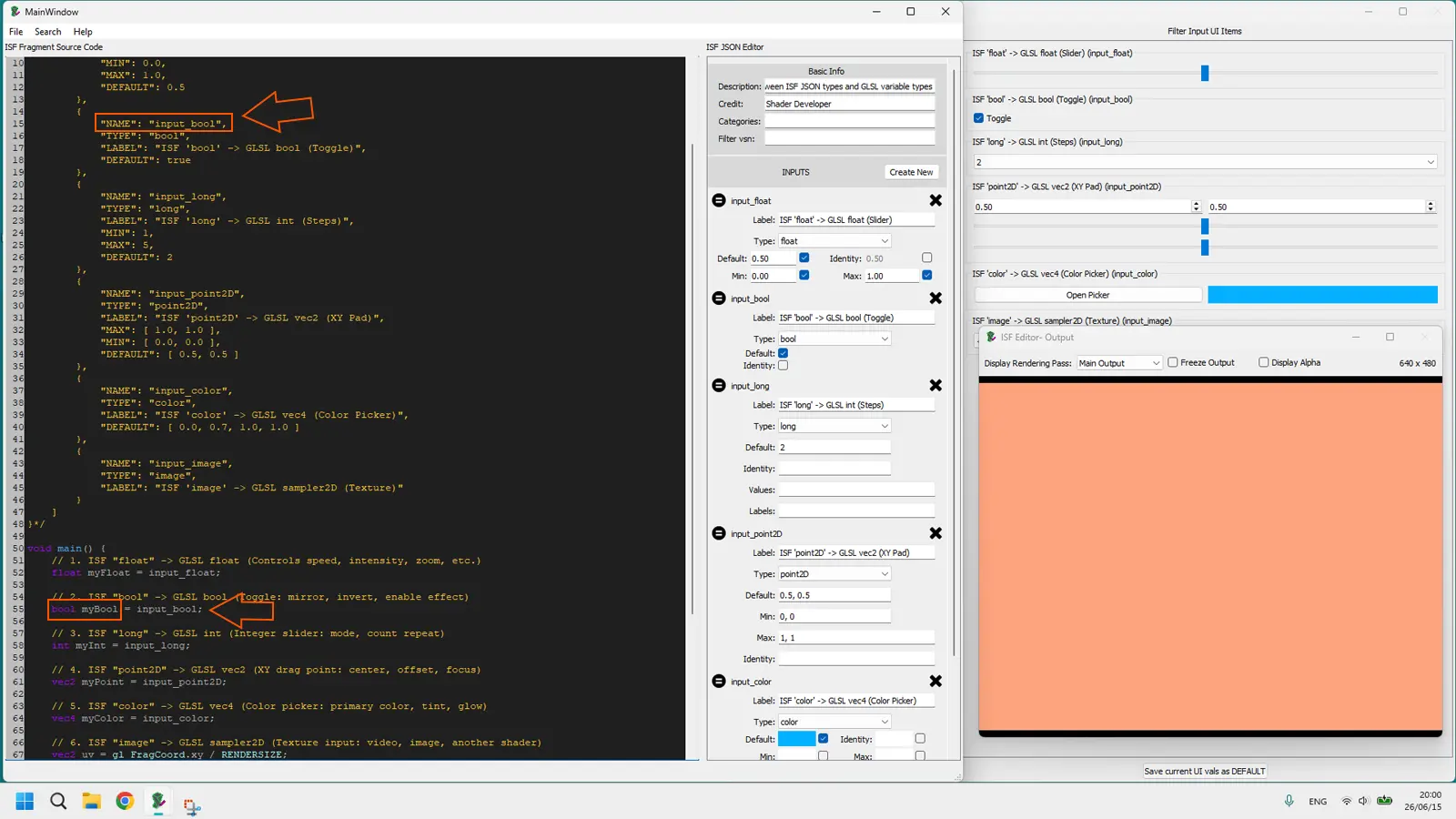
| ISF JSON "TYPE" | GLSL variable type | What it controls in your set |
|---|---|---|
"float" |
float |
Slider: speed, intensity, zoom, blur |
"bool" |
bool |
Toggle/checkbox: mirror, invert, enable effect |
"long" |
int |
Dropdown or integer slider: mode, repeat count |
"point2D" |
vec2 |
XY drag point: center, offset, focus |
"color" |
vec4 |
Color picker: primary color, tint, glow |
"image" |
sampler2D |
Texture input: video, image, another shader |
The practical implication: if you add a "TYPE": "color" input in your ISF JSON and then try to use it as a vec3 in GLSL without extracting the .rgb, you will get a type mismatch because color inputs arrive as vec4. Always use myColorInput.rgb when you need a vec3 from a color input.
Live shader preview — Data types in action
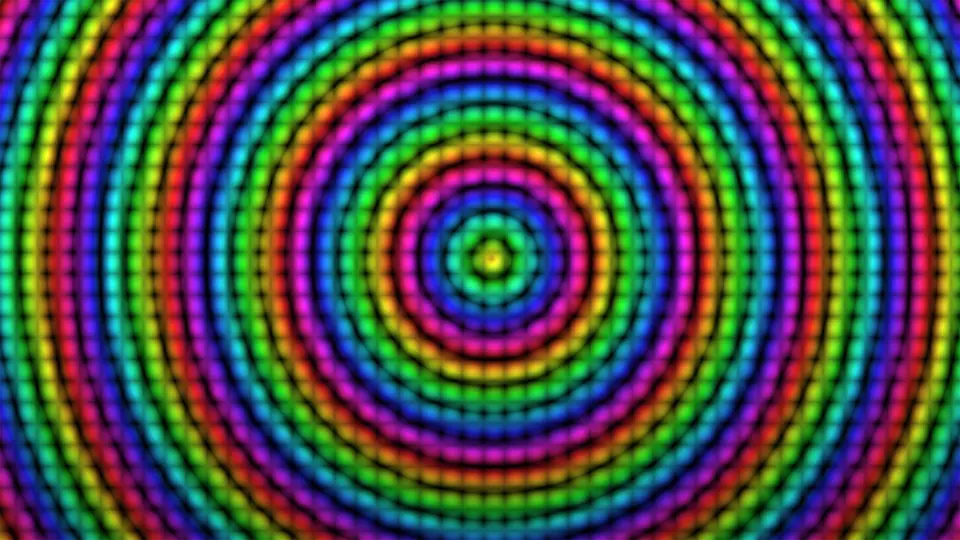
The shader below uses float, vec2, vec3, and vec4 together in one generative pattern. Three float sliders control speed, zoom, and hue shift — the same types you mapped to JSON inputs in Chapter 8, now driving the math directly inside GLSL.
float speed · float zoom · float hue — control the shader live
Every slider above is a float uniform. The visual reacts in real time because the GPU recalculates all pixels every frame using those float values. This is GLSL data types doing their job.
Play with every control and observe how each type changes a different dimension of the visual. Set speed to zero and the pattern freezes on the current frame — a deliberate performance tool. Raise zoom to tighten the rings. Drag hue shift to rotate the palette without touching GLSL.
Quick reference tables
Use these tables as a cheat sheet during your shader sessions. Screenshot them or keep this tab open when you are editing in ISF Editor.
GLSL data types at a glance
| Type | Holds | Example value | VJ use case |
|---|---|---|---|
float |
1 decimal number | 0.75 |
Speed, intensity, zoom, blur |
bool |
true or false | true |
Mirror toggle, invert switch, enable/disable |
int |
1 whole number | 4 |
Repeat count, mode selector, loop limit |
vec2 |
2 floats | vec2(0.5, 0.3) |
Screen position, UV coordinates, drag point |
vec3 |
3 floats | vec3(1.0, 0.5, 0.0) |
RGB color, 3D position |
vec4 |
4 floats | vec4(1.0, 0.5, 0.0, 1.0) |
RGBA color, gl_FragColor output |
Swizzling reference
| Type | Position notation | Color notation | Example |
|---|---|---|---|
vec2 |
.x .y |
.r .g |
uv.x, uv.yx (swap) |
vec3 |
.x .y .z |
.r .g .b |
color.rgb, color.grb (shift hue) |
vec4 |
.x .y .z .w |
.r .g .b .a |
color.rgba, color.rgb (drop alpha) |
Type error quick fix guide
| Error message contains | Most likely cause | Fix |
|---|---|---|
| "wrong operand types" | Mixing float and int | Add .0 to whole numbers, or use float(myInt) |
| "cannot convert from int to float" | Assigning int literal to float variable | Change = 1 to = 1.0 |
| "no viable conversion" with vec3/vec4 | Mismatched vector size | Use .rgb to extract 3 components from vec4 |
| Black screen, no error | gl_FragColor not assigned | Make sure your main() always assigns gl_FragColor |
| "undeclared identifier: iTime" | Shadertoy code not converted | Replace iTime with TIME |
| "undeclared identifier: iResolution" | Shadertoy code not converted | Replace iResolution with RENDERSIZE |
Frequently Asked Questions
What comes next
You now have a solid grasp of GLSL data types: what each one holds, why they cannot be mixed carelessly, and how to fix the most common compile errors that appear after tweaking or copy-pasting shader code. The next chapter — Modify ISF Shader Code (GLSL Tweaks) — Chapter 10 — goes deeper into safe edits to speed ranges, default uniforms, and hard-coded colors in downloaded .fs files, with version-control tips so you can roll back after a bad tweak.
Technical Appendix
This appendix centralizes quick references for this chapter, including cited links and chapter navigation for faster study and review.
Referenced Links
- Chapter 1
- Chapter 7
- Chapter 8
- ISF for VJs manual index
- the ISF library
- ISF Editor
- Chapter 7: JSON vs GLSL in ISF Shaders
- Shadertoy